Contents
Docs
General
- Introduction
- Android Enterprise build tracker
- Android versions matrix
- What is Android Enterprise?
- Android Enterprise feature requests
- Considerations when migrating from device administrator to Android Enterprise
- Upgrading your Android Enterprise binding to a managed Google domain
- What is Android Enterprise Recommended?
- How to migrate Android devices from one EMM to another
- Android Enterprise FAQ
- Android Enterprise device testing
- New in Android 16 for enterprise
- New in Android 17 for enterprise
- What is Private Space in Android 15, and how can organisations manage it?
- Why don't all Android devices come with GMS?
- What is Android One?
- What are managed configurations?
- Android Enterprise vs Device Admin: Why DA is no longer suitable
- Considerations for choosing Android in the Enterprise
- Feature spotlight: Android Smartlock
- Android glossary
- Android version evolution graphics
- Infobyte: Device Admin deprecation
- How to submit a device for Android Enterprise Recommended validation
- How to view software version information
- How to capture a bug report and device logs
- Gartner comparison of security controls for mobile devices 2019
Provisioning
- How to become a zero-touch enrolment reseller
- Android Enterprise provisioning methods
- What is Android zero-touch enrolment?
- Android Enterprise zero-touch console administration guide
- Android Enterprise DPC identifier collection
- Android Enterprise provisioning guides
- Android Enterprise zero-touch DPC extras collection
- Infobyte: Android Enterprise deployment scenarios
- Infobyte: Android Enterprise fully managed provisioning methods
- Manual Android Enterprise work-managed QR code generation for MobileIron
Work profile
Fully managed
App management
- Set up Hypergate's Kerberos Authentication on MobileIron Core for Android Enterprise
- Managed Google Play, allowlist or blocklist?
- Considerations when deploying MTD with Android Enterprise
- Why you shouldn't install apps from unknown sources
- Create and manage private apps for Android Enterprise
- What is OEMConfig?
- Create and manage web apps for Android Enterprise
- Using Google Play application tracks with EMM
- How to locate a private Android app assigned to an organisation ID
- How to host enterprise apps outside of Google Play
- The Google Play iFrame app approval flow is deprecated
- Android 13 adds notifications access as a runtime permission
- Android 13 & up restricts permissions when apps are sideloaded
- Android 14 blocks apps targeting old Android versions
- Android minimum target SDK matrix
- Android system app database
- How to resolve common Android app install failures, by error message
FAQ
- Is Android Enterprise supported on uncertified (non-GMS) devices?
- Can apps be sideloaded into the Private Space?
- Is Private Space supported on fully managed devices?
- Why don't Private Space apps go through VPN?
- How can apps be managed in the Private Space?
- Are Private Space apps visible to enterprise admins?
- Are Private Space applications truly hidden?
- Does Samsung support Android Enterprise?
- Is it possible to manage personal applications on a work profile device?
- Why has USB data access been disabled suddenly?
- What versions of Android support Android Enterprise?
- How to check if an Android device is GMS/Play Protect certified?
- Is it possible to manage eSIM?
- Can I manage APNs through AMAPI?
- Why is my organisation name showing on managed devices?
- Can I route specific apps through 5G network slicing?
- To use Android Enterprise do I need to buy Google Workspace (G Suite) and register my domain?
- What is a managed Google domain, and should I upgrade?
- Is Android Enterprise supported on XR headsets?
- What devices should I buy for my organisation?
- What is the difference between GMS and EDLA certification for enterprise?
- How do Samsung Knox and Android Enterprise policies interact?
- If Android Enterprise is supported from Lollipop, why is Marshmallow often mentioned instead?
- What’s the difference between Device Admin and Android Enterprise?
- What is the Android Enterprise bind?
- Can I change the account I used to bind Android Enterprise?
- Is it possible to bind Android Enterprise with multiple EMMs using one account?
- How do I remove the Android Enterprise bind from my current EMM?
- How do I choose an EMM for Android Enterprise?
- What network requirements does Android Enterprise have?
- What is Android Enterprise Recommended?
- My AER device doesn’t work properly with Android Enterprise, what should I do?
- What is Advanced Protection, and can it be managed?
- Is Android One better than AER? (Or the other way around?)
- How do I configure Google Workspace domains for provisioning?
- What’s the best provisioning method?
- What’s the difference between allow adding accounts vs allow configure credentials?
- Is it possible to utilise multiple VPN connections within a profile?
- Is it possible to utilise a single VPN connection across the entire device?
- Does Android support Kerberos natively?
- What’s the difference between device based accounts and user based accounts?
- How do I manage the new notifications runtime permission in Android 13?
- Can organisations see applications outside of the work profile?
- What can my employer see on my personal device with a work profile?
- What happens to my data when the work profile is removed?
- What is the difference between MAM and work profiles for BYOD?
- Can organisations deploy applications to the parent profile in a work profile deployment?
- Why does the work profile drain my battery?
- Why are my work profile notifications delayed or missing?
- Is it possible to migrate from DA to AE work profile without a re-enrol?
- Can I turn off my work profile?
- What is a work challenge?
- Enrolment failed but the work profile was created. How do I remove it?
- Why can’t I install or uninstall apps on my managed device?
- How can I provision a fully managed device?
- Is it possible to “retire” (or enterprise wipe) a fully managed device?
- What is RCS archival, and which devices support it?
- Devices factory reset as soon as they’re enrolled, why?
- Is Factory Reset Protection enabled on fully managed devices?
- What is the difference between FRP and Enterprise FRP?
- Is it possible to migrate fully managed devices between EMM solutions?
- How has COPE changed in Android 11?
- Does Intune support COPE?
- Can organisations see applications outside of the work profile on a COPE device?
- Does Android Enterprise support Wear OS?
- Can organisations deploy applications to the parent profile in a COPE deployment?
- Is it possible to migrate from fully managed to COPE without a factory reset?
- How should system applications be handled on a COPE device?
- What OEMs currently support zero-touch?
- Where are zero-touch resellers located?
- Does zero-touch cost anything?
- Does Android Auto work on fully managed devices?
- Is an EMM still required with zero-touch?
- What is the content protection policy in AMAPI?
- What happens if a fully set up device is added to the zero-touch console?
- What happens if a user starts setting up a device before the zero-touch config is applied?
- What happens if a zero-touch config is removed from an enrolled device?
- My AMAPI project returns a usage limit error, why?
- Can I add/remove users on a fully managed device?
- What happens if a new config for a different EMM or server is applied to an enrolled device?
- How can I access a Wi-Fi captive portal when devices are in Kiosk?
- What happens if a zero-touch assigned device is reset?
- What is Device Trust from Android Enterprise?
- Why does zero-touch or KME not trigger after a factory reset on Android 15+?
- What happens if a device is unregistered from the zero-touch console?
- What enterprise features are new in Android 16?
- What is Identity Check on Android?
- Can a device be OTA managed from the zero-touch console?
- What happens when a managed device receives a major Android update?
- Can I migrate devices from a custom DPC to AMAPI?
- What enterprise features are new in Android 17?
- Avoiding configuration issues in Google Workspace with GEM & 3rd party EMM
- What is the difference between AMAPI and a custom DPC?
- Can I pin a specific OS or app version on managed devices?
- Does enrolling via zero-touch slow down or cause any delay to the setup process while it’s retrieving the zero-touch config?
- What happens if my Android Enterprise bind account is disabled or deleted?
- What is the AMAPI MCP server?
- How do I manage runtime permissions on managed Android devices?
- How do I restrict screenshots and screen recording on managed Android devices?
- Can I manage Private DNS settings through AMAPI?
- What deployment scenario will a zero-touch device enrol under?
- Why does zero-touch require so much touching?
- Can I set Device Owner without a factory reset?
- Can anyone add a device to the zero-touch console?
- Is it possible for an organisation to add previously-purchased devices to zero-touch?
- Can a MADA device be converted to EDLA?
- Can anyone remove a device from the zero-touch console?
- Does Samsung support zero-touch?
- Is it possible to set a zero-touch default configuration?
- Is it possible to bulk update zero-touch devices?
- Is it possible to change zero-touch resellers?
- Are all zero-touch devices Android Enterprise Recommended?
- What are DPC extras?
- What should I put in DPC extras?
- How do I set up zero-touch enrollment when my device reseller is not a zero-touch partner?
- What happens if a device is uploaded to zero-touch with the wrong manufacturer?
- The device registered with zero-touch, but doesn’t launch during setup, why?
- Does Android Go support zero-touch?
- Why are my zero-touch devices randomly factory resetting?
- Are employee-owned devices eligible for zero-touch?
- How do I turn off Google Play app collections?
- What’s the recommended way of managing private (in-house) applications?
- Is it possible to deploy app shortcuts to the homescreen of an Android Enterprise device?
- What are AMAPI application roles?
- Is it possible to backup & restore device data on a fully managed device?
- What is Lost Mode on Android Enterprise?
- The Google Play iFrame is missing a feature in my UEM. How do I enable it?
- How do I configure allowlist/blocklist domains for Google Chrome?
- Does Picture-in-Picture work in kiosk (lock task) mode?
- How to configure Chrome managed bookmarks
- Why does Samsung Smart Switch not work on fully managed devices?
- Play Protect blocked my DPC, why?
- Can Google Play Protect remove apps from managed devices without admin approval?
- What is enhanced fraud protection, and can it block enterprise apps?
- Has Play Protect changed how it handles sideloaded apps on managed devices?
- What is Google Play developer verification, and how does it affect enterprise?
- What do Google Play's target API level requirements mean for enterprise?
- Does AMAPI support direct APK installation?
- Why can't I find apps in managed Google Play after approving them?
- Are Google Play System Updates managed by Android Enterprise system update policies?
- What enterprise features are new in Android 15?
- Can I purchase paid apps through managed Google Play?
- Can I control default applications through AMAPI?
- Why is my kiosk app UI broken after updating to Android 15?
- Why are managed Google Play apps stuck on pending?
- Why is work profile enrolment failing?
- How do app updates work in managed Google Play?
- Why don't managed configurations work with app tracks?
- How do I prevent users from escaping kiosk (lock task) mode?
- How do I manage credential providers and passkeys on managed devices?
- How does conditional access work with Android Enterprise?
- How does cross-profile data sharing work in a work profile?
- What are the AMAPI device quota limits?
- What is the key attestation root certificate change in 2026?
- Can I rename my managed Google Play organisation?
- How do I manage generative AI apps and features on managed devices?
- What is the difference between password quality and password complexity?
- What is Strong Integrity, and why are my Android 13+ devices failing compliance?
What is Android zero-touch enrolment?
Contents
New to Android Enterprise?
#For an introduction to Android Enterprise, including the deployment scenarios referenced below and how they benefit organisations, see What is Android Enterprise and why is it used?.
For a comparison of zero-touch with QR codes, Knox Mobile Enrolment, DPC identifiers and other setup options, see Android Enterprise provisioning methods.
What is zero-touch enrolment?
#Zero-touch enrolment is Android's automated provisioning service for company-owned devices.
It allows an organisation to purchase eligible Android devices, have them registered by an authorised reseller before delivery, and send them directly to end-users. When a registered device is first switched on and connected to the internet, it retrieves the organisation's assigned configuration and begins enrolment into the selected EMM platform.
There is no need for IT to open each box, scan a QR code, manually download an EMM agent, or type an enrolment token onto every device.
If you are familiar with Apple Business Manager and Automated Device Enrolment, or Samsung Knox Mobile Enrolment, the overall concept will be familiar.
Zero-touch is available on all GMS-certified devices running Android 9.0 or above, compatible devices running Android 8.0 where the OEM implemented support, and Google Pixel devices from Android 7.1.
What does zero-touch do?
#Zero-touch connects the Android setup wizard to an organisation's chosen EMM.
It provides the device with enough information to:
- Identify the management application to install
- Locate the intended EMM environment
- Supply an enrolment or sign-in token where required
- Display the organisation's name and support information
- Begin the appropriate company-owned provisioning flow
After enrolment, ongoing device management is handled by the EMM. Policies, applications, certificates, compliance rules, operating-system controls and device commands do not come from the zero-touch portal.
Zero-touch is therefore not an EMM and does not replace one, rather it simply directs a new or factory-reset device into one.
For more information, see Is an EMM still required with zero-touch?.
What is required?
#Before an organisation can use zero-touch enrolment, it needs:
- An eligible GMS-certified Android device
- An authorised zero-touch reseller
- A zero-touch customer account
- A supported EMM configured for Android Enterprise
- A company-owned enrolment profile, token or sign-in configuration from the EMM
- Internet connectivity during device setup
The reseller is responsible for creating the customer account when required and registering purchased devices against it.
Organisations cannot normally take arbitrary devices bought through consumer retail and enter their IMEI or serial number into the customer portal themselves. If zero-touch is a requirement, confirm device and reseller eligibility before placing the order, particularly before purchasing devices in bulk.
For existing stock, see Is it possible to add previously purchased devices to zero-touch?.
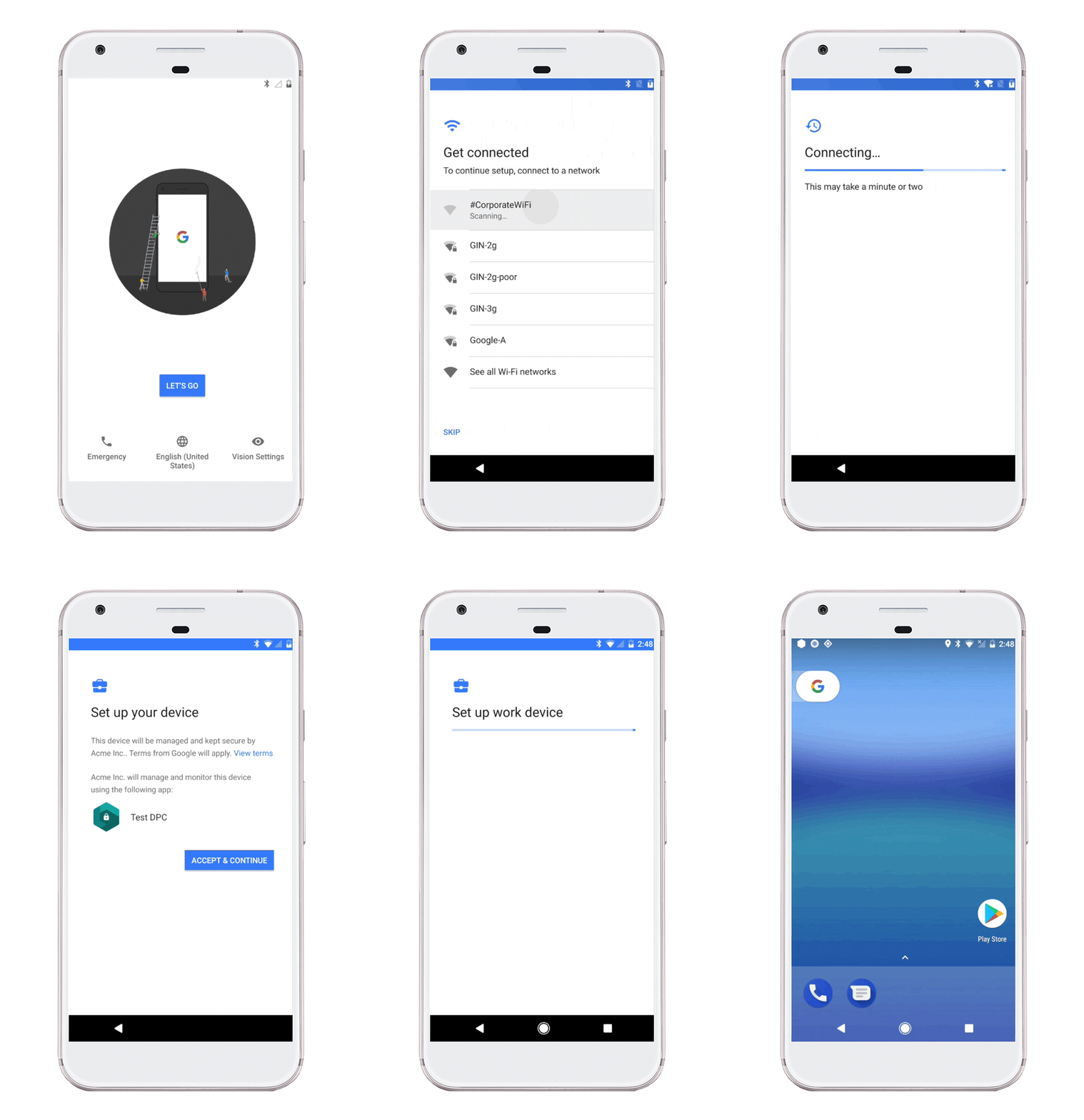
How zero-touch enrolment works
#
1. Prepare Android Enterprise in the EMM
#The organisation first enables Android Enterprise in its chosen EMM and prepares the intended company-owned enrolment configuration.
This is where the organisation decides whether devices will be fully managed, dedicated, or company-owned with a work profile. The EMM may also allow an initial policy, device group, organisational location, user identity, Wi-Fi configuration and provisioning options to be associated with the enrolment.
For most organisations, this work should be completed and tested before devices are ordered.
2. Purchase devices through an authorised reseller
#The organisation purchases eligible devices from a reseller participating in Google's zero-touch programme.
If the organisation does not already have a zero-touch customer account, the reseller creates one and invites the nominated administrator. If an account already exists, the organisation should provide the reseller with the appropriate zero-touch customer ID so the new devices are added to the correct account.
The reseller then registers the purchased devices using their hardware identifiers.
The organisation should use a company-controlled Google account for zero-touch administration. Google Workspace, Cloud Identity, or another Google account created for business use is preferable to an employee's personal Gmail account.
For MSP deployments, the customer should normally retain ownership of its zero-touch account, with the MSP granted an appropriate administrative role. This avoids an awkward ownership problem if the commercial relationship later ends.
3. Connect zero-touch to the EMM
#There are two common approaches.
Link through the EMM
#Many modern EMMs provide a zero-touch integration directly within their administration console. The organisation signs in to Google, selects its zero-touch customer account and links it to an EMM enrolment configuration.
Where this integration is available, the EMM supplies the management application and provisioning information and may automatically provide an Enterprise default profile for newly registered devices.
Configure through the zero-touch portal
#Alternatively, the organisation can create a configuration manually in the zero-touch customer portal.
A configuration normally contains:
- A descriptive configuration name
- The EMM device policy controller, or DPC
- DPC extras containing the EMM-generated provisioning information
- The organisation's name
- A support email address and telephone number
- An optional message displayed during setup
For EMMs based on the Android Management API, the DPC is Android Device Policy. The provisioning extras normally contain an enrolment token or sign-in token generated by the EMM.
Established EMMs using their own custom DPC may instead require a vendor-specific management application, server details and other DPC extras. The EMM vendor should provide the supported configuration rather than expecting the organisation to construct it from guesswork.
For examples and additional explanation, see Android Enterprise zero-touch DPC extras collection.
4. Assign the configuration
#A zero-touch configuration can be:
- Assigned to an individual device
- Assigned to multiple existing devices
- Selected as the default for devices added by resellers in future
- Supplied automatically through an EMM-linked Enterprise default profile
Setting a default configuration avoids the need to sign in and manually assign every new device order.
Be mindful that a manually selected default normally applies to devices added after the default is set. Devices already present in the portal may need to be assigned individually, in bulk, or through the zero-touch API.
If the zero-touch account is linked directly with an EMM, Google's Enterprise default profile can take precedence over a manually selected portal default.
For the complete administrative process, see Android Enterprise zero-touch console administration guide.
5. The end-user switches on the device
#When the device is switched on for the first time, or following a factory reset, it connects to Google and checks whether a zero-touch configuration has been assigned.
If a configuration is present, the device:
- Displays that it belongs to an organisation
- Shows the organisation's support information
- Downloads Android Device Policy or the EMM's supported DPC
- Passes the provisioning information to the management application
- Starts the selected Android Enterprise enrolment flow
- Applies the initial EMM policy and applications
The device cannot simply skip the assigned management flow while the zero-touch configuration remains active.
6. The EMM takes over management
#Once enrolment is complete, the device appears in the EMM and receives its assigned policies, applications and configurations.
Zero-touch has completed its main job at this point. Administrators return to the zero-touch portal mainly when:
- Purchasing and assigning more devices
- Changing the default configuration
- Moving devices to another EMM configuration
- Managing zero-touch users or resellers
- Reviewing audit logs
- Removing devices that are being sold or transferred
Is zero-touch really zero-touch?
#Not quite, at least not for the person receiving the device.
The name refers primarily to the fact that IT does not need to physically stage every handset. The end-user will normally still need to:
- Switch on the device
- Select a language or region
- Connect to a network
- Accept setup information
- Authenticate with a work identity where required
- Complete any EMM-defined setup actions
The exact experience depends on the Android version, OEM setup wizard, EMM and selected deployment scenario.
It is still considerably less error-prone than asking an end-user to locate the correct EMM application, type a server address, scan an enrolment code and select the correct management mode themselves.
What happens after a factory reset?
#If the device remains registered and configured in zero-touch, a factory reset returns it to the setup wizard and triggers the assigned enrolment again.
This persistence is one of the major differences between zero-touch and a one-off QR code or DPC identifier enrolment. Resetting the device does not remove it from the zero-touch customer account.
See What happens if a zero-touch assigned device is reset? for more detail.
Removing and transferring devices
#Before a device is sold, returned, donated or transferred to another organisation, it should be:
- Backed up if data retention matters
- Retired or removed from the existing EMM
- Deregistered from the zero-touch customer account
Deregistering is not the same as temporarily removing a configuration. Once a device is deregistered, the organisation will normally need to contact an authorised reseller if it needs to be registered again.
This is worth including in the organisation's normal asset-disposal process. Nobody wants a former employee, purchaser or recycling company greeted by the previous organisation's enrolment screen.
What if zero-touch is unavailable?
#Zero-touch is the preferred option for scalable company-owned Android deployments, but it is not the only provisioning method.
Alternatives include:
- QR code provisioning for new or factory-reset devices
- Samsung Knox Mobile Enrolment for supported Samsung devices
- DPC identifier provisioning, such as
afw#setup - NFC provisioning for supported scenarios and devices
- Sign-in URL provisioning where supported by the EMM
QR code provisioning is generally the most practical fallback. DPC identifier provisioning works when required, but offers fewer initial provisioning options and involves more manual input.
See Android Enterprise provisioning methods for a complete comparison.
Common zero-touch problems
#If zero-touch does not start, check:
- The device is registered in the correct zero-touch customer account
- The reseller supplied the correct device identifiers
- A configuration or Enterprise default profile is assigned
- The EMM enrolment token or sign-in configuration remains valid
- The device has working internet access
- Required Google endpoints are not blocked
- The device has been returned to a factory-reset state
- Samsung Knox Mobile Enrolment is not taking precedence on a device registered in both services
For troubleshooting and less common lifecycle questions, see the Android Enterprise zero-touch FAQ.
Historical demonstration
#The video below shows a new Sony Xperia XZ1 using zero-touch to enrol into MobileIron Core.
It is a historical custom-DPC example, so the EMM branding and parts of the setup experience differ from modern Android Device Policy deployments. The underlying flow remains recognisable: the device checks its zero-touch assignment, downloads the management application and enrols without IT manually staging it.
The process shown in the video is also documented in the original zero-touch provisioning guide.
Further reading
#Docs
General
- Introduction
- Android Enterprise build tracker
- Android versions matrix
- What is Android Enterprise?
- Android Enterprise feature requests
- Considerations when migrating from device administrator to Android Enterprise
- Upgrading your Android Enterprise binding to a managed Google domain
- What is Android Enterprise Recommended?
- How to migrate Android devices from one EMM to another
- Android Enterprise FAQ
- Android Enterprise device testing
- New in Android 16 for enterprise
- New in Android 17 for enterprise
- What is Private Space in Android 15, and how can organisations manage it?
- Why don't all Android devices come with GMS?
- What is Android One?
- What are managed configurations?
- Android Enterprise vs Device Admin: Why DA is no longer suitable
- Considerations for choosing Android in the Enterprise
- Feature spotlight: Android Smartlock
- Android glossary
- Android version evolution graphics
- Infobyte: Device Admin deprecation
- How to submit a device for Android Enterprise Recommended validation
- How to view software version information
- How to capture a bug report and device logs
- Gartner comparison of security controls for mobile devices 2019
Provisioning
- How to become a zero-touch enrolment reseller
- Android Enterprise provisioning methods
- What is Android zero-touch enrolment?
- Android Enterprise zero-touch console administration guide
- Android Enterprise DPC identifier collection
- Android Enterprise provisioning guides
- Android Enterprise zero-touch DPC extras collection
- Infobyte: Android Enterprise deployment scenarios
- Infobyte: Android Enterprise fully managed provisioning methods
- Manual Android Enterprise work-managed QR code generation for MobileIron
Work profile
Fully managed
App management
- Set up Hypergate's Kerberos Authentication on MobileIron Core for Android Enterprise
- Managed Google Play, allowlist or blocklist?
- Considerations when deploying MTD with Android Enterprise
- Why you shouldn't install apps from unknown sources
- Create and manage private apps for Android Enterprise
- What is OEMConfig?
- Create and manage web apps for Android Enterprise
- Using Google Play application tracks with EMM
- How to locate a private Android app assigned to an organisation ID
- How to host enterprise apps outside of Google Play
- The Google Play iFrame app approval flow is deprecated
- Android 13 adds notifications access as a runtime permission
- Android 13 & up restricts permissions when apps are sideloaded
- Android 14 blocks apps targeting old Android versions
- Android minimum target SDK matrix
- Android system app database
- How to resolve common Android app install failures, by error message
FAQ
- Is Android Enterprise supported on uncertified (non-GMS) devices?
- Can apps be sideloaded into the Private Space?
- Is Private Space supported on fully managed devices?
- Why don't Private Space apps go through VPN?
- How can apps be managed in the Private Space?
- Are Private Space apps visible to enterprise admins?
- Are Private Space applications truly hidden?
- Does Samsung support Android Enterprise?
- Is it possible to manage personal applications on a work profile device?
- Why has USB data access been disabled suddenly?
- What versions of Android support Android Enterprise?
- How to check if an Android device is GMS/Play Protect certified?
- Is it possible to manage eSIM?
- Can I manage APNs through AMAPI?
- Why is my organisation name showing on managed devices?
- Can I route specific apps through 5G network slicing?
- To use Android Enterprise do I need to buy Google Workspace (G Suite) and register my domain?
- What is a managed Google domain, and should I upgrade?
- Is Android Enterprise supported on XR headsets?
- What devices should I buy for my organisation?
- What is the difference between GMS and EDLA certification for enterprise?
- How do Samsung Knox and Android Enterprise policies interact?
- If Android Enterprise is supported from Lollipop, why is Marshmallow often mentioned instead?
- What’s the difference between Device Admin and Android Enterprise?
- What is the Android Enterprise bind?
- Can I change the account I used to bind Android Enterprise?
- Is it possible to bind Android Enterprise with multiple EMMs using one account?
- How do I remove the Android Enterprise bind from my current EMM?
- How do I choose an EMM for Android Enterprise?
- What network requirements does Android Enterprise have?
- What is Android Enterprise Recommended?
- My AER device doesn’t work properly with Android Enterprise, what should I do?
- What is Advanced Protection, and can it be managed?
- Is Android One better than AER? (Or the other way around?)
- How do I configure Google Workspace domains for provisioning?
- What’s the best provisioning method?
- What’s the difference between allow adding accounts vs allow configure credentials?
- Is it possible to utilise multiple VPN connections within a profile?
- Is it possible to utilise a single VPN connection across the entire device?
- Does Android support Kerberos natively?
- What’s the difference between device based accounts and user based accounts?
- How do I manage the new notifications runtime permission in Android 13?
- Can organisations see applications outside of the work profile?
- What can my employer see on my personal device with a work profile?
- What happens to my data when the work profile is removed?
- What is the difference between MAM and work profiles for BYOD?
- Can organisations deploy applications to the parent profile in a work profile deployment?
- Why does the work profile drain my battery?
- Why are my work profile notifications delayed or missing?
- Is it possible to migrate from DA to AE work profile without a re-enrol?
- Can I turn off my work profile?
- What is a work challenge?
- Enrolment failed but the work profile was created. How do I remove it?
- Why can’t I install or uninstall apps on my managed device?
- How can I provision a fully managed device?
- Is it possible to “retire” (or enterprise wipe) a fully managed device?
- What is RCS archival, and which devices support it?
- Devices factory reset as soon as they’re enrolled, why?
- Is Factory Reset Protection enabled on fully managed devices?
- What is the difference between FRP and Enterprise FRP?
- Is it possible to migrate fully managed devices between EMM solutions?
- How has COPE changed in Android 11?
- Does Intune support COPE?
- Can organisations see applications outside of the work profile on a COPE device?
- Does Android Enterprise support Wear OS?
- Can organisations deploy applications to the parent profile in a COPE deployment?
- Is it possible to migrate from fully managed to COPE without a factory reset?
- How should system applications be handled on a COPE device?
- What OEMs currently support zero-touch?
- Where are zero-touch resellers located?
- Does zero-touch cost anything?
- Does Android Auto work on fully managed devices?
- Is an EMM still required with zero-touch?
- What is the content protection policy in AMAPI?
- What happens if a fully set up device is added to the zero-touch console?
- What happens if a user starts setting up a device before the zero-touch config is applied?
- What happens if a zero-touch config is removed from an enrolled device?
- My AMAPI project returns a usage limit error, why?
- Can I add/remove users on a fully managed device?
- What happens if a new config for a different EMM or server is applied to an enrolled device?
- How can I access a Wi-Fi captive portal when devices are in Kiosk?
- What happens if a zero-touch assigned device is reset?
- What is Device Trust from Android Enterprise?
- Why does zero-touch or KME not trigger after a factory reset on Android 15+?
- What happens if a device is unregistered from the zero-touch console?
- What enterprise features are new in Android 16?
- What is Identity Check on Android?
- Can a device be OTA managed from the zero-touch console?
- What happens when a managed device receives a major Android update?
- Can I migrate devices from a custom DPC to AMAPI?
- What enterprise features are new in Android 17?
- Avoiding configuration issues in Google Workspace with GEM & 3rd party EMM
- What is the difference between AMAPI and a custom DPC?
- Can I pin a specific OS or app version on managed devices?
- Does enrolling via zero-touch slow down or cause any delay to the setup process while it’s retrieving the zero-touch config?
- What happens if my Android Enterprise bind account is disabled or deleted?
- What is the AMAPI MCP server?
- How do I manage runtime permissions on managed Android devices?
- How do I restrict screenshots and screen recording on managed Android devices?
- Can I manage Private DNS settings through AMAPI?
- What deployment scenario will a zero-touch device enrol under?
- Why does zero-touch require so much touching?
- Can I set Device Owner without a factory reset?
- Can anyone add a device to the zero-touch console?
- Is it possible for an organisation to add previously-purchased devices to zero-touch?
- Can a MADA device be converted to EDLA?
- Can anyone remove a device from the zero-touch console?
- Does Samsung support zero-touch?
- Is it possible to set a zero-touch default configuration?
- Is it possible to bulk update zero-touch devices?
- Is it possible to change zero-touch resellers?
- Are all zero-touch devices Android Enterprise Recommended?
- What are DPC extras?
- What should I put in DPC extras?
- How do I set up zero-touch enrollment when my device reseller is not a zero-touch partner?
- What happens if a device is uploaded to zero-touch with the wrong manufacturer?
- The device registered with zero-touch, but doesn’t launch during setup, why?
- Does Android Go support zero-touch?
- Why are my zero-touch devices randomly factory resetting?
- Are employee-owned devices eligible for zero-touch?
- How do I turn off Google Play app collections?
- What’s the recommended way of managing private (in-house) applications?
- Is it possible to deploy app shortcuts to the homescreen of an Android Enterprise device?
- What are AMAPI application roles?
- Is it possible to backup & restore device data on a fully managed device?
- What is Lost Mode on Android Enterprise?
- The Google Play iFrame is missing a feature in my UEM. How do I enable it?
- How do I configure allowlist/blocklist domains for Google Chrome?
- Does Picture-in-Picture work in kiosk (lock task) mode?
- How to configure Chrome managed bookmarks
- Why does Samsung Smart Switch not work on fully managed devices?
- Play Protect blocked my DPC, why?
- Can Google Play Protect remove apps from managed devices without admin approval?
- What is enhanced fraud protection, and can it block enterprise apps?
- Has Play Protect changed how it handles sideloaded apps on managed devices?
- What is Google Play developer verification, and how does it affect enterprise?
- What do Google Play's target API level requirements mean for enterprise?
- Does AMAPI support direct APK installation?
- Why can't I find apps in managed Google Play after approving them?
- Are Google Play System Updates managed by Android Enterprise system update policies?
- What enterprise features are new in Android 15?
- Can I purchase paid apps through managed Google Play?
- Can I control default applications through AMAPI?
- Why is my kiosk app UI broken after updating to Android 15?
- Why are managed Google Play apps stuck on pending?
- Why is work profile enrolment failing?
- How do app updates work in managed Google Play?
- Why don't managed configurations work with app tracks?
- How do I prevent users from escaping kiosk (lock task) mode?
- How do I manage credential providers and passkeys on managed devices?
- How does conditional access work with Android Enterprise?
- How does cross-profile data sharing work in a work profile?
- What are the AMAPI device quota limits?
- What is the key attestation root certificate change in 2026?
- Can I rename my managed Google Play organisation?
- How do I manage generative AI apps and features on managed devices?
- What is the difference between password quality and password complexity?
- What is Strong Integrity, and why are my Android 13+ devices failing compliance?