This is already handled with existing permission management capabilities in EMMs, Click here for more details on the change.
Contents
Docs
General
- Introduction
- Android Enterprise build tracker
- Android versions matrix
- What is Android Enterprise?
- Android Enterprise feature requests
- Considerations when migrating from device administrator to Android Enterprise
- Upgrading your Android Enterprise binding to a managed Google domain
- What is Android Enterprise Recommended?
- Android Enterprise FAQ
- How to migrate Android devices from one EMM to another
- Android Enterprise device testing
- New in Android 16 for enterprise
- New in Android 17 for enterprise
- What is Private Space in Android 15, and how can organisations manage it?
- Why don't all Android devices come with GMS?
- What is Android One?
- What are managed configurations?
- Android Enterprise vs Device Admin: Why DA is no longer suitable
- Considerations for choosing Android in the Enterprise
- Feature spotlight: Android Smartlock
- Android glossary
- Android version evolution graphics
- Infobyte: Device Admin deprecation
- How to submit a device for Android Enterprise Recommended validation
- How to view software version information
- How to capture a bug report and device logs
- Gartner comparison of security controls for mobile devices 2019
Provisioning
- How to become a zero-touch enrolment reseller
- Android Enterprise provisioning methods
- What is Android zero-touch enrolment?
- Android Enterprise zero-touch console administration guide
- Android Enterprise DPC identifier collection
- Android Enterprise provisioning guides
- Android Enterprise zero-touch DPC extras collection
- Infobyte: Android Enterprise deployment scenarios
- Infobyte: Android Enterprise fully managed provisioning methods
- Manual Android Enterprise work-managed QR code generation for MobileIron
Work profile
Fully managed
App management
- Set up Hypergate's Kerberos Authentication on MobileIron Core for Android Enterprise
- Managed Google Play, allowlist or blocklist?
- Considerations when deploying MTD with Android Enterprise
- Why you shouldn't install apps from unknown sources
- What is OEMConfig?
- Create and manage private apps for Android Enterprise
- Create and manage web apps for Android Enterprise
- Using Google Play application tracks with EMM
- How to locate a private Android app assigned to an organisation ID
- How to host enterprise apps outside of Google Play
- The Google Play iFrame app approval flow is deprecated
- Android 13 adds notifications access as a runtime permission
- Android 13 & up restricts permissions when apps are sideloaded
- Android 14 blocks apps targeting old Android versions
- Android minimum target SDK matrix
- Android system app database
- How to resolve common Android app install failures, by error message
FAQ
- Is Android Enterprise supported on uncertified (non-GMS) devices?
- Can apps be sideloaded into the Private Space?
- Is Private Space supported on fully managed devices?
- Why don't Private Space apps go through VPN?
- How can apps be managed in the Private Space?
- Are Private Space apps visible to enterprise admins?
- Are Private Space applications truly hidden?
- Does Samsung support Android Enterprise?
- Is it possible to manage personal applications on a work profile device?
- Why has USB data access been disabled suddenly?
- What versions of Android support Android Enterprise?
- How to check if an Android device is GMS/Play Protect certified?
- Is it possible to manage eSIM?
- Can I manage APNs through AMAPI?
- Why is my organisation name showing on managed devices?
- Can I route specific apps through 5G network slicing?
- To use Android Enterprise do I need to buy Google Workspace (G Suite) and register my domain?
- What is a managed Google domain, and should I upgrade?
- Is Android Enterprise supported on XR headsets?
- What devices should I buy for my organisation?
- What is the difference between GMS and EDLA certification for enterprise?
- How do Samsung Knox and Android Enterprise policies interact?
- If Android Enterprise is supported from Lollipop, why is Marshmallow often mentioned instead?
- What’s the difference between Device Admin and Android Enterprise?
- What is the Android Enterprise bind?
- Can I change the account I used to bind Android Enterprise?
- Is it possible to bind Android Enterprise with multiple EMMs using one account?
- How do I remove the Android Enterprise bind from my current EMM?
- How do I choose an EMM for Android Enterprise?
- What network requirements does Android Enterprise have?
- What is Android Enterprise Recommended?
- My AER device doesn’t work properly with Android Enterprise, what should I do?
- What is Advanced Protection, and can it be managed?
- Is Android One better than AER? (Or the other way around?)
- How do I configure Google Workspace domains for provisioning?
- What’s the best provisioning method?
- What’s the difference between allow adding accounts vs allow configure credentials?
- Is it possible to utilise multiple VPN connections within a profile?
- Is it possible to utilise a single VPN connection across the entire device?
- Does Android support Kerberos natively?
- What’s the difference between device based accounts and user based accounts?
- How do I manage the new notifications runtime permission in Android 13?
- Can organisations see applications outside of the work profile?
- What can my employer see on my personal device with a work profile?
- What happens to my data when the work profile is removed?
- What is the difference between MAM and work profiles for BYOD?
- Can organisations deploy applications to the parent profile in a work profile deployment?
- Why does the work profile drain my battery?
- Why are my work profile notifications delayed or missing?
- Is it possible to migrate from DA to AE work profile without a re-enrol?
- Can I turn off my work profile?
- What is a work challenge?
- Enrolment failed but the work profile was created. How do I remove it?
- Why can’t I install or uninstall apps on my managed device?
- How can I provision a fully managed device?
- Is it possible to “retire” (or enterprise wipe) a fully managed device?
- What is RCS archival, and which devices support it?
- Devices factory reset as soon as they’re enrolled, why?
- Is Factory Reset Protection enabled on fully managed devices?
- What is the difference between FRP and Enterprise FRP?
- Is it possible to migrate fully managed devices between EMM solutions?
- How has COPE changed in Android 11?
- Does Intune support COPE?
- Can organisations see applications outside of the work profile on a COPE device?
- Does Android Enterprise support Wear OS?
- Can organisations deploy applications to the parent profile in a COPE deployment?
- Is it possible to migrate from fully managed to COPE without a factory reset?
- How should system applications be handled on a COPE device?
- What OEMs currently support zero-touch?
- Where are zero-touch resellers located?
- Does zero-touch cost anything?
- Does Android Auto work on fully managed devices?
- Is an EMM still required with zero-touch?
- What is the content protection policy in AMAPI?
- What happens if a fully set up device is added to the zero-touch console?
- What happens if a user starts setting up a device before the zero-touch config is applied?
- What happens if a zero-touch config is removed from an enrolled device?
- My AMAPI project returns a usage limit error, why?
- Can I add/remove users on a fully managed device?
- What happens if a new config for a different EMM or server is applied to an enrolled device?
- How can I access a Wi-Fi captive portal when devices are in Kiosk?
- What happens if a zero-touch assigned device is reset?
- What is Device Trust from Android Enterprise?
- Why does zero-touch or KME not trigger after a factory reset on Android 15+?
- What happens if a device is unregistered from the zero-touch console?
- What enterprise features are new in Android 16?
- What is Identity Check on Android?
- Can a device be OTA managed from the zero-touch console?
- What happens when a managed device receives a major Android update?
- Can I migrate devices from a custom DPC to AMAPI?
- What enterprise features are new in Android 17?
- Avoiding configuration issues in Google Workspace with GEM & 3rd party EMM
- What is the difference between AMAPI and a custom DPC?
- Can I pin a specific OS or app version on managed devices?
- Does enrolling via zero-touch slow down or cause any delay to the setup process while it’s retrieving the zero-touch config?
- What happens if my Android Enterprise bind account is disabled or deleted?
- What is the AMAPI MCP server?
- How do I manage runtime permissions on managed Android devices?
- How do I restrict screenshots and screen recording on managed Android devices?
- Can I manage Private DNS settings through AMAPI?
- What deployment scenario will a zero-touch device enrol under?
- Why does zero-touch require so much touching?
- Can I set Device Owner without a factory reset?
- Can anyone add a device to the zero-touch console?
- Is it possible for an organisation to add previously-purchased devices to zero-touch?
- Can a MADA device be converted to EDLA?
- Can anyone remove a device from the zero-touch console?
- Does Samsung support zero-touch?
- Is it possible to set a zero-touch default configuration?
- Is it possible to bulk update zero-touch devices?
- Is it possible to change zero-touch resellers?
- Are all zero-touch devices Android Enterprise Recommended?
- What are DPC extras?
- What should I put in DPC extras?
- How do I set up zero-touch enrollment when my device reseller is not a zero-touch partner?
- What happens if a device is uploaded to zero-touch with the wrong manufacturer?
- The device registered with zero-touch, but doesn’t launch during setup, why?
- Does Android Go support zero-touch?
- Why are my zero-touch devices randomly factory resetting?
- Are employee-owned devices eligible for zero-touch?
- How do I turn off Google Play app collections?
- What’s the recommended way of managing private (in-house) applications?
- Is it possible to deploy app shortcuts to the homescreen of an Android Enterprise device?
- What are AMAPI application roles?
- Is it possible to backup & restore device data on a fully managed device?
- What is Lost Mode on Android Enterprise?
- The Google Play iFrame is missing a feature in my UEM. How do I enable it?
- How do I configure allowlist/blocklist domains for Google Chrome?
- Does Picture-in-Picture work in kiosk (lock task) mode?
- How to configure Chrome managed bookmarks
- Why does Samsung Smart Switch not work on fully managed devices?
- Play Protect blocked my DPC, why?
- Can Google Play Protect remove apps from managed devices without admin approval?
- What is enhanced fraud protection, and can it block enterprise apps?
- Has Play Protect changed how it handles sideloaded apps on managed devices?
- What is Google Play developer verification, and how does it affect enterprise?
- What do Google Play's target API level requirements mean for enterprise?
- Does AMAPI support direct APK installation?
- Why can't I find apps in managed Google Play after approving them?
- Are Google Play System Updates managed by Android Enterprise system update policies?
- What enterprise features are new in Android 15?
- Can I purchase paid apps through managed Google Play?
- Can I control default applications through AMAPI?
- Why is my kiosk app UI broken after updating to Android 15?
- Why are managed Google Play apps stuck on pending?
- Why is work profile enrolment failing?
- How do app updates work in managed Google Play?
- Why don't managed configurations work with app tracks?
- How do I prevent users from escaping kiosk (lock task) mode?
- How do I manage credential providers and passkeys on managed devices?
- How does conditional access work with Android Enterprise?
- How does cross-profile data sharing work in a work profile?
- What are the AMAPI device quota limits?
- What is the key attestation root certificate change in 2026?
- Can I rename my managed Google Play organisation?
- How do I manage generative AI apps and features on managed devices?
Android Enterprise FAQ
Contents
Below you’ll find a number of frequently asked questions I receive related to Android Enterprise.
General
#Adding accounts allows end-users to head into Settings - Accounts and add an account.
Configure credentials allows an end-user to configure account credentials in-app.
Both options have legitimate uses, for example the adding of accounts and configuring of credentials may be permitted in a COPE deployment as end-users would be allowed to add a Google account and download their own applications complete with personal accounts.
On the other hand, enabling add accounts in a fully managed or work profile deployment scenario would allow end-users to switch to their personal Google account within Google Play, providing full access to the Play Store from which they may install applications which encourage data leakage and raise DLP concerns (Dropbox sat alongside OneDrive, for example).
Restricting Android Device Policy to a single Google Workspace tenant is very straightforward. In your DPC extras, add the line:
{
"android.app.extra.PROVISIONING_ADMIN_EXTRAS_BUNDLE": {
"com.google.android.apps.work.clouddpc.EXTRA_FORCED_DOMAINS": "[\"domain.name\"]"
}
}
If your organisation leans on multiple domains across organisational groups, here's an example of allowlisting 3 domains within the ZT DPC extras for Google Workspace:
{
"android.app.extra.PROVISIONING_ADMIN_EXTRAS_BUNDLE": {
"com.google.android.apps.work.clouddpc.EXTRA_FORCED_DOMAINS": "[\"bayton.org\",\"jason.com\",\"impressivedomain.com\"]"
}
}
When a Google account entered during provisioning doesn't match one of these domains, a small red error will show beneath the text input as follows:
Please enter an email address for one of the following: bayton.org, jason.com, impressivedomain.com.
There is no path to convert a MADA device (GMS/Play Protect certified) to EDLA.
While Google offered a grace period during the introduction of the EDLA licence, this has long since closed. To convert a MADA device to EDLA, it must undergo new EDLA certification, and both SKUs (if >1000 are in market) must be supported for the licence period.
Officially no, these devices are not supported for Android Enterprise. These devices may also be referred to as AOSP, and an excellent example of an uncertified, AOSP device is the Kindle Fire.
Unofficially without GMS certification modern Android devices do allow for limited Android Enterprise management with an EMM that supports closed network or non-GMS management, or a custom DPC that directly interfaces the Device Policy Manager (DPM) APIs on the Android device. Your mileage may vary on what is possible, but assume that account and application based functionality that leans on Google Play services, Google Play, or any other aspect of the GMS suite of applications will not work.
Furthermore, standard provisioning methods will not work, as these are provided by Google's Set Up Wizard (SUW) flow. The only option, unless the AOSP device OEM implements a different solution, is to set an application as a Device Owner (DO) through ADB.
No.
While the new signup flow introduced in 2024 now guides administrators towards creating a managed Google Workspace environment, there is no cost to this, and domain validation is optional.
Furthermore, should an organisation choose to opt out of Google Workspace, they can continue creating a bind with a standard Gmail account, and the EMM will create unique and generic managed Google Play service accounts on each Android device that allow sign in to the Google Play Store for application management as it has always been.
The greatest benefit to using a free Google Workspace environment comes from identity, allowing managed devices to authenticate as users in the company domain in order to benefit from user assignment and user-based policies. Google have additionally expanded the signup process to work with Microsoft 365 accounts to tie in automatic external identity management within Google Workspace, removing an additional SSO integration requirement.
I’ve encountered several examples of things not working quite right with AER devices, particularly when diving into the granularity of a specific function with a specific EMM.
The first point of contact for any device based issue would be the EMM vendor. While it may not be an issue which can be replicated on a different model or OEM, the EMM vendor will still investigate it, particularly if it can be replicated on one or more devices of the same model.
Before contacting the EMM, the organisation should ensure the issue can be replicated on more than one device. If so, attempt to collect logs from the EMM, the device (a bug report, though be aware this will collect personal account information also) and steps to replicate it along with all of the normal details – make, model, Android version, build number, etc. A video is always appreciated though do add the steps on paper also.
If the EMM can replicate it but cannot resolve it, they will have OEM contacts to reach out to progress it. If necessary, Google will be involved once all other avenues are exhausted, or it’s determined to be a platform issue.
I do a fair amount of device testing, so if you do come across something and your EMM is not providing the support needed, feel free to reach out and I’ll be happy to help.
Not all Android devices come with GMS, or Google Mobile Services, certification.
What is GMS?
GMS certified devices, or more recently rebranded by Google as Play Protect certified devices, are Android devices that have undergone the 60+ hour testing and approval process with Google or a 3PL lab on Google's behalf. This testing, which consists of various security & compatibility validations, ensure the Android device under test behaves, looks, and feels consistent with the rest of the Android ecosystem. It ensures an OEM doesn't preload harmful (as in malware, but also as in privacy) applications, it ensures the OEM builds are up-to-date on vulnerability management and have patched all known CVEs over 60 days old, and it ensures apps install properly, work consistently, and all ecosystem-wide behaviours and implementations meet Google's strict requirements.
Most of the requirements for an Android device heading to GMS certification can be found through the CDD, or Compatibility Definition Document. This is a public document that outlines every requirement for Android under MUST, SHOULD, and MAY.
If you come across references to CTS, VTS, BTS, STS, GTS, or less generally grouped as "XTS", these are the individual tests that make up the validation & certification process for GMS.
Before putting an Android device through these tests, the OEM must sign an agreement with Google; the GMS - Google Mobile Services - agreement is an additional contract that defines requirements for bundling Google applications on the Android device. Requirements include mandatory and optional Google apps (Google core and Google optional, respectively), home screen layouts, app icon positioning and much more. These requirements are further broken up into regional and use case agreements, such as MADA for most of the world, eMADA for Europe, EDLA for enterprise or non-standard form factors, and others. Each agreement also comes with requirements for longevity, transparency (i.e. period of support for software on a device lifecycle published publicly, etc).
Understandably a lot of this is NDA, so it's not easy to be overly transparent about Google's requirements and processes for certification.
How do I validate a device is GMS certified?
This is surprisingly not that easy to discern for the general public, as Google doesn't explicitly maintain a list of certified devices under the heading of certified devices.
Instead, there are three indirect means of validating devices are certified:
- Check the OEM/ODM has an agreement with Google - https://www.android.com/certified/partners/
- View Google Play's Compatibility document, as any certified device will show up here - https://support.google.com/googleplay/answer/1727131
- On the device itself, head to Google Play > Settings > About > Play Protect certification. Your device should show "Device is certified"
If the OEM/ODM is listed in link 1, there's a reasonable assumption the hardware they provide has certification, since Google leans on OEMs to certify the hardware they make once they're granted an agreement.
But if the device is listed in link 2, you know for sure it's certified. These lists aren't updated daily, so the absence of a device doesn't immediately indicate a device isn't certified.
The caveat for 3 is a device may be whitelisted with Google before getting formal approval, so may not have passed GMS testing just yet. This can be cross-checked with the above links to form a reliable opinion.
Customer signup bind management
When a bind is associated to the customer signup flow introduced in 2024, it is permanently associated with the Google Workspace environment/domain used during the bind setup process.
While bind migration between Google Workspace environments is not currently documented by Google, it is no longer associated to a single Google account, and any user with the appropriate permissions within the Google Workspace tenant is able to manage the bind.
Information on user role management in Google Workspace can be found here, while managing users can be found here.
Legacy bind management
Yes, it is more recently possible to configure the accounts responsible for managing the Android Enterprise organisation (enterprise) ID
- Log on to managed Google Play admin
- Scroll down to Admins
- Add or remove Google accounts as desired
Add an account
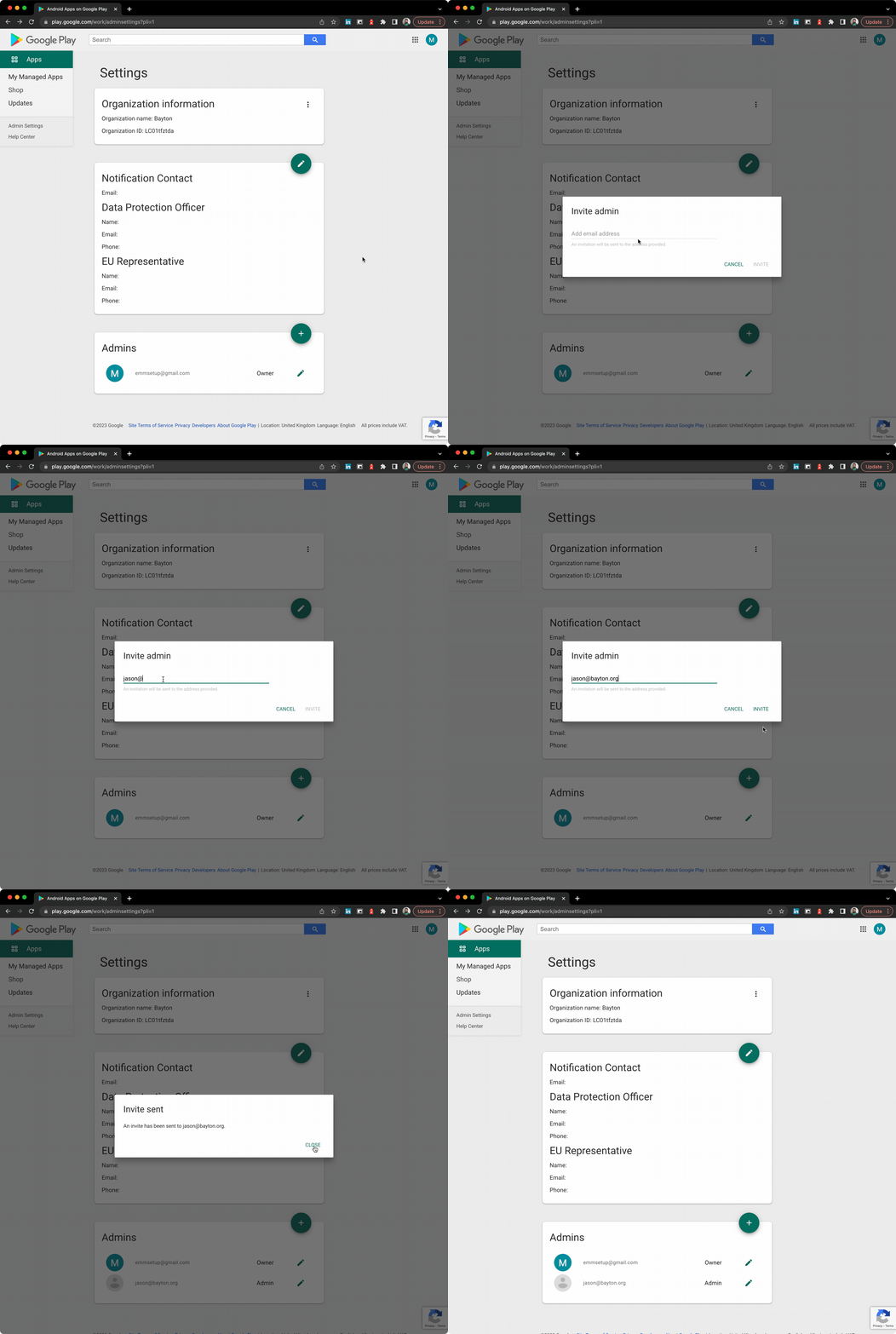
Adjust permissions
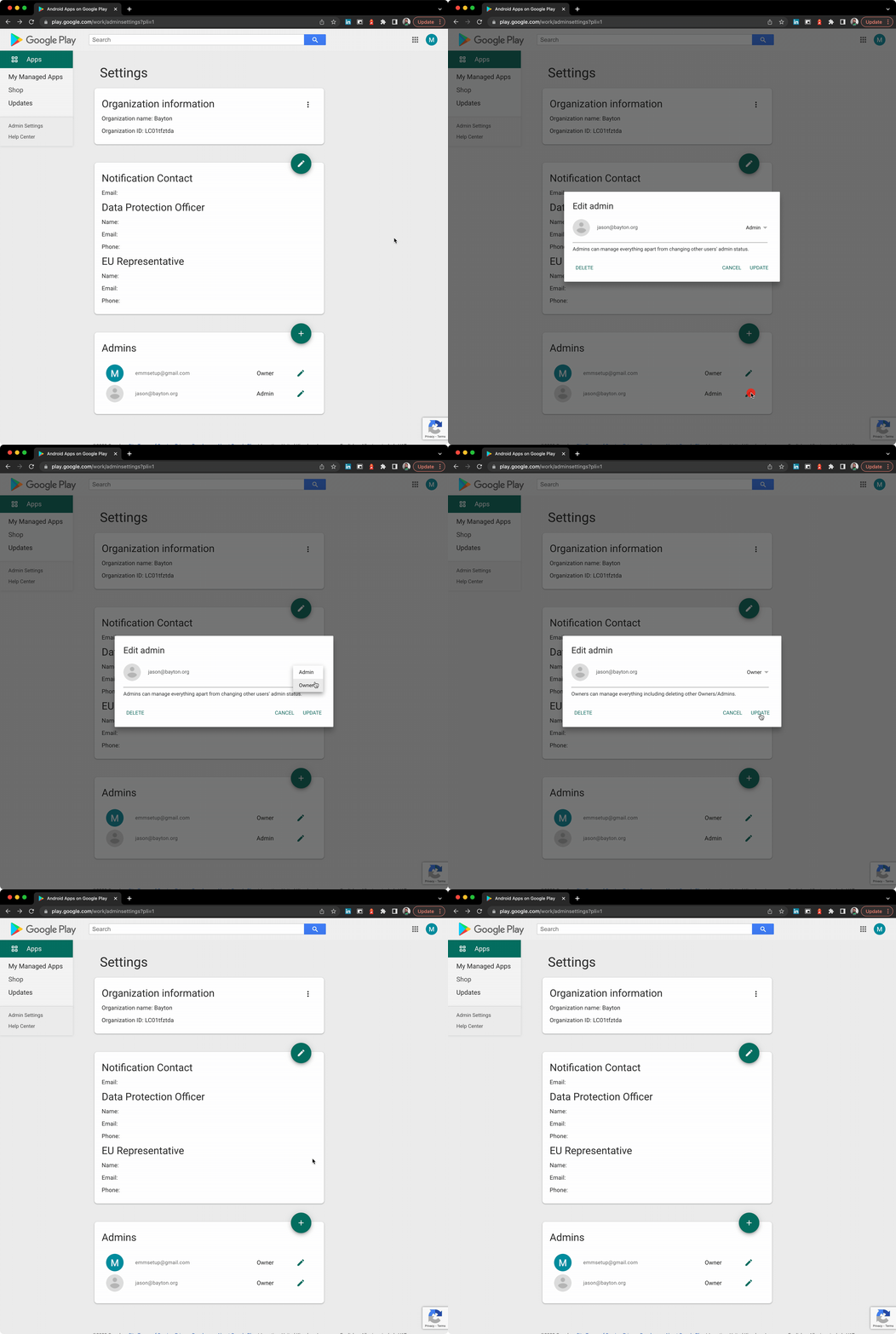
NB: Owners can add and remove other accounts, while Admins are limited to only managing the enterprise. This follows the same permissions model as other enterprise solutions Google offers, such as zero-touch.
Remove an account
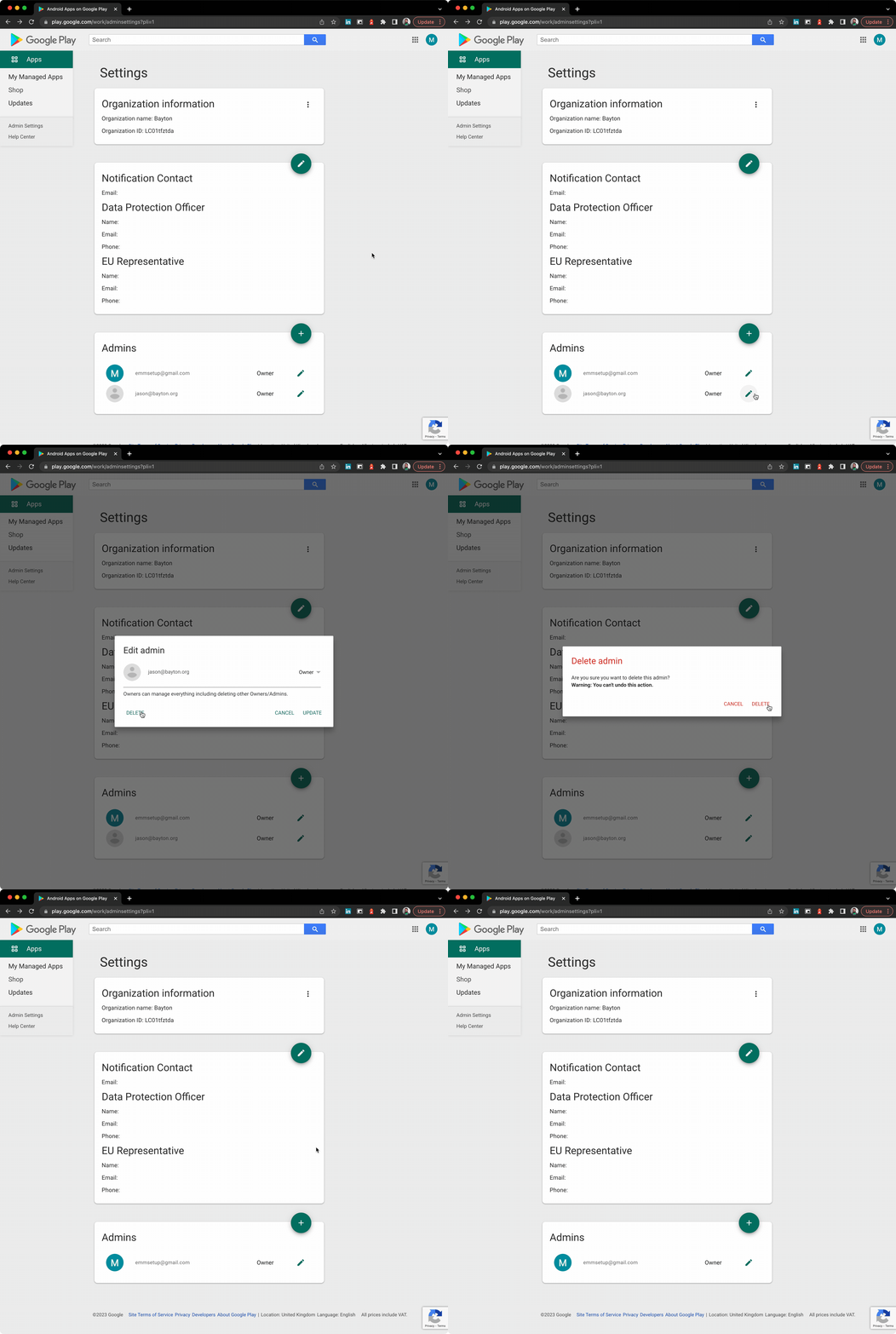
Notes
The same recommendations continue to apply when adding new accounts - if you're making a new Google account to add in, please use the "current email address" option and associate the Google account with a work email address. This makes account recovery much simpler, and avoids questions around why emm.account.3@gmail.com exists in future.
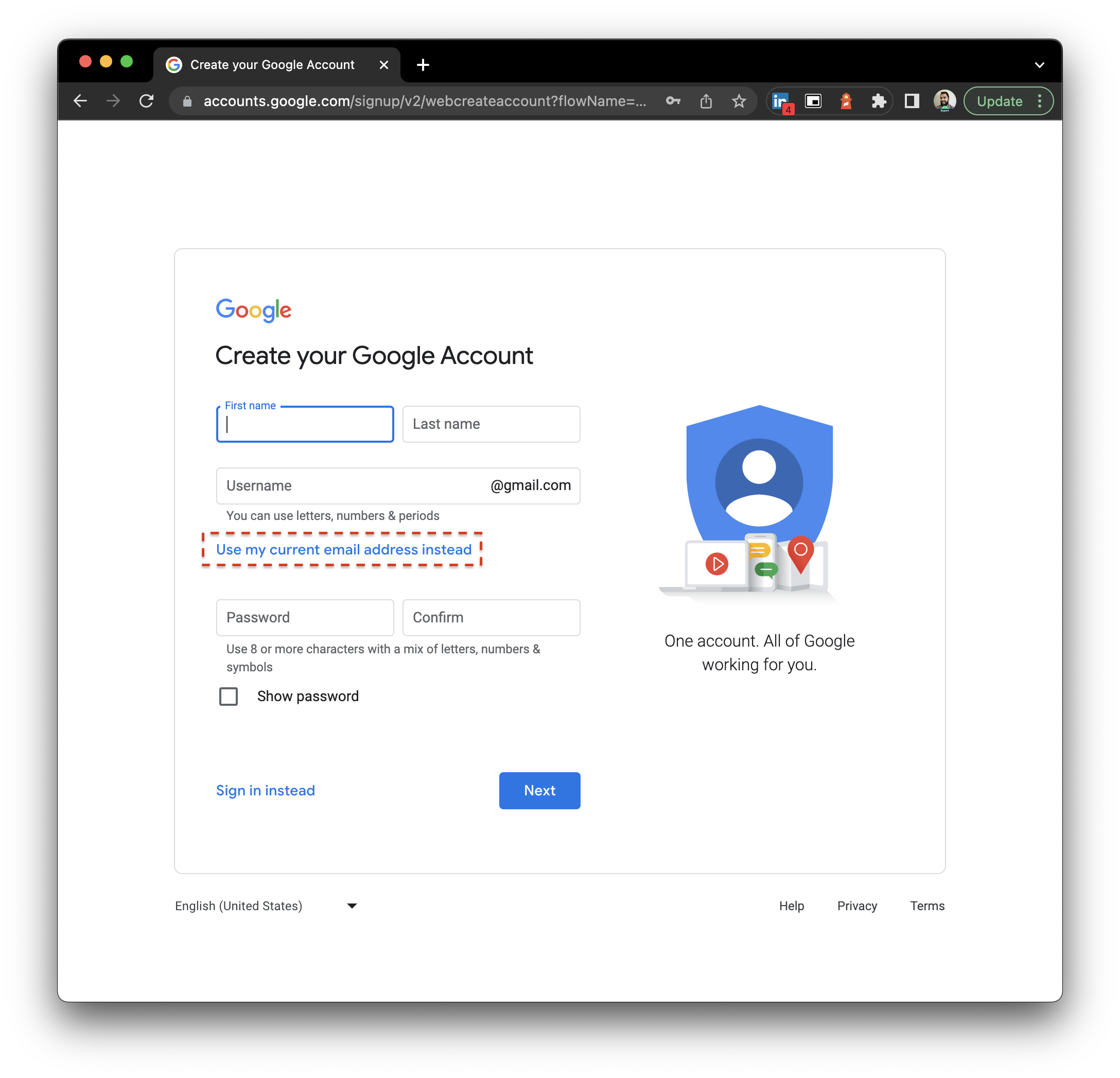
In other words, don't do what I did when I bound my EMM to emmsetup@gmail.com back in 2017 (see above).
Note also that Google Workspace accounts are not supported for administering enterprises with the legacy bind management flow. If a Google Workspace user is invited, they will receive an invite only to be informed "G Suite users are not supported":
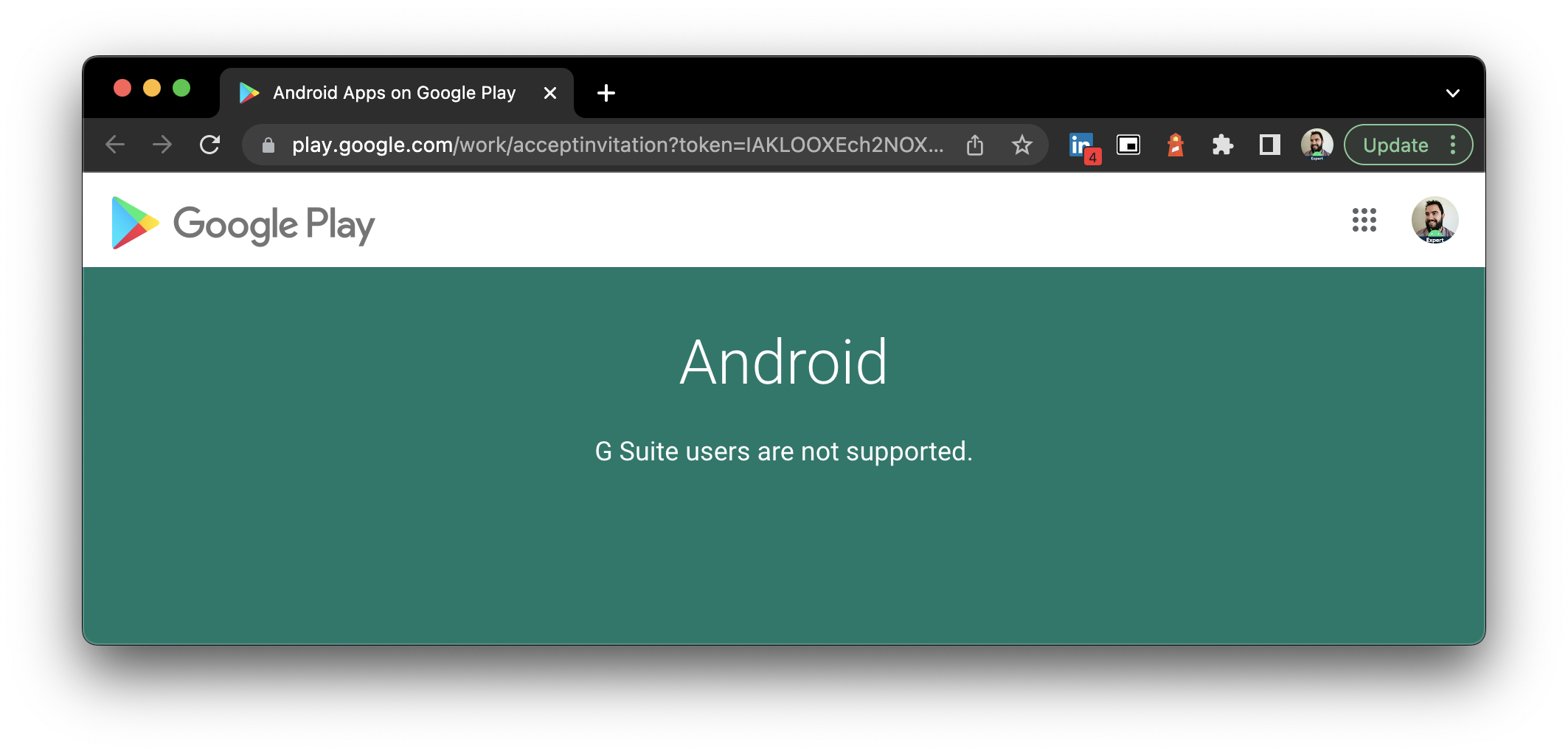
Perhaps this will be addressed in future, or at the very least engineering will update the message to reflect the Google Workspace branding.
One final point to mention, a Google account can only administer one enterprise. If an invited account is already administering another enterprise, they will see an error:
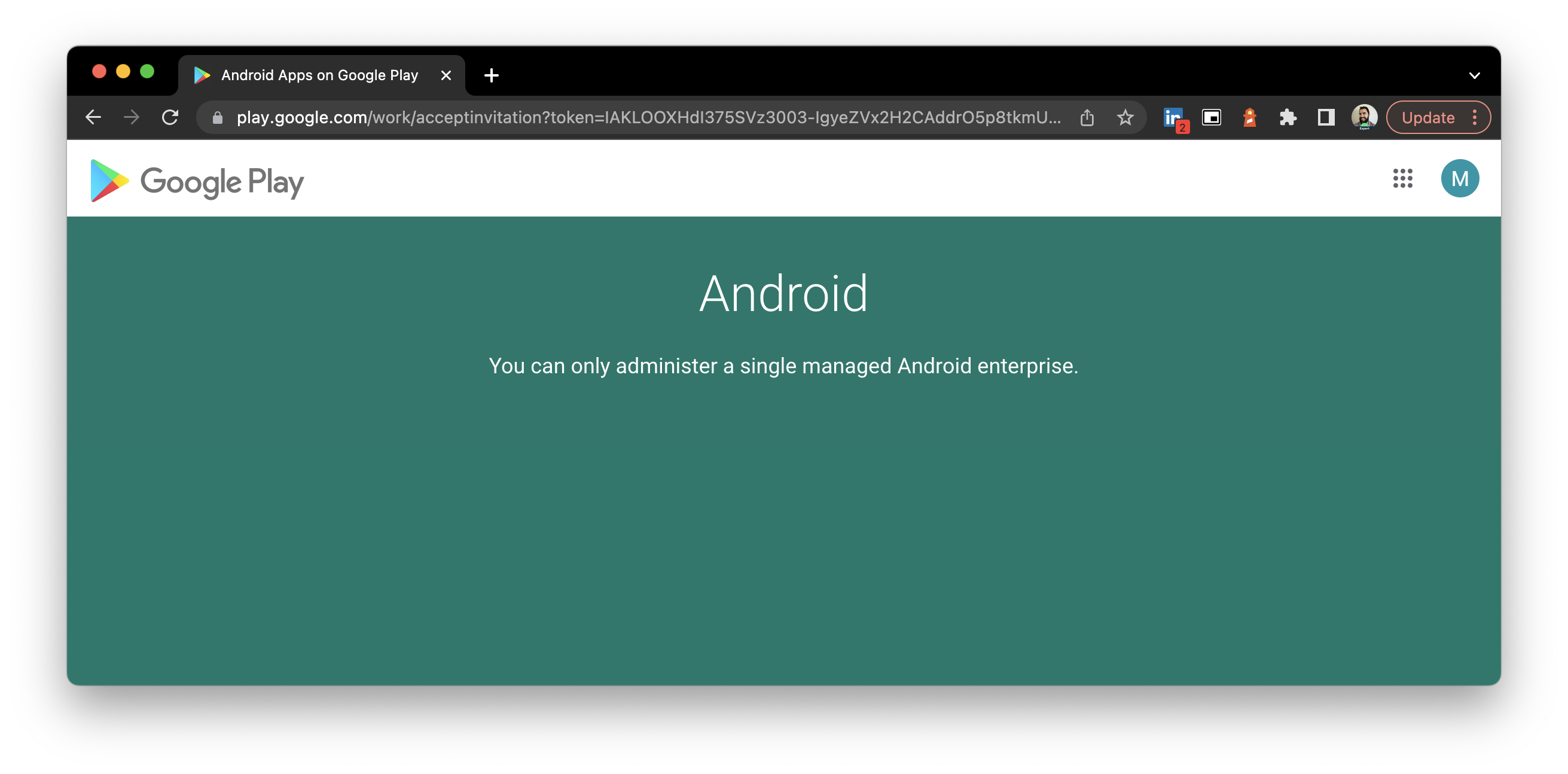
Yes, on userdebug and engineering builds.
By design, production Play Protect Certified Android builds ship with /system mounted read-only and protected by dm-verity. This ensures the partition can’t be tampered with, maintaining the integrity of the OS. On non-production builds, however, you can temporarily disable verity and remount /system as read-write in order to make changes.
Steps
- Connect via ADB and disable verity:
adb root
adb disable-verity
adb reboot- After reboot, remount
/system:
adb root
adb remount
adb shell
mount -o rw,remount /system
At this point /system is writable and you can make modifications.
- Once finished, re-enable verity:
adb root
adb enable-verity
adb reboot
Considerations
- This only works on userdebug or engineering builds. Retail/production builds won’t permit it.
- Any changes may be lost after an OTA update, if it remains possible to do so.
- Leaving verity disabled weakens device integrity. Always re-enable once done.
- Mistakes in
/systemcan break the OS or prevent booting, so proceed with caution.
This approach is intended for development and testing. For production devices, modifying /system is not supported.
If you see errors similar to:
- Since your organization has reached its usage limits, this device can’t be set up
- Organization reached its usage limits, your work profile can't be set up
..or any message similar to the above, this will be due to Google's choice to prevent anyone from using the Android Management API without business justification & approval.
Older projects, those created in early 2025 or prior, may only see this in relation to an unverified project exceeding 500 devices. In all cases the approach to unlock AMAPI for your organisation is to read, accept, and submit a quota increase form via the Permissible Usage page under AMAPI Guides:
https://developers.google.com/android/management/permissible-usage#quotas_and_restrictions
This process can take multiple weeks, so patience is required. It is imperative not to progress with development or engagements prior to approval being given.
Also note, approval for a quota does not mean product verification. Quotas still remain after approval is given. Verification is undertaken through the Android Enterprise Partner Portal.
There are many reasons an application may not be able to install on a device, from compatibility to environmental issues, but this document focuses on policy-induced issues.
Devices managed using Android Enterprise may restrict the ability to install or uninstall applications.
What causes this restriction?
An administrator has enabled one or both of the following restrictions:
- Disallow app installation
- Disallow app uninstallation
When enabled, Android blocks these actions at the system level. This applies to all installation methods, including Google Play, APK files, and third-party app stores. This also includes any EMM-derived app installs or removals.
What will I see as an end user?
The experience varies slightly by Android version and device manufacturer, but commonly includes:
- Applications sit in Google Play trying to install, but never complete
- Applications do not uninstall, showing a notification stating uninstallation failed
This can appear as a fault, but it is expected behaviour when the policy is active.
Why would an organisation enable this?
These restrictions are what could be considered the nuclear option, and override all other known application restriction policies. It means no matter what policies could be applied, the device will not deviate from the state it was in when the policies were set.
Can I bypass this restriction?
No.
How do I install or remove an app I need?
You’ll need to contact your organisation’s IT administrator or support team. They can:
- Temporarily lift the restriction if appropriate
- Approve and remotely install the application
- Add the app to an allowlist
Is this a bug?
No.
If app installation or removal is blocked, the device is functioning exactly as configured. If the restriction is no longer required, the policy must be updated by the administrator.
Unfortunately this policy is set all too often as a default with the expectation EMM-derived application changes will override this policy. This is not the case.
If in doubt about app install/uninstall issues, validate these restrictions have not been set.
While it’s indeed true Android Enterprise was introduced as Android for Work with Lollipop (and supported even earlier with the app (but we don’t talk about that), Android Enterprise was an opt-in feature with little uptake and a lot of teething issues. From Android Marshmallow (6.0) it became a mandatory requirement.
In other words, Marshmallow is chosen as a reasonably reliable reference point for when Android Enterprise was guaranteed to be widely supported. There will be OEMs that can confidently state they supported it from Day Zero, however few did.
Modern deployments
Both Lollipop and Marshmallow are well past end of life. For current deployments, Android 14 should be considered the practical minimum - it is the oldest version still receiving security patches from Google, though some older versions are still actively patched by OEMs directly on certain devices. If you're planning a new deployment, target Android 15 or newer where possible to take advantage of the latest management APIs and security features, while ensuring prolonged security updates and support.
If the Google account used for your Android Enterprise bind is disabled or marked for deletion by Google, the consequences can be severe. Depending on the EMM and the state of the bind, devices may lose access to managed Google Play, app deployment may fail, and new enrolments could be blocked.
This situation most commonly affects organisations using a personal Gmail account (or a standard Google account under a non-Google email address) for their bind. Google may disable these accounts for perceived policy violations - sometimes without clear explanation - and the recovery process can be slow and uncertain.
Why this happens:
- Personal Google accounts are subject to Google's consumer Terms of Service, which include automated enforcement
- Accounts that appear inactive, send unusual traffic patterns, or trigger automated abuse detection may be flagged
- Enterprise activity through the bind (such as high volumes of account creation or app approval actions) can occasionally trigger these automated systems
What to do if your bind account is disabled:
- Attempt account recovery through Google's standard process at accounts.google.com
- Contact your EMM vendor and request they escalate through their Google partner channel
- Raise the issue in the Android Enterprise Customer Community for visibility and support
Contact me if you can't progress, I can see what I can do to help. Ensure you have:
- The organisation (enterprise) ID
- A new Google account to take over the bind
- Business/contact details
- The old inaccessible Google account for reference (if you know it)
How to prevent this: The recommended approach is to migrate to a managed Google domain (Google Workspace or Cloud Identity). Domain-verified accounts are managed by the organisation rather than subject to consumer account enforcement. This also unlocks the ability to bind with multiple EMMs under one domain.
For more on what the bind is and how it works, see What is the Android Enterprise bind?.
Device Admin is deprecated
Device Admin (DA) has been deprecated since Android 10 (2019). From Android 15, DA APIs are no longer available for new device activations. Android Enterprise is the only supported path for managing Android devices. If your organisation is still using Device Admin, migration to Android Enterprise should be treated as urgent.
For an in-depth take on this, check out:
Historical context
#Device Admin was introduced with Android 2.2 as a means of granting admin permissions to applications. Any number of admins could sit on a device and have excessive, often unnecessary control. It was widely abused by PHAs (malware, etc) and was very limited in scope of capability, leaving each OEM to build upon it in a fragmented and difficult to support manner.
Android Enterprise takes a more structured approach to device administration by permitting only one owner on a device at a time with scope for task delegation to other apps as defined by the management server. This approach is fundamentally more secure and easier to support as the APIs are universal cross-OEM.
Add in features such as no Google account management, silent app distribution, managed system updates, simple provisioning and streamlined enrolment, and it’s clear why Android Enterprise replaced Device Admin entirely.
What is the bind?
If you're not entirely sure what the Android Enterprise bind is, check out this FAQ.
If you need to unbind from your existing EMM, whether to -
- Move to another EMM
- Start afresh with a new enterprise ID
- If you're considering this because you can no longer access your existing bind, Google can assist. Escalate to your EMM who can in turn raise it as a partner ticket either through their BD or the Partner Portal. If the EMM is unhelpful, raise it in the Android Enterprise Customer Community & tag me (@jasonbayton).
- If you're considering this because you want to use a new account to administer the bind, you don't need to!
Or any other perfectly valid reason, the steps to follow are straightforward.
Be aware before you delete the bind, that it is not reversible. All devices will be unenrolled, all private applications will be inaccessible, and all data associated with the old enterprise will not be recoverable!
This is a permanent action.
Via your EMM
In the first instance, the simplest course of action is to unbind through your EMM. Here are some current links to this:
Feel free to submit a PR with additional EMM articles!
Some platforms don't support removing the bind through EMM administrative settings. Some platforms, like SOTI, only unbind and don't delete the enterprise ID. This is useful for future rebinding if platforms support it, but otherwise it's another step in the process an organisation is forced to take to fully delete the bind.
Via Google Play admin settings
If the EMM platform doesn't support deleting the bind, or if you no longer have access to the EMM to do so, you can head to Google Play Enterprise admin settings to do so:
- Head to Google Play Enterprise admin settings - https://play.google.com/work/adminsettings
- Select the menu dots on the right of your organisation
- Delete organisation
- Confirm delete
Here's a handy GIF that runs through it:
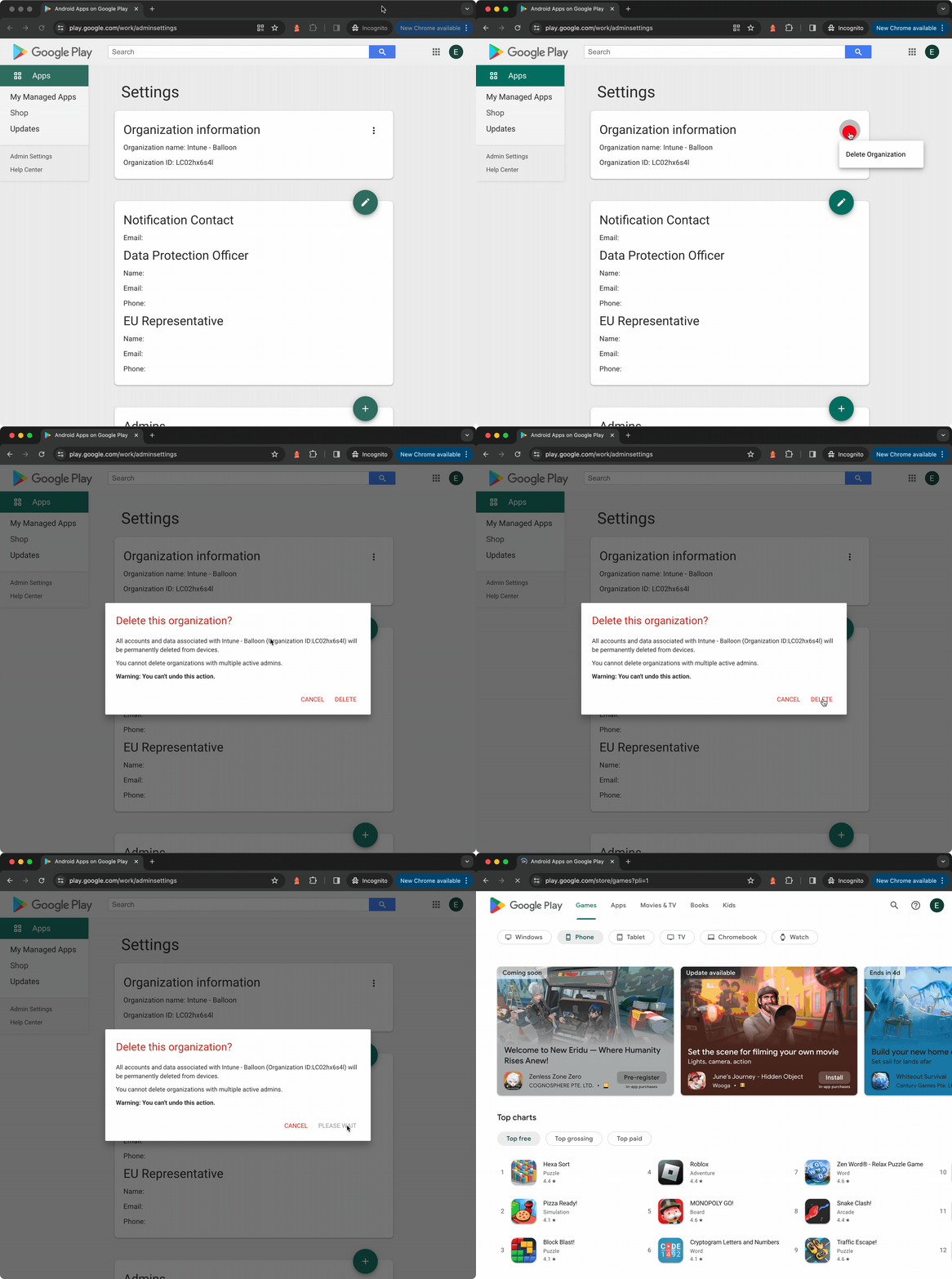
As indicated, the enterprise cannot be deleted with multiple admins present, so if you need to delete it, remove existing admins first.
With the bind removed, you're now ready to re-use the account to create a new bind with your existing or alternative EMM provider.
Device Trust from Android Enterprise is a set of verified device signals that Google provides to registered security and identity partners. It is accessed through the AMAPI SDK (v1.3.0+) and offers over 20 signals covering device state, configuration, and compliance posture.
Key characteristics:
- It works across all ownership models: company-owned, BYOD, and even unmanaged devices
- Access is restricted to partners registered through the Android Enterprise Partner Portal
- It requires a minimum of Android 10
- Signals are provided as a snapshot to the calling application on-device and can be requested as frequently as needed
Device Trust is distinct from Play Integrity. Play Integrity is a general-purpose API available to any app developer for verifying device and app integrity. Device Trust is specifically designed for enterprise security and identity providers that need granular posture data to inform access decisions.
Google recommends running Play Integrity checks before relying on Device Trust signals. If a device fails Play Integrity, the signals reported through Device Trust should not be considered reliable, as the device itself cannot be trusted.
Current integration partners include CrowdStrike, Okta, Omnissa, Urmobo, and Zimperium, among others (including me!).
For a hands-on look at how Device Trust works, see Device Trust from Android Enterprise: What it is and how it works.
Android Enterprise is not officially supported in mainland China due to restrictions on Google services, which affects essential functionalities such as account management, app distribution, and in-built security services. In fact, there are multiple countries not officially supported.
For organisations operating in these countries, leveraging existing solutions that support AOSP or closed-network enrolment can be a viable alternative. Solutions like Workspace ONE UEM and Microsoft Intune offer support for these approaches. Notably a considerable amount of management capability will be lost without full Android Enterprise management, leaving only on-device API support (restrictions) or any value-adds the respective platforms offer atop this, such as APK deployment.
It is worth noting that Chinese OEMs such as Xiaomi, Oppo, and Vivo ship different ROM variants for domestic and global markets. Global ROM variants (sold outside of mainland China) typically include GMS and support Android Enterprise. Domestic ROM variants sold within China do not include GMS and therefore do not support Android Enterprise. If sourcing devices from these OEMs, confirm whether the device ships with a global or domestic ROM before planning an Android Enterprise deployment.
There is no single best EMM for every organisation. The right choice depends on existing infrastructure, budget, platform mix, and the deployment scenarios required. Here are the key considerations:
Android Enterprise Recommended
#Google validates EMM solutions through the Android Enterprise Recommended programme. AER-validated EMMs have demonstrated support for a standard set of Android Enterprise features. Starting with an AER-validated EMM is sensible, though it is not a guarantee of quality or completeness - see What is Android Enterprise Recommended?.
Key evaluation criteria
#- Deployment scenario support - does the EMM support the scenarios you need? Fully managed, work profile (BYOD), COPE, dedicated/kiosk? Not all EMMs support all scenarios equally
- AMAPI vs custom DPC - is the EMM built on Google's Android Management API (AMAPI) or does it use a custom Device Policy Controller? AMAPI-based EMMs receive new Android features faster as Google ships them directly. Custom DPC EMMs may offer unique features but depend on the vendor to implement new Android capabilities
- Zero-touch enrolment support - if you plan to use zero-touch, confirm the EMM supports it and that the integration works with your reseller
- OEMConfig support - for OEM-specific features (Samsung Knox, Zebra, Honeywell, etc.), the EMM needs to support OEMConfig or have direct OEM integrations
- Multi-platform requirements - if you also manage iOS, Windows, macOS, or ChromeOS, a unified platform may be preferable
- Managed Google Play integration - all AE-capable EMMs integrate with managed Google Play, but the quality of the app management experience varies
- Pricing model - per-device, per-user, or tiered. Consider total cost including any add-on modules for advanced features
Practical advice
#- Request a trial and test your specific deployment scenarios before committing
- Check community forums and peer reviews for real-world experiences with the EMM and your target devices
- Confirm the EMM's update cadence for new Android version support - some vendors are significantly faster than others
- If you have an existing EMM for other platforms, evaluate the Android Enterprise capability of that platform first before introducing a separate solution
Yes, fully.
Samsung has supported Android Enterprise since Android 5.0 (Lollipop), offering work profile, fully managed, dedicated, and COPE deployment scenarios through any compatible EMM.
From Android 8.0 and Knox 3.0, Samsung further integrated its Knox management platform with Android Enterprise. The Knox Workspace container, for example, uses the Android Enterprise Profile Owner APIs rather than a proprietary implementation. This means managing a Samsung device through Android Enterprise also gives access to the Knox layer underneath.
Samsung devices support all standard Android Enterprise provisioning methods, including zero-touch enrolment (added in late 2020) and Samsung's own Knox Mobile Enrolment (KME) service. Organisations can use either, though configuring both on the same device is not supported.
Knox Platform for Enterprise (KPE)
#KPE extends Android Enterprise with Samsung-specific capabilities - granular hardware controls, advanced networking, kiosk customisation, firmware management, and more. KPE Premium licences are provided at no cost, but they must be activated for KSP policies to take effect.
KPE features are accessed through the Knox Service Plugin (KSP), Samsung's OEMConfig implementation. KSP works with any EMM that supports managed app configurations.
Knox SDK changes on newer Android versions
#From Android 15, several Knox SDK APIs are restricted to apps running as Device Owner or Profile Owner only. From Android 16, all Knox SDK APIs require the Android Enterprise management framework. Legacy Device Administrator deployments on Samsung devices will lose Knox functionality entirely on Android 16 and later.
Yes. From early 2026, AMAPI supports Access Point Name (APN) management through the apnPolicy setting within DeviceConnectivityManagement. This comes after years of support for custom DPC vendors.
What can be configured?
#Administrators can define APN configurations that are pushed to company-owned devices. These policy-enforced APNs override any user-configured APNs on the device, ensuring consistent cellular connectivity settings across the fleet.
This is particularly relevant for:
- Organisations using private APNs for cellular connectivity
- Deployments where devices must connect through a specific mobile network gateway
- Kiosk and dedicated device deployments relying solely on cellular data
Limitations
#- APN management applies to company-owned devices only (fully managed and COPE)
- The feature requires EMM support - check with your EMM vendor to confirm they have implemented the
apnPolicysetting - Personally-owned work profile devices are not supported for APN policy enforcement
Prior to AMAPI support
#Before this AMAPI addition, APN management was typically achieved through:
- OEM-specific APIs (such as Samsung Knox OEMConfig)
- Custom DPC implementations
- Manual configuration during device setup
The AMAPI approach standardises this across all Android Enterprise-compatible devices running supported Android versions.
From January 2026, AMAPI defaults the enterpriseDisplayNameVisibility setting to ENTERPRISE_DISPLAY_NAME_VISIBLE. This means the enterprise name configured during the Android Enterprise bind setup is now displayed on company-owned devices by default - typically on the lock screen or in device settings.
Why is this happening?
#Previously, the enterprise name was not actively configured, so could result in differing experiences across vendors. The default behaviour change means organisations that never set this policy field are now seeing the enterprise name appear without having made any policy changes.
How to control it
#Through your EMM's AMAPI policy configuration, set enterpriseDisplayNameVisibility to one of:
ENTERPRISE_DISPLAY_NAME_VISIBLE- the enterprise name is shown on the device (now the default)ENTERPRISE_DISPLAY_NAME_NOT_VISIBLE- the enterprise name is hidden
If the enterprise name shown is incorrect or undesirable, the display name itself is configured at the enterprise level during bind setup and can be updated through the AMAPI enterprises.patch method. This will require a support ticket to your EMM vendor.
Which devices are affected?
#This applies to company-owned devices (fully managed and COPE) managed through AMAPI-based EMMs. Personally-owned work profile devices are not affected.
When evaluating Android devices for enterprise deployment, two certification types determine the management capabilities available: GMS (through the MADA agreement) and EDLA.
GMS (Google Mobile Services) - MADA certified
#GMS certification is the standard certification for consumer smartphones and tablets. Devices certified under the MADA (Mobile Application Distribution Agreement) include the full suite of Google apps and services - Play Store, Chrome, Gmail, Maps, and critically for enterprise, Google Play Protect and Android Enterprise support.
GMS-certified devices are listed on the Android website and typically support all Android Enterprise deployment scenarios: fully managed, work profile, COPE, and dedicated device (kiosk). Android Go, Android TV, WearOS, etc aren't obviously included in this, though Android XR should fall under much of the same mandate when it's ready.
EDLA (Enterprise Device Licensing Agreement)
#EDLA certification is designed for dedicated and enterprise-focused devices that may not suit the typical consumer GMS use case. This includes kiosks, digital signage, ruggedised handhelds, point-of-sale terminals, and other single-purpose devices.
Which do I need?
#- Standard smartphones and tablets for knowledge workers: GMS (MADA) certification. These devices will support all management scenarios and provide the full Android experience.
- Kiosks, signage, ruggedised devices, or other dedicated-use hardware: EDLA certification is typically more appropriate. The devices are designed for purpose and don't carry unnecessary consumer apps, services, and may be more appropriate in terms of formfactor.
- AOSP (uncertified) devices: These have no Google services, no Play Store, and limited Android Enterprise management support. They are not suitable for enterprise management through the Android Management API, but platforms may provide an alternative management framework under AOSP.
No. As of early 2024, Google Play System Updates (Mainline modules) are no longer controlled by Android Enterprise system update policies.
Previously, the system update policy applied to both OTA system updates and Google Play System Updates. This is no longer the case - Mainline updates now download automatically in the background and install on the next device reboot, regardless of any configured system update policy, freeze period, or maintenance window.
This means:
- Freeze periods do not apply to Mainline updates. Even during a configured freeze window, GPSU updates will continue to install
- Maintenance windows are ignored for Mainline update installation
- Postpone policies have no effect on when Mainline updates are applied
- The device behaves like an unmanaged device specifically for Mainline updates
Administrators can still use compliance policies to check that devices have current Mainline modules installed, but cannot directly control the timing of their installation.
OTA system updates (full Android version upgrades and monthly security patches) continue to respect system update policies as before.
For more details, see Google Play System Updates and Android Enterprise.
By default, all new Google Cloud projects using the Android Management API are allocated a "default" quota of 0 devices per project. This is separate from the API request rate limits covered elsewhere.
What the device quota means
The device quota limits how many devices can be enrolled across all enterprises created under a single Google Cloud project. For most organisations using a commercial EMM, this is managed by the EMM vendor and is not something individual customers need to worry about - the EMM's project quota covers their entire customer base.
When this matters
The quota becomes relevant if you are:
- Building a custom management solution directly on the AMAPI
- Running a proof of concept with the AMAPI quickstart
- Operating a smaller EMM platform with a growing device count
Requesting an increase
To obtain an initial quota, you must apply through Google's partner validation process. This involves demonstrating that your solution meets Google's requirements for an EMM partner. The process is documented in the AMAPI permissible usage page.
Note that quota increases are not automatic and require review. Community reports indicate response times of 7 or more business days, with some requests taking multiple weeks. Plan well ahead if you anticipate scaling beyond the default limit - do not wait until devices are failing to enrol before requesting an increase. Initiating the quota request early in the development or procurement phase avoids enrolment failures during growth.
A managed Google domain is an organisation-owned domain (e.g. company.com) registered with Google and managed through the Google Admin console. It replaces the older managed Google Play Accounts enterprise model, where a personal Gmail address was used to create and administer the Android Enterprise bind.
Why does this matter?
#When Android Enterprise originally launched, organisations could bind using any Gmail account. This was simple but introduced risks:
- Account security - a personal Gmail account used for the bind could be compromised, disabled, or lost if the individual left the organisation
- No centralised administration - there was no role-based access, no MFA enforcement, and no SSO integration
- Single-EMM limitation - managed Google Play Accounts enterprises could only bind to one EMM at a time
A managed Google domain addresses all of these. Administration moves to corporate-owned credentials with proper identity governance, and the enterprise can bind multiple EMMs simultaneously - useful for organisations operating across regions or divisions.
Should I upgrade?
#Google now directs all new Android Enterprise customers to use a managed Google domain. Existing organisations on the older model are encouraged to upgrade, and Google's 2026 planning guidance lists this as a foundational step.
The upgrade is:
- Free - there is no cost to create a managed Google domain
- Non-disruptive - enrolled devices, approved apps, and EMM configurations remain intact
- One-way - you cannot revert to a Gmail-based bind after upgrading
Google provides a guided migration path. Your EMM vendor may also offer specific guidance for the process.
How do I upgrade?
#Follow Google's official upgrade guide: Upgrade to managed Google domain
After upgrading, manage your enterprise through the Google Admin console rather than play.google.com/work.
Can I rename the organisation after upgrading?
#There is no self-service option to rename the managed Google Play organisation name. For managed Google domain enterprises, the organisation name is inherited from the Google Workspace or Cloud Identity domain configuration and must be changed through the Admin console under Account settings. Choose the name carefully before initiating the bind or upgrade.
In early 2026, Google introduced a Model Context Protocol (MCP) server for the Android Management API. This allows AI assistants - including Claude, Gemini, and ChatGPT - to query enterprise device management data through natural language.
What it does
The MCP server exposes a set of tools that AI applications can call to retrieve information from an AMAPI-managed enterprise. These include:
- Listing enrolled devices and retrieving device details
- Viewing policy configurations
- Checking available applications
- Querying compliance status
This means an administrator could ask an AI assistant questions like "which devices in my fleet are running an outdated security patch?" or "show me the policy applied to this device group" and receive structured answers pulled directly from the AMAPI backend.
Is it read-only?
The initial release focuses on read-only operations. The tools retrieve and display data but do not modify policies, enrol devices, or push changes. This is a deliberate design choice to allow organisations to experiment with AI-assisted management without risk of unintended configuration changes.
Prerequisites
To use the AMAPI MCP server, you need:
- A Google Cloud project with the Android Management API enabled
- Two IAM roles assigned: MCP Tool User (
roles/mcp.toolUser) and Android Management User (roles/androidmanagement.user) - OAuth 2.0 authentication (API keys are not accepted)
The server endpoint is https://androidmanagement.googleapis.com/mcp.
Learn more
You can find a full guide with an example product, here.
Why this matters
For larger enterprises, querying device fleet status, auditing policy compliance, and investigating device issues currently requires navigating EMM consoles or writing API calls manually. The MCP integration enables conversational access to this data, which can speed up troubleshooting and compliance reporting.
This is an AMAPI-level feature, not an EMM feature. Organisations using a commercial EMM (Intune, Workspace ONE, etc.) interact with this through their EMM's console, not directly. The MCP server is most relevant to organisations building custom management solutions on AMAPI or those wanting to supplement their EMM's reporting with AI-driven queries.
Android 15 introduced several enterprise-relevant features and behaviour changes that impact device management.
Security
#- Content protection policy - a new AMAPI policy enables enhanced on-device scanning for apps that attempt social engineering tactics, such as fake system dialogs or overlay attacks. This leverages Play Protect's real-time behavioural analysis and is available on fully managed and dedicated devices. See What is the content protection policy in AMAPI?
- Enterprise Factory Reset Protection (EFRP) always enforced - on company-owned devices, EFRP is now enforced after a hard factory reset regardless of whether OEM unlocking was toggled on. Previously, enabling OEM unlocking could bypass EFRP
- Private Space - a new isolated profile area for personal apps, separate from the work profile. On company-owned devices, admins can disable Private Space via policy. See the Private Space FAQ section for details
App behaviour changes
#- Foreground service restrictions - certain foreground service types (camera, MediaProjection, data sync) can no longer be started from BOOT_COMPLETED broadcast receivers. This breaks common patterns used by kiosk management and fleet monitoring agents that relied on starting services at boot
- PendingIntent cancellation on stopped state - PendingIntents registered by an app are now wiped when the app enters the "stopped" state. This affects watchdog and self-healing flows in fleet management agents that relied on persistent alarms
- Edge-to-edge display enforcement - apps targeting API 35 are forced into edge-to-edge rendering, which can break kiosk app layouts that assumed fixed system bar dimensions. See Why is my kiosk app UI broken after updating to Android 15?.
eSIM management
#- Initial support for deploying and managing eSIM profiles on company-owned devices, including the ability to push full and partial eSIM configurations and prevent their removal
For a full list of enterprise changes, refer to What's new for Android in the enterprise on the Android Developers site, and check out Android 15: What's new for enterprise? for a detailed breakdown.
There is no self-service option to rename a managed Google Play organisation after it has been created.
Why is this a problem?
#The organisation name set during the Android Enterprise bind is visible in several places:
- The managed Google Play store (shown to end users)
- The Google Admin console (for managed Google domain enterprises)
- On managed devices when
enterpriseDisplayNameVisibilityis enabled (the AMAPI default since January 2026)
If the wrong name was entered during bind setup, or the company has rebranded, there is no edit button in any console to change it.
What are the options?
#For AMAPI-managed enterprises:
The enterprise display name shown on devices can be updated through the AMAPI enterprises.patch method by setting the enterpriseDisplayName field. This typically requires a support ticket to your EMM vendor, as most EMM consoles do not expose this setting directly.
Note that this changes the display name on devices only - it does not change the underlying organisation name in managed Google Play or the Google Admin console.
It also only applies to new enrolments, so this is a limited option.
For the underlying organisation name:
- Managed Google Play Accounts enterprises - no rename option exists. The only path is to delete the enterprise bind entirely and recreate it, which requires re-enrolment of all devices
- Managed Google Domain enterprises - the organisation name is tied to the Google Workspace/Cloud Identity domain configuration. Changes to the organisation name must be made through the Google Admin console under Account settings
Recommendation
#Choose the organisation name carefully during bind setup. If using a managed Google domain, ensure the domain's organisation name is correct before initiating the Android Enterprise bind, as the name is inherited from the domain configuration.
Programme status
Android One is effectively dormant. No new devices have launched since a Japan-exclusive Kyocera handset in early 2023, and no OEMs are (from what I've seen) actively developing Android One handsets. This FAQ is retained for historical context. See What is Android One? for the full background.
Android One and Android Enterprise Recommended were two different programmes with some overlap in their focus on security and consistency.
Android Enterprise Recommended is an active validation programme ensuring devices meet Google's minimum enterprise requirements - including hardware specifications appropriate for enterprise use. OEMs must publicly disclose the end date for security update support per device. OEMs maintain their own UIs, bundled apps, and value-adds. Note that Google dropped the mandatory 90-day security update and minimum OS upgrade requirements from the programme several years ago.
Android One went further on the software side. Devices in the programme used a system image developed with Google, offering a near-stock experience with minimal bloat. Security updates were required every 30 days, and devices supported two major OS upgrades - commitments that were stronger than AER at the time.
When combined, the two programmes offered a strong proposition: a clean, fast device with enterprise validation and aggressive update commitments.
In practice, the distinction is now historical. The Android ecosystem has matured significantly since Android One's peak. Leading OEMs like Samsung and Google now ship up to seven years of updates on flagships, with several years of support increasingly common on mid-range devices, making the update advantage Android One once held far less relevant. AER remains the active programme organisations should focus on for device selection, alongside checking the specific OEM's published update commitments for each device model.
AER is Google’s validation programme for devices, EMMs, and MSPs.
Each will have a list of requirements to meet in order to validate, and will re-validate on an annual basis. AER for Carriers was announced in 2018 but was subsequently shelved by Google.
What does AER cover?
#- Devices - must meet minimum hardware specifications, publicly disclose the security update support end date and update frequency, support at least one major OS upgrade (with a recommendation of up to seven for Android 16 devices), and pass Android Enterprise management compatibility testing. The programme includes standard, rugged, and dedicated device categories. Note: the previous mandatory 90-day security patch requirement was dropped for devices validating on Android 15 and later; OEMs must now instead publish their update cadence and end-of-support date for transparency
- EMMs - must support a defined set of Android Enterprise management features across all deployment scenarios
- MSPs - must demonstrate competency in deploying and supporting Android Enterprise for their customers
Validated vendors re-validate on an annual basis.
What AER does not guarantee
#AER is a minimum bar, not a seal of quality. A device being AER-validated means it met the requirements at the time of validation. It does not guarantee:
- Timely delivery of future security patches beyond the commitment period
- Bug-free Android Enterprise behaviour
- Feature parity with other AER devices
Organisations should still evaluate devices against their own requirements, ideally through hands-on testing, rather than relying solely on AER status for procurement decisions.
More details: What is Android Enterprise Recommended?
A major Android OS update (such as Android 15 to 16) delivered via OTA is not a factory reset - device management state, profiles, apps, and data all persist through the upgrade. There is no re-enrolment required.
What survives
#- Device owner / profile owner registration - the DPC remains registered as device or profile owner after the reboot into the new OS version
- Work profile - the profile, its apps, and all work data remain intact
- Policies - enterprise policies continue to apply. The device syncs with the EMM on next check-in and re-applies the current policy set
- Managed configurations - app-level managed configs are retained and continue to be served by the RestrictionsManager
- App data - both personal and work app data persist, just as with any OTA update
- Zero-touch / KME registration - cloud enrolment registrations are unaffected by OTA updates, as these are server-side records
What to watch out for
#Major version updates can introduce behavioural changes that affect managed devices, even without a re-enrolment:
- Deprecated APIs and policy changes - each Android version may deprecate or change the behaviour of management APIs. For example, Android 11 fundamentally changed the COPE model, automatically migrating legacy COPE devices to the new work profile on company-owned device experience during the upgrade. See Android 11 COPE changes for details
- App compatibility - apps targeting older SDK versions may lose functionality or encounter permission changes under a newer OS. Android 14 introduced a minimum targetSdkVersion requirement for app installation, and Android 15/16 raised it further
- UI and behaviour changes - Android 15 introduced edge-to-edge enforcement for apps targeting API 35, and Android 16 extends this with large screen layout changes. Kiosk and dedicated device apps are particularly affected. See edge-to-edge FAQ
- OEM-specific bugs - major OS updates from OEMs occasionally introduce enterprise-related issues. Samsung devices have historically seen zero-touch enrolment failures and work profile issues following major updates
- Sticky configurations - in some Android versions, certain configurations have been observed to become permanently applied after a reboot, making them unchangeable without re-enrolment. This was notably documented on Android 14
How to prepare
#- Use system update policies - device owners can set automatic, windowed, or postpone policies to control when OTA updates install. Postponement provides up to 30 days per update for testing. See managing system updates for more on what these policies control
- Use freeze periods - on Android 9+, freeze periods can suspend all system updates for up to 90 days, giving time to validate compatibility with business-critical apps. A 60-day gap between freeze periods is required
- Test with a pilot group - enrol test devices on the new OS version before allowing the update across the wider fleet. Most EMMs support phased rollout by device group
- Review version-specific changes - Google publishes enterprise-specific changes for each Android version at What's new for Android in the enterprise. Check for deprecations, new restrictions, and behavioural changes that may affect deployed policies or apps
- Monitor OEMConfig compatibility - OEMConfig apps may need updates to support new OS versions. Check with the device manufacturer for updated OEMConfig releases ahead of major OS rollouts
Note on Google Play System Updates
Google Play System Updates (Mainline modules) are no longer controlled by system update policies. They install automatically regardless of configured freeze periods or maintenance windows. Only traditional OTA updates (OS version upgrades and monthly security patches) respect system update policies. See Are GPSU managed by system update policies?
System update policies apply only to fully managed and dedicated devices. For work profile (BYOD) deployments, the device owner is the end user, and the organisation has no control over when OS updates are installed.
If your organisation uses Google Workspace (or Cloud Identity) and wants to manage Android devices through a third-party EMM, the Workspace side of the setup is straightforward. There are three things to do, and an optional fourth.
1. Turn off Google Endpoint Management for affected OUs
#Google Workspace includes its own device management - Google Endpoint Management (GEM). This must be turned off for any organisational units that will be managed by the third-party EMM. Not set to Basic - turned off. Basic still applies GEM policies and collects device inventory, which can cause unexpected issues.
Admin Console > Devices > Mobile & endpoints > Settings > Universal > General > Mobile management
Select the target OU, choose Turn off mobile management, and save.
What happens if GEM is left on?
If advanced management remains enabled for the OU, adding a Google Workspace account to a device already managed by a third-party EMM will trigger Google's own work profile setup flow - the user is prompted to install Android Device Policy and set up a work profile. On a device that already has a work profile from the third-party EMM, this cannot complete and leads to errors. If users are seeing unexpected prompts to set up a work profile when signing in with their Workspace account, GEM is almost certainly still enabled for their OU.
2. Bind the EMM
#The EMM handles this through the standard Android Enterprise signup flow. During setup within the EMM console, the admin is redirected to Google to authenticate with a super administrator account. This creates the enterprise binding - an enterprise ID tied to the managed Google domain. There's no token to copy or code to enter; the EMM orchestrates the process.
Since mid-2024, a single managed Google domain can support multiple EMM bindings, each with its own enterprise ID. This is useful during migrations or where different parts of the organisation use different EMMs.
3. Select the EMM for the OU
#Once the binding exists, it appears in the Admin Console under:
Admin Console > Devices > Mobile & endpoints > Settings > Third-party integrations > Android EMM
Select the OU and assign the EMM provider. Different OUs can use different EMMs.
4. Optionally enable Authenticate with Google
#In the same section, there is an Authenticate Using Google toggle per EMM provider. When enabled, end users enrolling devices through that EMM are required to sign in with their Google Workspace account during enrolment. This is optional and depends on EMM support.
That's it. The third-party EMM takes over Android Enterprise management for the assigned OUs, and GEM stays out of the way.
Changing EMM provider
If you're migrating from one third-party EMM to another, see the EMM migration guide. Be aware that removing an EMM binding affects the entire domain, not just individual OUs, and may result in managed devices being wiped. Coordinate with your current EMM provider before making changes.
Yes. On devices and networks that support 5G network slicing, AMAPI can route traffic for specific applications through dedicated enterprise slices rather than the default carrier data path.
How it works
#A 5G network slice is a logically separate path through the carrier network with its own quality of service, latency, and bandwidth characteristics. An enterprise can subscribe to one or more slices from a participating carrier and configure managed devices to use them.
In AMAPI, this is controlled through two policy fields:
preferentialNetworkServiceat the policy level enables preferential network service on the devicepreferentialNetworkServiceSettingsdefines up to five preferential network configurations, each identified asPREFERENTIAL_NETWORK_ID_ONEthroughPREFERENTIAL_NETWORK_ID_FIVEpreferentialNetworkIdon each application policy assigns that application to one of the configured slices. AdefaultPreferentialNetworkIdcan also be set at the policy level for any application that does not specify one
Requirements
#- Device must be running Android 13 or later for per-app routing on fully managed devices. Work profile-wide routing (all work apps through one slice) has been possible since Android 12
- The device must support 5G slicing and be connected to a 5G network from a carrier that has provisioned slices for the enterprise
- The enterprise must have a commercial arrangement with the carrier to obtain slices and the mapping between
PREFERENTIAL_NETWORK_ID_nvalues and actual carrier slices - The EMM must expose the relevant AMAPI fields in its console. Not all EMMs have exposed these yet
Typical use cases
#- Guaranteeing bandwidth for a video conferencing or field-service app during periods of congestion
- Separating payment or point-of-sale traffic onto a slice with defined latency and routing guarantees
- Routing CCTV, telemetry, or industrial IoT app traffic through a dedicated slice distinct from general browsing and messaging
Limitations
#- Slicing is a carrier capability, not a device capability alone. Without an enterprise slice provisioned by the mobile network operator, the policy has no effect
- Slicing does not substitute for an enterprise VPN. Slicing controls the path through the carrier network; it does not by itself terminate the traffic inside the corporate network
- Coverage for 5G slicing remains limited geographically and by carrier in 2026, so organisations should confirm coverage in the regions where devices operate before relying on it
Samsung Knox extends Android Enterprise with additional device management capabilities through the Knox Service Plugin (KSP), an OEMConfig-based application. Understanding how these layers interact is important for avoiding policy conflicts.
How does it work?
#Android Enterprise provides a standard set of management APIs that work across all certified Android devices. Samsung Knox adds Samsung-specific APIs on top, accessible through KSP.
When managing Samsung devices, an EMM typically applies:
- Android Enterprise policies - standard restrictions, app management, compliance rules
- Knox Service Plugin policies - Samsung-specific features like firmware update control, hardware key remapping, Samsung DeX management, and enhanced security settings
KSP is deployed as a managed application with managed configurations. The EMM pushes a configuration profile to KSP, which then applies the Samsung-specific policies locally on the device.
Where do conflicts arise?
#Some policies exist in both Android Enterprise and KSP. If the same policy is set in both, the device may not apply them predictably. Common overlap areas include:
- Wi-Fi configuration
- Password/passcode requirements
- Camera restrictions
- Screen capture restrictions
Best practice: set each policy in only one place. If a capability is available through both standard Android Enterprise and KSP, choose one and be consistent across your policy set.
Does KSP work with all management modes?
#KSP supports all Android Enterprise management modes: fully managed, dedicated, personally-owned work profile, and COPE (work profile on company-owned device). All modes require Android 9.0 with Knox 3.2.1 or later. Note that the COPE implementation changed significantly in Android 11 - for Android 9-10 this was "work profile on fully managed device", while Android 11 and later uses "work profile on company-owned device".
Troubleshooting
#If KSP policies are not applying as expected:
- Enable
verboseModein the KSP managed configuration to see which policies are deployed - Ensure the KSP app is up to date - version mismatches between the console configuration and the on-device KSP version can cause failures
- Check for policy overlap with standard Android Enterprise settings
For more on OEMConfig generally, see What is OEMConfig?.
The account type chosen for an Android Enterprise deployment determines how managed Google Play accounts are created, how many devices a single account can serve, and - on Play EMM API-backed platforms - whether an incorrect choice could cap enrolment at ten devices.
This distinction applies to managed Google Play accounts - the Google-account flavour created automatically as part of Android Enterprise enrolment. Google Workspace deployments can avoid the switch entirely by authenticating users with their Workspace identity, but if "authenticate with Google" is disabled, the same managed Google Play account model (and the same device/user choice) applies.
The two account types
#User-based accounts are tied to an EMM user identity. The same managed Google Play account is reused across every device that user enrols, so app entitlements, history, and approvals follow the user from device to device.
Device-based accounts are created per device. Each device gets its own unique, throwaway managed Google Play account with no concept of a human owner. Two devices enrolled "by the same user" receive two completely separate Google accounts.
The 10-device rule
A single managed Google Play account can be registered on a maximum of 10 devices at once. This is a hard Google-enforced limit. User-based accounts reuse the same account across all of a user's devices, so an EMM user who needs to enrol more than 10 devices under one identity is expected to fail on the eleventh unless the EMM has been configured to create device-based accounts for that scenario.
When each is appropriate
#Use device-based accounts for
#- Dedicated / kiosk / COSU deployments, where no human identity is associated with the device
- Fully managed corporate-owned devices in most real-world fleets
- Bulk / staging enrolment, where one operator enrols hundreds of devices under their own EMM login before handing them out
- Rugged, shared-use, and shift-worker devices that pass between multiple humans
- Any scenario where a single EMM user account will enrol more than 10 devices
User-based accounts are appropriate for
#- BYOD work profile deployments where the device belongs to a named individual and per-user Play entitlements or app purchase continuity matter
- 1:1 corporate-owned work profile where the human-to-device mapping is permanent
- Deployments small enough that the 10-device limit will never be hit per user
In practice, most modern deployments default to device-based accounts unless there is a specific reason to preserve per-user Play state.
How this works across management APIs
#Android Management API (AMAPI)
#AMAPI abstracts this decision away from administrators. Managed Google Play accounts are created and destroyed as part of the device provisioning lifecycle, and the user field on the enrolment token is deprecated and ignored - EMMs no longer control account grouping at the API level.
In practice, AMAPI-based EMMs create a fresh per-device account for fully managed and dedicated deployments, and create a single account tied to the named user for BYOD work profile enrolments. The behaviour is determined by the enrolment flow the EMM exposes (corporate-owned vs personally-owned), not by an administrator-facing toggle. Check your EMM's documentation if you need to confirm what it does for a given enrolment type.
Play EMM API (custom DPC)
#Custom DPC / Play EMM API platforms - think older Ivanti EPMM, AirWatch/Omnissa Workspace ONE, MaaS360, and similar - handle this explicitly. The EMM calls Users.insert (or generateAuthenticationToken flows) with an accountIdentifier it chooses, and whether that identifier represents a human user or an ephemeral device account is the EMM's implementation choice. This is where the setting is usually exposed to administrators as a literal "device-based vs user-based" toggle.
Google Workspace deployments
#When the bind is established with a Google Workspace domain and authenticate with Google is turned on, devices are associated with Workspace user accounts directly. If authenticate with Google is disabled, it follows the path of the approaches listed above.
The 10-device cap also applies here. So be mindful that users may over time need to remove old devices from their Google accounts.
What is the key attestation root certificate change in 2026?
#Google has transitioned the root certificate used in Android hardware key attestation chains. This affects any organisation or service that validates attestation certificates from Android devices.
Timeline:
- February 2026: New root certificate introduced alongside the existing root
- April 10, 2026: RKP-enabled devices (Remote Key Provisioning) now exclusively use the new root certificate. From this date, all attestation chains from RKP-enabled devices are rooted in the new ECDSA P-384 key
Who is affected?
Any system that validates Android key attestation certificates needs to update its trust store to include the new root. This includes:
- EMM platforms performing device integrity checks via attestation
- Zero-trust access solutions using hardware-backed key attestation
- Solutions that verify device attestation as part of compliance
- Identity providers using Device Trust signals alongside attestation
What should I do?
- Check whether your attestation verification system hardcodes the existing root certificate
- Ensure the new root certificate is present in your trust store. The April 10 cutover has now passed and chains from RKP-enabled devices will fail validation against trust stores that still only contain the old root
- Test attestation validation against both roots, since factory-keyed devices continue to chain to the old root
- If you rely on a commercial EMM or identity provider, confirm with your vendor that they have updated their systems
The new root certificate is published in Google's key attestation documentation.
Any attestation verification system that did not add the new root before April 10, 2026 will now reject certificates from RKP-enabled devices, which includes most modern Android devices. Both the old and new root certificates are published at https://android.googleapis.com/attestation/root. Older devices with factory-provisioned keys that do not support key rotation will continue using the previous root indefinitely, so trust stores must retain both roots.
Android 16 (API level 36) was released on June 10, 2025. Apps submitted to Google Play must target API 36 from August 31, 2026.
Network management
- Block Thread networks on managed devices via
DISALLOW_THREAD_NETWORK - Enable or disable the NFC controller programmatically
- Configure APN settings via AMAPI (
apnPolicy) - 5G network slicing configuration for per-app traffic routing
Provisioning and setup
- Streamlined enterprise setup flow, reducing provisioning steps
- Zero-touch customer portal: audit logging and granular role-based access (Manager, Assigner, Viewer)
- Automatic time and timezone configuration control
App management
- Managed Google Play iFrame supports Android App Bundle (AAB) uploads for private apps
- AppFunctionManager policy for controlling app function availability (beta)
- Default application management via AMAPI (
defaultApplicationSettings)
Device information
- EID retrieval for eSIM management workflows via
EuiccChipInfoandREQUEST_DEVICE_INFO
Security
- Advanced Protection mode: strongest security features with a single user toggle (not centrally enforceable)
- Identity Check: biometric re-authentication outside trusted locations
- Devices launching with Android 16 use Remote Key Provisioning (RKP) only
Large screen behaviour changes
- Apps targeting API 36 can no longer enforce fixed orientation, aspect ratio, or resizability on displays 600dp or greater
- Desktop windowing and connected display support reached GA in QPR3 (March 2026)
Other changes
- Local network permission introduced (opt-in in 16, mandatory in Android 17)
- Bluetooth intents for bond loss and encryption state changes
- MCP server for conversational fleet management (read-only, February 2026)
- Corporate badge provisioning on managed devices via Google Wallet (Android 9.0+)
For detailed coverage of each feature, see Android 16: Enterprise features in detail. For the early beta preview, see What's new (so far) for enterprise in Android 16.
For a full list of enterprise changes, refer to What's new for Android in the enterprise on the Android Developers site.
Yes. From Android 15, AMAPI supports remote provisioning and management of eSIM profiles on managed devices. This includes deploying profiles, removing them, and controlling whether end users can add their own.
How eSIM provisioning works
#Enterprise eSIM deployment relies on the GSMA's SM-DP+ (Subscription Manager Data Preparation Plus) infrastructure. The flow works like this:
- The organisation coordinates with a carrier to create eSIM profiles, providing device EIDs (Embedded Identity Document identifiers) so profiles are bound to specific hardware
- The carrier prepares profiles on their SM-DP+ server and returns activation codes to the organisation
- The EMM administrator pushes the activation code to the target device via the
ADD_ESIMcommand - The device's Local Profile Assistant (LPA) connects to the SM-DP+ server, authenticates with its EID, and downloads the encrypted profile
- The profile is installed on the device's eUICC and optionally activated
Where a partial eSIM profile is deployed - containing only a pointer to the SM-DP+ server rather than a full activation code - the device fetches the full configuration itself. This simplifies provisioning when device EIDs are pre-registered with the carrier.
Connectivity bootstrapping
The device must already be online (typically via Wi-Fi or an existing SIM) to receive the ADD_ESIM command and download the profile. eSIM cannot provide the initial connectivity needed for enrolment - the device needs network access first.
AMAPI capabilities
#AMAPI provides three eSIM-related commands via enterprises.devices.issueCommand:
ADD_ESIM (Android 15+)
#Deploys an eSIM profile to the device. Parameters include:
- activationCode - the SM-DP+ activation code provided by the carrier
- activationState - controls whether the profile activates immediately after download:
ACTIVATED- the profile activates silently (company-owned devices only; rejected on personally-owned devices)NOT_ACTIVATED- the profile downloads but the user must manually activate it
On success, the command returns the ICC ID of the installed profile.
REMOVE_ESIM (Android 15+)
#Deletes an eSIM profile from the device. Requires the iccId of the profile to remove.
REQUEST_DEVICE_INFO
#Retrieves the device EID on personally-owned devices (Android 13+), where EID is not automatically reported. The user is prompted to approve disclosure - they can decline.
EID retrieval
#Getting the EID is the first step in most eSIM workflows, since carriers need it to bind profiles to hardware.
- Company-owned devices (Android 13+): The EID is reported automatically via the
euiccChipInfofield withinHardwareInfoin the device resource. No user interaction needed. - Personally-owned devices (Android 13+): The EID requires the
REQUEST_DEVICE_INFOcommand. The user sees a prompt and can approve or decline. The command returnsPENDING_USER_ACTIONuntil the user responds, orUSER_DECLINEDif they refuse.
User controls
#On company-owned devices (Android 15+), the userInitiatedAddEsimSettings field within deviceRadioState controls whether users can add their own eSIM profiles. When restricted, users cannot add eSIMs through device settings - only admin-deployed profiles are permitted.
The DISALLOW_CONFIG_MOBILE_NETWORKS user restriction prevents users from deleting admin-managed eSIMs on company-owned devices.
On personally-owned work profile devices, users always retain the ability to delete managed eSIMs. This cannot be overridden.
Behaviour on work profile removal
#On Android 16+, when a work profile is removed from a personally-owned device, managed eSIM profiles are always wiped regardless of other policy settings. This is a platform-enforced behaviour to ensure carrier subscriptions provisioned through the enterprise do not persist after management is removed.
On company-owned devices, the behaviour depends on the wipe command configuration - eSIMs can optionally be retained or removed during a device wipe.
Multiple Enabled Profiles (MEP)
#Android 13 introduced support for Multiple Enabled Profiles, allowing a single eUICC chip to maintain multiple simultaneously active profiles. This enables dual SIM dual standby (DSDS) from a single eSIM chip - useful in enterprise scenarios where a device needs both a corporate and personal carrier subscription on one eSIM.
MEP requires hardware support - the device must declare the android.hardware.telephony.euicc.mep feature flag. Not all devices with eSIM support MEP.
Custom DPC capabilities
#Custom DPCs have limited eSIM management capabilities compared to AMAPI. The Android platform's EuiccManager class provides methods for downloading, switching, and deleting profiles (available since Android 9), but:
- EID access requires carrier privilege or
READ_PRIVILEGED_PHONE_STATE- a privileged permission that third-party DPCs typically cannot hold. The AMAPI SDK (v1.7.0+) provides a workaround for custom DPCs that have integrated the SDK - Silent activation and the managed eSIM lifecycle (user deletion prevention, wipe-behaviour policies) are built into Android Device Policy. Custom DPCs must use AMAPI SDK commands to access these capabilities
- The LPA (Local Profile Assistant) functionality is restricted to system apps
In practice, eSIM management through a custom DPC requires AMAPI SDK integration. Pure Play EMM API-based custom DPCs without the SDK cannot access the managed eSIM features introduced in Android 15.
Carrier requirements
#eSIM management depends entirely on carrier cooperation:
- The carrier must support enterprise bulk eSIM provisioning via SM-DP+
- Activation codes must be generated and provided to the organisation
- Not all carriers offer enterprise eSIM management - check with your carrier before planning an eSIM deployment
- Some carriers charge separately for eSIM provisioning services or require enterprise agreements
Reporting
#AMAPI provides eSIM telemetry through the device resource:
- ICC ID - available on Android 13+ for all SIM cards
- Activation state - reported for admin-managed eSIMs on Android 15+
- Config mode - indicates how the eSIM was configured (admin-managed vs user-added) on Android 15+
- Telephony info - general telephony information is available for all SIMs on fully managed devices (Android 6+), and for admin-added eSIMs across all management modes on Android 15+
Historically this has not been possible. An Android Enterprise ID (organisation ID) is associated with only one EMM at a time, and a Google account can only manage one bind at a time; under all normal circumstances attempting to bind with the same Google account on another EMM will return an error stating an Enterprise already exists.
From mid-2024 however, with the roll-out of Google's new customer signup process designed to bring the enterprise arms of Google Cloud, Google Chrome/ChromeOS, and Android under one domain-managed account, this is no longer a limitation.
With a new, enterprise domain-led bind approach, all organisations binding with their EMMs will be able to create an organisation account associated with a zero-cost managed Google Enterprise domain (think Google Workspace, or perhaps more apt, a Google Cloud Identity tenant). With this approach, once the domain is verified as owned by the organisation, multiple EMMs (or multiple accounts under one EMM) can create as many organisation IDs as desired, and all will be managed under one Google Enterprise console.
For organisations with existing binds to EMMs using a consumer Google/Gmail account, the existing, legacy behaviour still currently applies:
Attempting to bind with the same Google account on another EMM will return an error stating an Enterprise already exists.
It is possible to unbind from one EMM and then bind with another, however this will delete the existing Enterprise and create a brand new one, losing all approved applications, etc.
The only exception to the above is in high availability and/or disaster recovery scenarios where an instance of an EMM may be replicated, but no two EMMs should be generating managed Google Play accounts from the same Google account simultaneously.
Google now supports migration from consumer-account binds to managed Google domain enterprises. See What is a managed Google domain, and should I upgrade? for details on the migration process.
Yes, but with limitations.
Google supports migrating devices from a custom DPC (using the Play EMM API) to the Android Management API (AMAPI) without requiring a factory reset. This is done through the AMAPI SDK's DPC migration functionality.
Prerequisites:
- The device must be managed by a custom DPC integrated with the AMAPI SDK
- The device must be enrolled with the Google Play EMM API
- The device must belong to a Managed Google Play Accounts enterprise
- Android 9+ for fully managed devices; Android 11+ for work profiles on company-owned devices
Key limitations:
- Migration is only supported within the same EMM vendor. It cannot be used to move devices between different EMM providers
- The migration is irreversible. Once a device moves to AMAPI, it cannot be migrated back to the custom DPC
- The migration must be initiated by the custom DPC on the device, coordinated with the EMM backend
How it works:
- The EMM sets up a policy in AMAPI for the migrating device
- A migration token is created and sent to the custom DPC on the device
- The custom DPC calls the migration method in the AMAPI SDK
- Android Device Policy takes over management from the custom DPC
For more context on how DPC migration works and what to expect, see AMAPI publicly adds support for DPC migration.
Yes. Google has published Android Enterprise for Android XR documentation, and enterprise management capabilities shipped via an April 2026 firmware update for supported devices.
What's available
#Management is possible on fully managed devices only. There is no work profile - COPE or BYOD - support. EMMs may use AMAPI or a custom DPC.
Six EMM partners were validated at launch: ArborXR, ManageXR, Microsoft Intune, Omnissa Workspace ONE, Samsung Knox Manage, and SOTI MobiControl. Google has indicated more partners will be validated in the coming months.
The XR validation requirements are adapted from the standard mobile set:
- Core management is intact - provisioning (QR, zero-touch, DPC identifier), security (passcode, wipe, compliance, Play Integrity), silent app distribution, managed configurations, Wi-Fi, certificates, and system update policies are all required
- Camera and screen capture controls are mandatory - reflecting the always-on spatial cameras in XR headsets
- Dedicated device features are included - lock task mode, persistent preferred activities, and dedicated device security policies are part of the XR validation, confirming Google expects many XR deployments to be kiosk-style
- Some mobile features are relaxed or removed - NFC provisioning, eSIM, Smart Lock, keyguard features, and advanced IME management are absent. Advanced VPN, store layouts, and several Play management features are recommended rather than required
XR-specific considerations
#- Lock task mode supports a single 3D app only. No status bar means no notifications or Quick Settings in lock task
- Media Projection (screen casting) must be limited to 2880x2880 resolution
- Custom DPCs for XR require managed Google Accounts for enrolment
What devices are available?
#- Samsung Galaxy XR - the only shipping Android XR headset (launched October 2025). Android Enterprise support arrived via an April 2026 firmware update. Samsung Knox management is also available, and Samsung has committed to five years of software and security updates
- XREAL Project Aura, Samsung smart glasses, and Google AI glasses are announced for 2026 but not yet available
What should I plan for?
#- Fully managed only - XR devices are company-owned, purpose-deployed hardware under this management model
- Confirm EMM support - six partners are validated at launch (see above). If your EMM is not on the list, check with your vendor for their XR roadmap
- Samsung Knox provides additional management capabilities for Galaxy XR alongside Android Enterprise
- Test lock task mode carefully if planning kiosk-style deployments - the single 3D app limitation and lack of notifications are material constraints
For a detailed analysis including the full feature comparison with mobile validation, see Android Enterprise lands on Android XR.
The bind is the process of linking your organisation to an EMM platform through Google, creating an enterprise that enables Android Enterprise management. Without it, the EMM has no way to distribute apps through managed Google Play, create managed accounts on devices, or access enterprise features like zero-touch enrolment.
Android Enterprise consists, simplistically, of three aspects:
- the on-device management APIs
- the advanced account, application, and Play Protect functionality
- additional solutions such as zero-touch, and many more third-party offerings
To leverage 2 and 3, an enterprise is required. The bind creates this enterprise, generates the authentication tokens your EMM needs, and assigns an enterprise ID (also called an organisation ID) - an alphanumeric identifier, typically prefixed with LC, that uniquely identifies your Android Enterprise tenant. This ID is what links your EMM, your approved apps, and your enrolled devices together.
Enterprise types
#There are two types of enterprise, and they determine how your bind is managed:
Managed Google domain (recommended) - the enterprise is tied to a domain (e.g. company.com) managed through the Google Admin console. This provides role-based access, MFA enforcement, SSO integration, and the ability to bind multiple EMMs simultaneously. From 2024, all new organisations completing the bind process are provided with a managed Google domain at no cost by default.
Managed Google Play Accounts (legacy) - the standard approach up to 2025, where a personal Google account (a Gmail address or any email set up as a Google account) was used to create and manage the enterprise. Administration is limited to the admin and owner roles available through play.google.com/work/adminsettings, without the broader identity governance, SSO integration, or multi-EMM binding that a managed Google domain provides. The managed Google Play Accounts signup method is deprecated in favour of managed Google domains.
Organisations on the older model can upgrade to a managed Google domain at no cost and without disrupting enrolled devices or approved apps.
What the bind enables
#Once the enterprise exists, the EMM can:
- Create, maintain, and delete managed Google Play accounts for enrolled devices
- Assign accounts to devices - either user-based or device-based depending on the deployment model
- Approve and deploy applications through managed Google Play
- Push managed configurations to supported apps
- Register devices for zero-touch enrolment
This question comes up often and isn’t always simple to answer.
Organisations ideally need to understand the use case for the devices to be selected. This could be normal knowledge worker devices for employees needing a corporate phone, something tough (doesn’t need to be rugged) to withstand harsher environments, or something bespoke such as a kiosk on a reception desk used for checking in or something with an integrated printer/scanner.
After this, consider the minimum Android version required for the features the organisation needs. For example, credential provider management requires Android 14, Private Space requires Android 15, and the latest provisioning improvements require Android 16. More version-specific comparisons are available in considerations when migrating from device administrator to Android Enterprise.
Additionally, consider:
- Zero-touch support - if the organisation wants hands-off provisioning, ensure the OEM and reseller support zero-touch enrolment
- OEMConfig availability - for Samsung (Knox Service Plugin), Zebra, Honeywell, and others, OEMConfig provides extended management capabilities beyond stock Android Enterprise
- Security update commitment - look for devices offering at least 3-5 years of security patches
- GMS certification - ensure the device is Play Protect certified, as uncertified devices do not support Android Enterprise
The Android Enterprise partner directory is a good starting point for identifying validated devices. If nothing suits requirements, get in touch and I’ll try to help out!
Android Enterprise was introduced with Android 5.0 Lollipop under the moniker Android for Work.
With that said, very few OEMs originally supported Android Enterprise in the earliest days of its existence; Android Enterprise was not a component of the Android Compatibility Definition Document (CDD) nor did Google throw any significant weight behind it. It is commonly considered a mandatory requirement from Android Marshmallow (6.x) and above, with reasonably universal compatibility almost guaranteed from Android Nougat (7.x).
If considering support for older versions of Android today, AE compatibility should be only one small factor in the decision. Other considerations should include:
- Android app compatibility for enterprise applications
- Security update support, for which only Android 14 and above is currently subject to Google's security backport support. Any older versions of Android require manual backporting by the OEM and cannot be guaranteed.
- The OEM and their commitment to security updates and support
- Management/API support for the Android Enterprise solution set, for example zero-touch is only supported on 8.0 (9.0 mainstream) and later.
Identity Check is a security feature introduced with Android 16 that requires biometric authentication for sensitive actions, even if someone has the device PIN or password.
When Identity Check is enabled, actions such as changing passkeys, modifying security settings, or accessing sensitive app data require the device owner's fingerprint or face authentication. A PIN, pattern, or password alone is not sufficient for these actions.
How does this affect enterprise?
For managed devices, Identity Check adds a layer of protection against scenarios where a device PIN is compromised or shared. This is particularly relevant for:
- Shared device or shift-based deployments where PINs may be known by multiple people
- High-security environments where biometric verification is required for sensitive operations
- Devices used in environments where shoulder-surfing or PIN observation is a concern
Identity Check requires individual user activation - there is no AMAPI policy field to enable or enforce it centrally. Users must opt in through Settings > Security & Privacy on each device. Administrators cannot toggle it on remotely, but can detect its state and build compliance rules around it.
App-level biometric enforcement (Android 16 QPR2+)
#From Android 16 QPR2, Identity Check extends beyond system settings to any app that uses the standard Android biometric prompt API. When the device is outside trusted locations, the PIN/password fallback is removed entirely for biometric prompts - the user must authenticate with a fingerprint or face. This applies to:
- Third-party apps that use
BiometricPromptfor authentication (banking, authentication, MTD/EDR agents) - Chrome Autofill for saved passwords
- Any app relying on biometric verification before granting access to sensitive content
For enterprise, this means any managed app using biometric prompt inherits stronger authentication outside trusted locations without the app developer needing to change anything. Administrators should ensure biometric enrolment is configured on devices where Identity Check is active, since there is no fallback to PIN/password outside trusted locations.
This feature is part of Android's broader move towards zero-trust security principles at the device level, complementing existing features like Device Trust signals and hardware-backed attestation.
Advanced Protection is a device-level security mode introduced with Android 16. It bundles a broad set of hardened security settings behind a single toggle in Settings > Security & Privacy, and is designed for users at higher risk of targeted attacks - journalists, executives, activists, and similar.
When enabled, Advanced Protection activates the following protections:
- Sideloading blocked - apps can only be installed from the Play Store and preloaded app stores
- Play Protect enforced - Google Play Protect remains on and cannot be disabled
- 2G disabled - the device will not connect to 2G networks, mitigating interception risks from IMSI catchers
- Insecure Wi-Fi blocked - the device will not auto-reconnect to known insecure (open/WEP) networks
- USB restricted - USB defaults to charging only while the device is locked, preventing data extraction
- Inactivity reboot - after 72 hours locked, the device reboots into a Before First Unlock (BFU) state where decryption keys are cleared from memory
- Memory Tagging Extension (MTE) - hardware-level memory safety on supported devices
- Intrusion logging - encrypted logs of sensitive system actions stored in the cloud
- Scam and spam protections - enhanced call screening and message scanning in Google Phone and Messages
This is distinct from the existing Google Advanced Protection Program (APP), which is an account-level security programme requiring hardware security keys. The Android 16 Advanced Protection mode is a device-level feature that does not require APP enrolment, and is available to any user on a supported device.
Enterprise management
#As of mid-2026, Advanced Protection cannot be enforced or configured centrally by IT administrators through AMAPI. There is no policy field in the Android Management API to toggle it on or off, and it must be activated individually by the end user on each device. Google confirmed at The Android Show: I/O Edition (12 May 2026) that Android Enterprise support for Advanced Protection is coming later in 2026 with Android 17, which will allow organisations to enable it by policy for managed devices.
Google does provide the AdvancedProtectionManager API, which allows applications to query whether Advanced Protection is enabled and register callbacks for state changes. This means an EMM or compliance app could detect whether a user has enabled it and take action accordingly - for example, flagging non-compliant devices or gating access to sensitive resources - but it cannot enforce activation.
Many of the individual protections that Advanced Protection bundles are already available as separate AMAPI policies. For example, admins can already block sideloading (advancedSecurityOverrides.untrustedAppsPolicy), enforce Play Protect, restrict USB access, and manage system updates independently. What Advanced Protection offers is a user-facing shortcut that activates all of these at once, plus protections like MTE and intrusion logging that are not individually exposed through management APIs.
Confirmed for Android 17
Google confirmed Android Enterprise support for Advanced Protection at The Android Show: I/O Edition on 12 May 2026. Once available later in 2026, organisations will be able to enable it by policy for managed devices, providing a single security baseline rather than configuring dozens of individual restrictions. The specific policy mechanism - whether through AMAPI, custom DPC APIs, or both - has not yet been published. Until then, organisations that want these protections enforced should continue configuring the individual policies available through their EMM.
Further reading
#Android Enterprise supports two management architectures, and they are fundamentally different in how the EMM controls the device.
Custom DPC (Play EMM API)
#A custom DPC (Device Policy Controller) is an EMM-developed application that runs on the device and directly calls Android's device management APIs. The EMM builds, maintains, and distributes this app - examples include Omnissa Workspace ONE Intelligent Hub, Ivanti's MDM agent, SOTI MobiControl, and IBM MaaS360.
With a custom DPC, the EMM's own app is the Device Owner or Profile Owner on the device. It receives policy from the EMM server and enforces it locally using DevicePolicyManager and related platform APIs. Historically, app distribution was managed through the Google Play EMM API.
This gives the EMM direct control over the enforcement layer, but also means they are responsible for keeping up with Android platform changes, handling compatibility across Android versions, and maintaining the DPC app itself.
You can still build a custom DPC. The constraint is not the ability to write an Android app that becomes Device Owner or Profile Owner; the constraint is access to Google's legacy enterprise services around it. New Play EMM API access is no longer available, so a new custom DPC cannot depend on managed Google Play app deployment, managed Google Play account provisioning, app approvals, entitlements, or app track management through that API. Since 2025, provisioning is also subject to Google's DPC allowlist, meaning an unapproved custom DPC may be blocked by Play Protect during enrolment. See The DPC allowlist for the practical implications.
AMAPI (Android Management API)
#With AMAPI, Google provides the on-device management client - Android Device Policy (ADP). The EMM does not build a DPC. Instead, the EMM declares a desired policy state via a REST API, and Google's ADP app on the device enforces it.
The EMM's role shifts from building device-level enforcement logic to managing policy configuration and backend integration. Google handles the on-device agent, platform compatibility, and feature rollout.
AMAPI-based EMMs include Google's own management tools, Microsoft Intune (for BYOD work profiles, with corporate-owned migrations underway), Hexnode, Mosyle, and others. Many traditional custom DPC vendors are also migrating to AMAPI over time.
Key differences
#| Custom DPC | AMAPI | |
|---|---|---|
| On-device agent | EMM-built DPC app | Google's Android Device Policy |
| Policy enforcement | DPC calls Android APIs directly | Google's ADP enforces declared policy |
| Feature availability | Depends on EMM's implementation | Google ships features to ADP directly |
| OEM features | Can call OEM SDK APIs (e.g. Knox SDK) directly | Must use OEMConfig for OEM features |
| App management API | Google Play EMM API for legacy integrations; unavailable for new access | Android Management API |
| New registrations | New Play EMM API access is closed; custom DPC provisioning is subject to Google's DPC allowlist | Open - the recommended path for new EMM integrations |
Deprecation and migration
#Google is actively steering the ecosystem towards AMAPI. New Play EMM API access for custom DPC-style EMM integrations is no longer available, and significant portions of the Play EMM API were deprecated in September 2021 and permanently turned off on 30 September 2025.
Existing custom DPC EMMs continue to function where they have migrated affected methods to the AMAPI SDK or alternative APIs, but organisations should be aware that the long-term direction is AMAPI. Many EMMs now offer both architectures during a transition period.
Devices can be migrated from a custom DPC to AMAPI without a factory reset, provided the EMM supports it.
Android Enterprise devices require access to several Google services in order to provision, receive policies, install applications, and maintain compliance. Organisations operating behind firewalls or with URL-filtering proxies need to ensure the following domains are accessible.
Core requirements
#At minimum, devices need access to:
*.google.com- covers Google Play, managed Google Play, account services, and FCM (Firebase Cloud Messaging) for push notifications*.googleapis.com- API endpoints for device management and app distribution*.gstatic.com- static content delivery*.android.com- Android-specific servicesplay.google.com- managed Google Play access (note: theplay.google.com/workbrowsing page was deprecated in May 2026 and now redirects to admin settings or your EMM's iFrame)accounts.google.com- authenticationfcm.googleapis.com- push notifications for policy delivery
Google maintains the full and current list of required endpoints in the Android Enterprise network requirements support article.
EMM-specific requirements
#In addition to the Google endpoints above, your EMM vendor will have their own set of required domains and ports. These vary by vendor and should be confirmed with your EMM documentation. Common examples include:
- Microsoft Intune:
*.manage.microsoft.com,*.microsoftonline.com, and several others documented by Microsoft - Omnissa Workspace ONE: device services endpoints specific to your tenant
- Google Endpoint Management: covered by the Google domains above
Common pitfalls
#- Blocking
*.google.comwith narrow allowlisting - some organisations attempt to allowlist only specific Google subdomains. This is fragile, as Google rotates and adds subdomains regularly. The broad*.google.comwildcard is strongly recommended - SSL inspection - deep packet inspection or SSL decryption on managed device traffic can interfere with certificate pinning used by Google Play Services and the Android Device Policy app. If devices fail to check in or provision, consider exempting Android Enterprise traffic from SSL inspection
- FCM (push notifications) - if FCM is blocked, devices will not receive real-time policy updates and will fall back to periodic polling, resulting in significant delays in policy application
- IP allowlisting - Google rotates IP addresses regularly, it is more reliable to use hostname-based allowlisting
Testing connectivity
#If devices are failing to provision or check in, Google provides a connectivity diagnostics guide. Many EMM platforms also include device-level connectivity checks in their diagnostics tools.
MANAGED INFO HUB also has an Android Enterprise connectivity check baked in for app-derived testing of endpoint accessibility.
No. Android Enterprise does not currently support pinning a device to a specific OS version or holding an app at a specific version. The available controls delay updates, but all updates eventually install.
OS update controls
#Device owners (fully managed and dedicated devices) have three options:
- Postpone - delays each update for up to 30 days, after which the device prompts the user to install. Only one 30-day postponement per update
- Windowed - installs updates during a daily maintenance window
- Automatic - installs updates immediately
Freeze periods can suspend all OS updates for up to 90 days, with a mandatory 60-day gap between periods. This is the longest an organisation can hold a device on a specific OS version. Once the freeze expires, pending updates install.
Work profile (BYOD) devices are controlled by the end user. The organisation cannot set system update policies on personally-owned devices.
Google Play System Updates (Mainline modules) ignore all of these controls and install automatically regardless of any configured policy or freeze period. See Are GPSU managed by system update policies?
App update controls
#For a full explanation of how app updates are detected, queued, and installed, see How do app updates work in managed Google Play?
App updates offer similar delay-only controls:
- Postpone - pauses app updates for up to 90 days, after which the latest version installs automatically
- High priority - forces updates as soon as a new version is published (within approximately 24 hours)
- Minimum version code - forces an update to at least a specified version, but cannot hold an app at that version if a newer one is published
You cannot install or hold a specific older app version through Managed Google Play. Only the latest available version can be installed. Google Play Store and Google Play Services updates cannot be paused at all.
On work profile devices, apps update simultaneously across both personal and work profiles since only one copy of the APK exists on the device.
What about version pinning and rollbacks?
#Google is actively surveying the Android Enterprise community (April 2026) about demand for OS and app version pinning, including capabilities like targeting a specific major version, specifying a minimum security patch level, pinning exact app versions, and rolling back problematic updates. This suggests these features are under consideration but not yet available.
Until pinning is available, the practical approach is:
- Use freeze periods strategically around critical business periods or new OS releases
- Test new OS versions with a pilot device group before allowing fleet-wide updates
- Work with app developers to ensure backward compatibility and timely updates
- Monitor Google Play System Update rollback tools for recovering from problematic Mainline updates
For broader guidance on managing major OS updates, see What happens when a managed device receives a major Android update?
Through your EMM's policy, using either AMAPI's permissionGrants fields or a custom DPC's setPermissionGrantState() method. Administrators can set each runtime permission to one of three states: grant automatically, deny automatically, or leave the decision to the user.
The three permission states
#| State | Effect |
|---|---|
| Grant | Permission is silently granted. The user cannot revoke it - the toggle in Settings is greyed out. |
| Deny | Permission is silently denied. The user cannot grant it. |
| Prompt (default) | Standard Android behaviour - the app requests the permission and the user decides. |
When an admin sets Grant or Deny, the user has no control. Setting the state back to Prompt does not revoke a previously granted permission - it retains the existing state but returns control to the user.
AMAPI configuration
#AMAPI provides a layered hierarchy. Each level overrides the one above it:
- Policy-level
defaultPermissionPolicy- baseline for all apps (PROMPT, GRANT, or DENY) - Policy-level
permissionGrants[]- overrides the default for specific permissions across all apps - Per-app
defaultPermissionPolicy- overrides the policy default for one app - Per-app
permissionGrants[]- overrides everything for a specific permission on a specific app
One exception: a per-app defaultPermissionPolicy does not override policy-level permissionGrants[]. An explicit policy-level permission grant always wins over a per-app default.
A common approach is to set the policy-level default to PROMPT, then use per-app grants for specific needs - for example, granting ACCESS_FINE_LOCATION to a fleet tracking app while leaving everything else to the user.
Custom DPC configuration
#Custom DPC implementations call DevicePolicyManager.setPermissionGrantState() per-app, per-permission. There is no layered hierarchy - each permission state is set individually. EMMs like Workspace ONE, Ivanti, and SOTI abstract this behind their own policy UI, but the underlying mechanism is a direct call for each permission on each app.
Android 12+ sensor permission restriction
#On Android 12 and above, profile owners (both BYOD work profile and COPE) cannot grant the following sensor-related permissions. Attempts to set GRANT will silently fail - the call returns false and the permission remains ungranted:
ACCESS_FINE_LOCATIONACCESS_COARSE_LOCATIONACCESS_BACKGROUND_LOCATIONCAMERARECORD_AUDIOACTIVITY_RECOGNITIONBODY_SENSORS
On Android 16, Health Connect permissions (android.health.connect.HealthPermissions) are added to this list.
The ability to deny these permissions is unaffected for all deployment scenarios.
Device owners (fully managed and dedicated devices) can still grant sensor permissions by default. A device owner can opt out of this capability during provisioning by including EXTRA_PROVISIONING_SENSORS_PERMISSION_GRANT_OPT_OUT in provisioning extras, after which the same restrictions apply.
Be aware of silent failures
On Android 12 through 14, when a profile owner attempts to auto-grant a sensor permission, the call silently fails. There is no error, no notification, and no log entry that most EMMs surface. The admin configures the policy, it appears to be applied, and the permission is never actually granted. On Android 15+, if the DPC targets API 35 or above, the same call throws a SecurityException instead.
This is one of the most common causes of "the app stopped working after we migrated to work profile" reports. If you are managing work profile or COPE devices, do not rely on auto-granting sensor permissions. Set them to PROMPT and communicate to users that they will need to grant these when prompted.
Permission groups
#Setting the state for one permission in a group locks the entire group in the Settings UI. For example, granting READ_CALENDAR also prevents the user from revoking WRITE_CALENDAR through Settings, even if it was not explicitly configured. Best practice is to set the state for all permissions in a group if you configure any of them.
Practical considerations
#- Test permission policies per deployment scenario. Behaviour differs between fully managed, COPE, and BYOD - particularly for sensor permissions on Android 12+.
- Don't blanket-grant everything. Setting
defaultPermissionPolicytoGRANTacross all apps gives every app access to location, camera, and contacts without user awareness. This creates both a security risk and a privacy concern. - Notification permission (Android 13+) is a runtime permission but is not on the sensor-restricted list. It can be auto-granted by both device owners and profile owners. Setting
GRANTforPOST_NOTIFICATIONSat the policy level is a sensible default to avoid users missing work notifications. See Android 13 notifications FAQ for details. - Some permissions are not runtime permissions. Install-time (normal) permissions like internet access are always granted and cannot be managed. Special permissions like device admin, accessibility, and display-over-apps are handled through separate mechanisms.
For the full explanation of the permission hierarchy and version-specific behaviour, a more detailed guide is available separately.
Android 17 (API level 37) was released to Pixel devices on June 16, 2026. Samsung launched the Galaxy Z Fold 8 and Z Flip 8 with One UI 9 (Android 17) in July 2026, and is rolling out One UI 9 to existing flagships through Q3-Q4 2026. Other OEMs are expected to follow from late Q3 2026 onward. Apps submitted to Google Play will be required to target API 37 from mid-2027 (exact date TBC).
AI and automation controls
#- Agentic automation policy - administrators can disable AI agent automation on fully managed devices and the personal profile of COPE devices using
DevicePolicyManager.setNearbyAppStreamingPolicy(). Automation is blocked inside work profiles by default - Device state for LLMs - authorised assistant apps can consume device-level data via the App Functions framework for context-aware responses. Work profile data is excluded. Administrators can disable this entirely using
DevicePolicyManager.setAppFunctionsPolicy(APP_FUNCTIONS_DISABLED)
Security and data protection
#- Cross-profile loopback traffic blocked - apps can no longer use localhost (127.0.0.1) to communicate across profiles. This applies to all apps on Android 17 regardless of target API. There is no opt-out
- Certificate Transparency enabled by default - apps targeting API 37 must include Signed Certificate Timestamps (SCTs) in TLS connections. Internal enterprise CAs that do not publish to CT logs will need exemptions via network security configuration
- HID access gated - direct access to raw Human Interface Device (HID) datastreams now requires the dangerous-level
ACCESS_HIDpermission. Administrators can implicitly block this usingDevicePolicyManager.setUsbDataSignalingEnabled(false) - Theft protection on by default - Theft Detection Lock and Remote Lock are enabled by default on new, reset, and upgraded devices. Mark as Lost now requires biometric authentication to unlock
- Advanced Protection enterprise management confirmed - Google confirmed at I/O 2026 that enterprise policy enforcement of Advanced Protection Mode is coming later in 2026. See What is Advanced Protection, and can it be managed?
Network and connectivity
#- Local network permission -
ACCESS_LOCAL_NETWORKbecomes mandatory for apps targeting API 37. Apps accessing local printers, IoT devices, casting targets, or on-premises services must request this permission. IT administrators can pre-grant it usingDevicePolicyManager.setPermissionGrantState() - USB4 and Thunderbolt support - high-speed PCIe tunnelling is supported but respects
setUsbDataSignalingEnabled(). If USB data access is restricted, high-speed tunnels are blocked - Encrypted Client Hello (ECH) - TLS connections opportunistically encrypt the SNI field. Enterprises using transparent TLS inspection proxies that rely on SNI should evaluate compatibility
- VPN app exclusion - a new
ACTION_VPN_APP_EXCLUSION_SETTINGSintent allows VPN apps to offer a system UI for per-app exclusion. Administrators should check with their VPN vendor on adoption plans
App and platform behaviour changes
#- Desktop windowing in kiosk mode - devices in kiosk (lock task) mode are limited to display mirroring when connected to an external display. The extended desktop windowing mode available on non-kiosk devices does not apply; kiosk devices mirror the internal display only
- Large screen orientation mandatory - Android 17 removes the opt-out for fixed orientation on displays 600dp or wider (introduced as optional in Android 16). All apps targeting API 37 must support free-form orientation on large screens
- SMS OTP three-hour delay - programmatic access to SMS messages containing OTPs is delayed by three hours for most apps. Apps using SMS Retriever API are unaffected. This applies to all apps on Android 17 regardless of target API
- Cleartext traffic changes -
android:usesCleartextTrafficis planned for deprecation in a future release. Apps targeting API 37 default to blocking cleartext traffic; those relying on HTTP should migrate to network security configuration - Contacts Picker enhancement - the system Contacts Picker now supports full-fidelity contact records across profile boundaries via secure one-by-one selection. Cross-profile visibility remains governed by
setCrossProfileContactsSearchDisabled()
Post-quantum cryptography
#- Keystore ML-DSA support - Android Keystore now supports ML-DSA (Module-Lattice-Based Digital Signature Algorithm) on supported devices. Hybrid post-quantum APK signing pairs classical keys with ML-DSA. No immediate action required for most deployments
For a full list of enterprise changes, refer to What's new for enterprise in Android 17 on the Android Developers site.
Conditional access allows organisations to gate access to corporate resources based on whether a device meets defined security and compliance requirements. The concept applies across EMM platforms, though the implementation and terminology varies.
How it works
The EMM evaluates the device against a compliance policy - checking signals such as OS version, security patch level, encryption status, root detection, and Play Protect status. The result (compliant or non-compliant) is shared with the identity provider (such as Microsoft Entra ID, Okta, or Google Workspace), which then permits or blocks access to corporate applications and data accordingly.
Common compliance signals for Android Enterprise
- Minimum OS version and security patch level
- Device encryption enabled
- Root/bootloader unlock detection (via Play Integrity or equivalent)
- Play Integrity verdict (Device Integrity or Strong Integrity)
- Google Play Protect scanning enabled
- Device not jailbroken or rooted
- Minimum EMM agent version
- Password complexity requirements met
- No blocked applications installed (work profile scope)
Deployment model considerations
- Work profile (BYOD): Compliance is evaluated within the work profile scope. Personal-side signals are limited by design - organisations cannot see personal applications or data
- Fully managed: Full device compliance is possible, including hardware attestation and broader policy evaluation
- COPE: Combines work profile isolation with company-owned device compliance, offering a middle ground
- Dedicated devices: Compliance targets device groups rather than user groups, since dedicated devices may not have user-associated accounts
Device Trust
For organisations wanting compliance signals without full EMM enrollment, Device Trust from Android Enterprise provides over 20 device signals accessible via the AMAPI SDK. This enables zero-trust architectures where access decisions are made based on device posture without requiring a work profile or full management.
Play Integrity and Strong Integrity
Many EMMs use the Play Integrity API as a compliance signal. The MEETS_STRONG_INTEGRITY verdict now requires Android 13+ devices to have security patches within the last 12 months in addition to hardware-backed attestation. Devices running Android 12 or below are not affected by this change.
Organisations should review whether their compliance policies require Strong Integrity or whether Device Integrity is sufficient. Requiring Strong Integrity without also setting explicit minimum patch level requirements can cause unexpected compliance failures on devices with infrequent updates.
Best practices
- Start with report-only mode before enforcing conditional access policies, to identify devices that would be blocked
- Set realistic compliance windows - give users time to update before blocking access
- Communicate clearly to end users what compliance requirements exist and how to remediate
- Test across device manufacturers, as OEM-specific behaviours can affect compliance signal reporting
- Review Play Integrity requirements - ensure Strong Integrity is genuinely needed before requiring it in compliance policies
Through your EMM's policy, using the screenCaptureDisabled setting. When enabled, the platform applies FLAG_SECURE behaviour to all windows belonging to the managed user, which blocks screenshots, screen recording, screen sharing to non-secure displays, and blanks the Recents (recent apps) thumbnail for affected apps.
What it blocks
#| Blocked | Detail |
|---|---|
| User screenshots | Hardware button combo (Power + Volume Down) and gesture-based capture |
| Screen recording | Built-in screen recorder and third-party recording apps |
| Recents thumbnails | App previews in the recent apps overview appear blank |
| Screen sharing / casting | Mirroring to Chromecast, external displays, or video conferencing screen-share |
| Circle to Search | Gesture-triggered AI search that reads on-screen content |
| Assist structure | Context data passed to assistant apps (Android 6.0+) |
What it does not block
#| Not blocked | Why |
|---|---|
| Physical camera | A user can photograph the screen with another device. Screen capture restrictions are a software control, not a physical one |
| Root-level capture tools | On a rooted or compromised device, tools with elevated privileges can circumvent FLAG_SECURE. This is outside the threat model for most enterprise deployments |
ADB screencap respects FLAG_SECURE
On modern Android, adb shell screencap returns black pixels for windows protected by FLAG_SECURE. Standard ADB does not bypass the restriction. Some EMM remote view implementations use device-level services that may also respect or bypass the flag depending on implementation - check with your EMM vendor.
AMAPI configuration
#AMAPI exposes two screenCaptureDisabled fields depending on the scope:
Work/managed scope - set screenCaptureDisabled: true at the top level of the policy. This blocks screen capture for all apps in the managed profile or on the fully managed device.
Personal scope (COPE only) - set personalUsagePolicies.screenCaptureDisabled: true to block screen capture for personal-side apps on a company-owned device with a work profile. This is one of the few controls that reaches into the personal profile on COPE.
{
  "screenCaptureDisabled": true,
  "personalUsagePolicies": {
    "screenCaptureDisabled": true
  }
}
Custom DPC configuration
#Custom DPCs call DevicePolicyManager.setScreenCaptureDisabled(), available since API 21 (Android 5.0). The method takes a boolean and applies to the calling admin's user scope.
From Android 6.0, this method also blocks the assist structure from being collected when an app belonging to the affected user is in the foreground - meaning assistant services cannot read on-screen content.
Deployment scenario differences
#| Scenario | Effect of screenCaptureDisabled |
|---|---|
| Fully managed | Blocks capture device-wide. All apps are affected |
| Dedicated (kiosk) | Same as fully managed. Particularly relevant for devices displaying sensitive information in public-facing kiosks |
| COPE | Work scope: blocks capture only when a work app is in the foreground. Personal scope: requires personalUsagePolicies.screenCaptureDisabled separately. Both must be set for full device coverage |
| BYOD (work profile) | Blocks capture only when a work app is in the foreground. The user can still screenshot personal apps freely. The EMM has no control over the personal side |
COPE requires both fields for full coverage
On COPE devices, setting only screenCaptureDisabled: true blocks capture for work apps but not personal apps. A user can still screenshot personal apps or anything visible on the personal side. To block capture across the entire device, set both the top-level screenCaptureDisabled and personalUsagePolicies.screenCaptureDisabled to true.
Blocking Circle to Search without blocking screenshots
#If the goal is to prevent AI-driven screen reading (Circle to Search, assistant context) without preventing users from taking screenshots, use assistContentPolicy (Android 15+) instead of screenCaptureDisabled. This controls whether AssistContent - screenshots and app information - can be sent to privileged assistant apps, while leaving user-initiated screenshot and screen recording functionality available.
This distinction matters for organisations that want to restrict data leakage through AI assistants but still allow users to capture their own screens for legitimate purposes like bug reporting or sharing non-sensitive content.
For a broader overview of controlling AI features on managed devices, see How do I manage generative AI apps and features on managed devices?.
Interaction with other DLP controls
#Screen capture restrictions are one layer of a broader data loss prevention strategy. Related controls include:
- Cross-profile copy and paste - controls whether clipboard data can move between work and personal profiles
- USB data access - controls file transfer over USB. See How do I manage USB data access?
- Bluetooth sharing - the
DISALLOW_BLUETOOTH_SHARINGuser restriction prevents sharing files via Bluetooth - NFC beam - deprecated and removed in Android 14, but
DISALLOW_OUTGOING_BEAMblocked NFC sharing on earlier versions
No single setting covers all data exfiltration paths. Evaluate which controls are appropriate for your risk profile rather than enabling everything - overly aggressive restrictions degrade the user experience without proportional security benefit.
Practical considerations
#- Test before deploying broadly. Blocking screen capture affects legitimate use cases. Support teams that rely on users sending screenshots of error messages will need alternative diagnostic approaches (remote view, bug reports via
requestBugreport()). - Communicate the restriction. Users who attempt a screenshot and see it blocked receive a brief system toast, but no detailed explanation. Proactive communication avoids confusion and support tickets.
- Consider dedicated devices carefully. On a kiosk displaying a product catalogue or menu, screen capture restrictions may be unnecessary and could interfere with accessibility features.
- Disable USB debugging anyway. Although
adb screencaprespects FLAG_SECURE on modern Android, USB debugging opens other data exfiltration paths (adb pull,adb backup). Disable it usingusbDataAccessin AMAPI or theDISALLOW_DEBUGGING_FEATURESuser restriction.
Work Profile
#Yes, however this process needs to be supported by the EMM. Few EMMs support this today, so it’s important to ask your vendor (or prospective vendor) if this is something you’d like to do.
The process itself will vary, but it may range from a checkbox in a profile to assigning a specific configuration, or simply a change at the folder/org/group level settings the devices sit within.
Once the process begins, affected devices will be prompted by the DPC to begin work profile setup. In this process the DPC will migrate from the parent profile (device) to a work profile. Understandably many legacy profiles/configs/policies will cease to function and so equivalent Android Enterprise policies should be in place.
Android 8-10 – Yes. This is because the DPC sits both in and outside of the work profile normally, and the DPC will collect an app inventory surrounding it. Organisations can opt to disable this within the EMM under a privacy policy, and EMMs may even disable it by default, however do consider there is a privacy consideration when installing personal applications.
Android 11+ – No, this is because in Android 11, work profiles on fully managed devices was deprecated in favour or work profiles on company owned devices. This new deployment scenario aligns the privacy aspect with that of a work profile deployment, because it sort-of is one.
When a device is deployed as a company owned work profile (COPE) or personally owned work profile (BYOD) device, a secondary profile is created on the device known as a work profile. This is where all corporate apps and data reside on the device, and is fully isolated and separately encrypted on the device.
Unless explicitly set, the work profile doesn't have any additional authentication required, allowing an end-user to open work applications on the device as desired.
A work challenge is what Google call the password applied to the work profile that shares most of the same policies associated with a device password policy. It can be applied in the following ways:
- For devices with no device password set, as the only password required on the device, and only prompted when work apps are opened.
- For devices with a password set, to share the device password between the device and the work profile (when unlocking the device, the work profile also unlocks).
- For devices with a password set, to require a unique password for the work profile, requiring additional authentication when work apps are opened.
Here's an example of a work challenge policy requiring a unique password on a device:
Note the scope above is set to Profile (as in, the work profile). This sets a work profile-specific password policy that has no impact on the parent policy directly.
I say directly, because unless a policy is set mandating a separate work and personal password as pictured above, the end user is able to adopt the work profile password as the device password also, through the device setting Use one lock.
By mandating separate profile passwords, this avoids that.
No.
It is not possible to deploy applications into the parent profile in a personally-owned work profile deployment. This is covered, as well as other aspects of this use case, with considerations when deploying MTD with Android Enterprise.
Yes.
As of 2020, Intune supports work profiles on fully managed devices from Android 8.0. This is because Google’s Android Management API introduced support for the deployment scenario (albeit silently, intentionally avoiding stating as such in its wider Android 11 COPE announcement).
There are a few options available:
Reboot the device and re-enrol as sometimes all it takes is a reboot, and the EMM will prompt its deletion as it provisions the profile once again.
Manually delete the work profile by heading to Settings > Accounts. The work profile will be listed and should be removable here.
Connect the device to ADB if the profile still won’t delete. This requires enabling ADB debugging on the device via Developer options and a working ADB setup on a computer. A Google search will assist in getting this setup if necessary. Once the computer can detect the device over ADB, run the following:
adb shell pm list users
This should return a list of active users where user 0 is the parent (device/default) user, and any other number (10, 12, 200 etc) should be the work profile.
Heads up
OEMs such as Samsung use additional users for solutions like Secure Folder. Here's an example:
Users:
  UserInfo{0:Owner:4c13} running
  UserInfo{12:Work profile:1030} running
  UserInfo{150:Secure Folder:10061030} running
Since the account list is normally annotated with the user type, it shouldn't be difficult to differentiate which user does what, but keep this in mind on older Android versions or those from OEMs that modify how this behaves.
To remove the work profile run:
adb shell pm remove-user 12
Making sure of course the number reflects the returned value in the previous command.
This should remove the work profile.
The work profile runs a separate instance of Google Play Services, maintains its own app data, and syncs independently from the personal side of the device. This effectively doubles some of the background processes that would otherwise run once, and can result in noticeable battery impact.
Common contributors to work profile battery drain include:
- Google Play Services - the work profile runs its own instance of Play Services, which handles push notifications, account sync, and Play Protect scanning independently
- App sync frequency - work apps such as Outlook, Teams, or Slack maintain their own sync schedules within the work profile. If multiple apps are syncing frequently, the cumulative impact adds up
- Battery optimisation exclusions - some EMM vendors recommend or require that certain work apps are excluded from Android's battery optimisation (Adaptive Battery, Doze). This prevents the OS from hibernating those apps, increasing background activity
- Play Protect scanning - Play Protect runs separately within the work profile, scanning installed apps on its own schedule
What can be done
#For end users:
- Check battery usage in Settings to identify which work profile apps consume the most power
- Reduce sync frequency for work apps where possible (if not enforced by policy)
- Ensure the device OS and work apps are up to date, as battery improvements are shipped regularly
- Turn the work profile off when not needed, Digital Wellbeing allows scheduling this also.
For administrators:
- Review app sync and refresh policies - aggressive sync intervals across multiple apps compound battery drain
- Avoid blanket exclusions from battery optimisation unless genuinely required
- Consider deploying fewer apps to the work profile where practical
- On Samsung devices, check the Device Care battery settings for work profile apps being kept active unnecessarily
There is no way to eliminate the overhead of running a work profile entirely, as the separation is fundamental to how the profile provides data isolation. However, the impact should be manageable on modern devices with reasonable app deployment and sync configurations.
Delayed or missing notifications from work profile apps is a common complaint, particularly for messaging and email applications like Teams, Outlook, and Slack.
The most frequent cause is Android's battery optimisation. Adaptive Battery and Doze mode aggressively limit background activity for apps that are not being actively used, and work profile apps are not exempt from this by default. When a work app is hibernated by the system, it cannot process push notifications until the next maintenance window, which may be minutes or longer.
Resolving notification delays
#On the device:
- Open Settings > Apps and select the affected work app (look for the briefcase icon)
- Tap Battery and set it to Unrestricted (rather than Optimised or Restricted)
- On Samsung devices, also check Settings > Battery > Background usage limits and ensure the app is not in the sleeping or deep sleeping list
Via EMM policy:
- Some EMM platforms allow administrators to configure battery optimisation exemptions for specific apps. Check your EMM documentation for managed configuration options
Other considerations:
- Ensure the notification permission is granted for the app (required from Android 13 onwards - see How do I manage the new notifications runtime permission in Android 13?)
- If the work profile is paused, notifications from work apps will not be delivered until the profile is resumed
- Network restrictions or VPN configurations that only apply within the work profile may also delay push notification delivery if the connection is intermittent
Yes. Users can turn off the work profile through the quick settings tile or device settings. When the work profile is turned off:
- Work apps are greyed out in the launcher and cannot be opened
- Work notifications stop
- Work apps are fully stopped and cannot run in the background
- The work profile user enters a shutdown state
When the profile is turned back on, apps restart and begin syncing. This can result in a flood of notifications arriving at once, particularly if the profile has been off for a while.
From Android 10, users can also schedule the work profile to turn off and on automatically through Digital Wellbeing. This allows setting a recurring schedule - for example, turning the work profile off at 6pm and back on at 8am on weekdays - to support work-life balance without needing to toggle it manually each time.
Administrators can limit how long a user may leave the work profile off through the workProfileMaxDaysWithNoWork policy in AMAPI (or the equivalent setting in the EMM console). If the profile remains off beyond this limit, the user is prompted to turn it back on. If they do not, the work profile data may be wiped depending on the compliance policy in place.
MAM (Mobile Application Management) and work profiles are both approaches to protecting corporate data on personal devices, but they work differently.
MAM (app protection policies)
MAM applies data loss prevention policies at the application level without requiring device enrolment. The EMM manages individual apps rather than the device. This is sometimes called "MAM without enrolment" or "MAM-only". With MAM:
- No device enrolment is required
- Policies apply only to supported apps (typically Microsoft or apps integrated with the MAM SDK)
- Corporate data within those apps is protected (copy/paste restrictions, save-as controls, encryption)
- The organisation has no visibility into the device itself
- There is no separate container - managed and personal apps coexist in the same space
Work profiles (Android Enterprise)
A work profile creates an operating system-level container that separates work apps and data from personal apps and data. With work profiles:
- The device is enrolled with the EMM
- All apps within the work profile are managed, regardless of whether they have MAM SDK integration
- Data separation is enforced by Android at the OS level, not by individual apps
- The organisation gains device-level compliance information (OS version, patch level, encryption status)
- VPN, Wi-Fi, and certificate configurations can be deployed to the work profile
Which should I use?
Work profiles provide stronger isolation and broader app support. MAM is lighter-touch and may be preferred when enrolment is not desired or when only a small number of specific apps need protection. Some organisations use both: work profiles for users who need full corporate app access, and MAM-only for users who need access to just one or two apps (such as email).
The choice is often EMM-specific. Not all EMMs support MAM without enrolment on Android, and the available policy controls vary.
No.
User applications and app data residing outside of the work profile are not visible to the DPC within a work profile. System applications are, however once again the data associated with the apps is separately stored, meaning personal account details associated with Gmail would not show up alongside a corporate exchange account within the EMM.
On devices running Android 10 and earlier, there were isolated instances where during enrolment the DPC could briefly collect a list of personal applications installed before migrating into the work profile. This behaviour was addressed and is no longer possible from Android 11 onwards.
As of Android 11 this answer also applies to COPE, work profiles on company owned devices.
This is one of the most common questions from employees whose organisation has deployed a work profile on their personal device.
What your employer can see:
- Applications installed within the work profile
- Data associated with work apps (email, files, contacts within the work profile)
- Device-level information: device model, OS version, serial number (company-owned), and security patch level
- Whether the device meets compliance requirements (screen lock enabled, encryption status, OS version)
What your employer cannot see:
- Personal apps and app data outside the work profile
- Personal browsing history, photos, messages, or contacts
- Personal email accounts
- Location (unless a work app explicitly requires it and you have granted permission)
- Call logs or SMS messages on the personal side
The work profile creates a separate, isolated container on the device. Work apps appear with a small briefcase badge to distinguish them from personal apps. Your organisation's management policies apply only within this container.
Your employer can remove the work profile remotely, which deletes all work data from the device. This does not affect personal data, apps, or accounts outside the work profile.
For more on how the work profile works, see What is Android Enterprise and why is it used?.
No. There is no supported method to migrate a device from fully managed (Device Owner) to COPE - work profile on company-owned device (Profile Owner) - without a factory reset.
This is an Android platform constraint, not an EMM limitation. The management mode is set during initial device provisioning and cannot be changed in-place. There is no API in DevicePolicyManager or AMAPI to convert a Device Owner into a Profile Owner, or to add a work profile to an already-provisioned fully managed device while simultaneously changing the management architecture.
Why can't this be done?
#Fully managed and COPE are fundamentally different architectures:
- Fully managed: The EMM holds Device Owner. The entire device is under corporate control with no profile separation.
- COPE (Android 11+): The EMM holds Profile Owner with a subset of device-level policies. There is a clear separation between a personal profile and a work profile, with privacy protections aligned to the BYOD model.
Converting between these modes would require restructuring the device's user and profile architecture at the OS level - creating a personal profile, migrating user data, and downgrading the DPC from Device Owner to Profile Owner. Android does not support this.
What about DPC migration?
#The AMAPI DPC migration feature only supports migrating from a custom DPC to Android Device Policy within the same management mode. It cannot change the mode itself. A fully managed device migrated via DPC migration remains fully managed.
The recommended approach
#The only path from fully managed to COPE is a factory reset and re-enrolment:
- Back up any user data on the device that needs to be preserved.
- Wipe the device through the EMM or manually.
- Re-provision as COPE using QR code or zero-touch enrolment. Note that NFC provisioning and
afw#are not available for COPE on Android 11+. - Restore work apps and data through Managed Google Play and any managed configurations.
For organisations managing large fleets, plan this as a phased rollout. Zero-touch and Samsung KME can streamline reprovisioning significantly by ensuring devices automatically enrol into the correct COPE configuration on first boot after reset.
A note on the old COPE model
#Prior to Android 11, COPE was implemented as a "fully managed device with a work profile" (sometimes called WPoFMD). The device was provisioned as fully managed first, and a work profile was added on top. The EMM held full Device Owner control over the entire device.
Android 11 replaced this with a new architecture where the EMM acts as Profile Owner only, with a defined subset of device-level policies. This change improved user privacy but also means there is no continuity between the old and new COPE models. Devices running the old WPoFMD model on Android 9-10 cannot be migrated to the modern COPE model without a factory reset.
For more on the Android 11 COPE changes, see Android 11 COPE changes.
The short answer is no - not on any modern COPE deployment. The longer answer depends on which era of COPE is in question.
Android 8-10 (work profile on fully managed device)
#On Android 8-10, COPE was implemented as a work profile inflated on top of a fully managed device. Because the EMM held device owner privileges, it had the same level of control as a fully managed deployment - including the ability to deploy applications to the parent (personal) profile.
In practice, this was limited. Some custom DPC EMMs - notably VMware Workspace ONE UEM - supported uploading APKs to the console for parent profile deployment. However, no EMMs supported pushing Google Play applications to both profiles simultaneously. It was a niche capability used primarily for deploying in-house apps or security tools (like MTD agents) to the personal side.
Android 11+ (work profile on company owned device)
#Google fundamentally redesigned COPE in Android 11. The device is no longer fully managed with a work profile on top. Instead, it uses an enhanced work profile model where the EMM is a profile owner, not a device owner. This was an explicit trade-off: more user privacy at the cost of IT control.
Deploying or force-installing applications to the parent profile is not possible on Android 11+, regardless of whether the EMM uses AMAPI or a custom DPC. The OS-level change applies to all management architectures.
What organisations can do instead
#Through personal usage policies, COPE deployments on Android 11+ can control which apps are available in the personal Play Store:
- Allowlist mode (
personalPlayStoreMode: WHITELIST) - restricts the personal Play Store to only apps explicitly approved by the administrator. Everything else is blocked and automatically uninstalled if already present. - Blocklist mode (
personalPlayStoreMode: BLACKLIST) - allows full Play Store access, blocking only specific apps listed by the administrator.
These policies control availability, not installation. The organisation cannot force-install apps to the personal side or silently deploy managed configurations to personal apps, but they absolutely can dictate what is and isn't permitted on the personal profile. It is management - just not the same granular, per-app management available within the work profile.
This does not grant visibility
Personal usage policies do not give the organisation visibility into which apps are installed on the personal profile, what data they contain, or how they are used. The organisation controls the catalogue, but the user's actual app usage remains private. This is by design. For more on privacy in work profile deployments, see what is a work profile?
If full parent profile control is needed
#Organisations that genuinely need to deploy and manage apps across the entire device should use a fully managed (work-only) deployment instead of COPE. This gives device owner-level control but removes the personal profile entirely. There is no middle ground on Android 11+ - it is either full control with no personal space, or a work profile with privacy boundaries.
For more on the COPE changes, see Android 11 COPE changes.
Android 11 fundamentally changed how COPE works. Prior to Android 11, COPE was implemented as a work profile on a fully managed device (WPoFMD) - the device was fully managed with corporate visibility and control, and a work profile was layered on top for app separation.
From Android 11, Google replaced this with work profiles on company-owned devices (WPoCOD). COPE devices are no longer fully managed at their core. Instead, they are essentially enhanced work profile devices with a flag marking them as company-owned, which unlocks a handful of additional device-wide policies that standard BYOD work profiles don't have.
This was a significant reduction in corporate control. Organisations lost visibility of personal apps, network logs, and usage statistics. Device-wide VPN, parent profile app management, APN configuration, and certificate management on the personal side all went away.
For the full breakdown of what changed, including migration paths for existing deployments: Android 11 COPE changes.
Since Android 11, the COPE model has remained architecturally the same - it is still a work profile on a company-owned device. Google has incrementally added back some capabilities in later releases:
- Android 12 introduced personal usage policies allowing organisations to control whether personal accounts, camera, and screen capture are available on the device. These are coarse controls compared to what WPoFMD offered, but better than nothing.
- Android 13 added the notification permission requirement, which impacts how work apps surface notifications after initial setup.
- Android 14 refined work profile behaviour and introduced cross-profile restrictions.
- Android 15 introduced Private Space, which is relevant for COPE as it creates another isolated area on the device that admins have no visibility of. Private Space can be disabled on company-owned devices via policy. Android 15 also changed re-enrolment behaviour: after a factory reset, COPE devices now require the Google account to be re-entered during setup rather than inheriting the previous session.
- Android 16 continues with the same COPE architecture. New capabilities include APN configuration via AMAPI, eSIM EID retrieval for provisioning workflows, and NFC controller management - all applicable to COPE as a company-owned deployment scenario.
If your organisation needs strong device-wide control and visibility, fully managed (COBO) remains the better choice. COPE is best suited to deployments where the organisation accepts limited personal-side visibility in exchange for offering employees genuine personal use on a company device.
By default, the work profile is isolated from the personal profile. Applications, data, and accounts in one profile cannot access those in the other. This is the foundational privacy and security guarantee of the work profile model.
However, administrators can selectively relax this boundary using cross-profile policies. The level of control depends on whether the device is personally-owned (BYOD) or company-owned (COPE).
What can be configured
- Copy and paste - administrators can allow or block clipboard sharing between profiles. By default on personally-owned devices, copy from work to personal is blocked, but personal to work is permitted
- Intent sharing - controls whether personal apps can resolve intents (share targets, links) from work apps, and vice versa. For example, opening a link from a work email in a personal browser
- Connected apps - specific apps can be enabled for cross-profile data sharing with themselves. For example, allowing the personal and work instances of Google Calendar to display events from both profiles in a single view. This requires administrator approval and the app must support it
- Contact searching - work contacts can be made visible to the personal profile for caller ID and search, so incoming calls from work contacts display correctly on the personal side
- Work profile widgets - apps from the work profile can be allowed to place widgets on the personal home screen. Disabled by default
BYOD vs COPE differences
On personally-owned work profiles, the default cross-profile restrictions are more permissive toward the user - for example, sharing from personal to work is allowed by default. On company-owned (COPE) devices, administrators have broader control and can lock down both directions.
Best practices
- Enable contact searching for usability - users expect caller ID to work regardless of profile
- Be cautious with connected apps, as they bridge the data boundary. Ensure any connected app is approved for handling corporate data
- Document the configured cross-profile policies for end users so they understand what is and is not shared
For more on work profile architecture, see What is an Android work profile?.
A major Android OS update (such as Android 15 to 16) delivered via OTA is not a factory reset - device management state, profiles, apps, and data all persist through the upgrade. There is no re-enrolment required.
What survives
#- Device owner / profile owner registration - the DPC remains registered as device or profile owner after the reboot into the new OS version
- Work profile - the profile, its apps, and all work data remain intact
- Policies - enterprise policies continue to apply. The device syncs with the EMM on next check-in and re-applies the current policy set
- Managed configurations - app-level managed configs are retained and continue to be served by the RestrictionsManager
- App data - both personal and work app data persist, just as with any OTA update
- Zero-touch / KME registration - cloud enrolment registrations are unaffected by OTA updates, as these are server-side records
What to watch out for
#Major version updates can introduce behavioural changes that affect managed devices, even without a re-enrolment:
- Deprecated APIs and policy changes - each Android version may deprecate or change the behaviour of management APIs. For example, Android 11 fundamentally changed the COPE model, automatically migrating legacy COPE devices to the new work profile on company-owned device experience during the upgrade. See Android 11 COPE changes for details
- App compatibility - apps targeting older SDK versions may lose functionality or encounter permission changes under a newer OS. Android 14 introduced a minimum targetSdkVersion requirement for app installation, and Android 15/16 raised it further
- UI and behaviour changes - Android 15 introduced edge-to-edge enforcement for apps targeting API 35, and Android 16 extends this with large screen layout changes. Kiosk and dedicated device apps are particularly affected. See edge-to-edge FAQ
- OEM-specific bugs - major OS updates from OEMs occasionally introduce enterprise-related issues. Samsung devices have historically seen zero-touch enrolment failures and work profile issues following major updates
- Sticky configurations - in some Android versions, certain configurations have been observed to become permanently applied after a reboot, making them unchangeable without re-enrolment. This was notably documented on Android 14
How to prepare
#- Use system update policies - device owners can set automatic, windowed, or postpone policies to control when OTA updates install. Postponement provides up to 30 days per update for testing. See managing system updates for more on what these policies control
- Use freeze periods - on Android 9+, freeze periods can suspend all system updates for up to 90 days, giving time to validate compatibility with business-critical apps. A 60-day gap between freeze periods is required
- Test with a pilot group - enrol test devices on the new OS version before allowing the update across the wider fleet. Most EMMs support phased rollout by device group
- Review version-specific changes - Google publishes enterprise-specific changes for each Android version at What's new for Android in the enterprise. Check for deprecations, new restrictions, and behavioural changes that may affect deployed policies or apps
- Monitor OEMConfig compatibility - OEMConfig apps may need updates to support new OS versions. Check with the device manufacturer for updated OEMConfig releases ahead of major OS rollouts
Note on Google Play System Updates
Google Play System Updates (Mainline modules) are no longer controlled by system update policies. They install automatically regardless of configured freeze periods or maintenance windows. Only traditional OTA updates (OS version upgrades and monthly security patches) respect system update policies. See Are GPSU managed by system update policies?
System update policies apply only to fully managed and dedicated devices. For work profile (BYOD) deployments, the device owner is the end user, and the organisation has no control over when OS updates are installed.
System app behaviour on COPE devices changed fundamentally with Android 11. Understanding how it works across both eras is important for getting the personal profile experience right.
Android 8-10 (work profile on fully managed device)
#On Android 8-10, COPE was implemented as a work profile inflated on top of a fully managed device. The EMM held device owner privileges, meaning the entire device - personal side included - was under management.
During provisioning, the DPC extra android.app.extra.PROVISIONING_LEAVE_ALL_SYSTEM_APPS_ENABLED controls whether non-vital system apps are kept or disabled on the parent profile. This is supported through QR code, NFC, and zero-touch provisioning (but not DPC identifier).
My recommendation for COPE in this era was to set this to true - enable all system apps. The organisation is providing a device intended for personal use, so the closer to stock it feels, the more familiar the user will be with it. Gallery, calculator, health apps, camera, and other OEM app suites being present on the personal side should be harmless outside of the secure work profile.
If specific system apps need removing - bloatware, for instance - most EMMs support ad-hoc system app management post-provisioning. There is no reason to strip everything and selectively re-enable when the opposite approach is simpler and more user-friendly.
For more on how system apps are determined during provisioning, see what are vital apps?.
Android 11+ (work profile on company-owned device)
#Google redesigned COPE in Android 11. The device is no longer fully managed with a work profile on top. Instead, it uses an enhanced work profile where the personal side is treated much like a consumer device. The EMM is a profile owner, not a device owner.
This means:
- The personal profile retains all OEM and system apps by default. There is no provisioning extra to strip or control them - the personal side provisions as it would on a consumer device.
- The EMM cannot install, uninstall, or manage apps on the personal profile in the way it could on Android 8-10. Parent profile app management was removed entirely.
- Personal app control is limited to Play Store availability through personal usage policies - allowlist or blocklist modes for Play Store apps. This does not affect pre-installed system apps.
In practice, this is the right outcome for most COPE deployments. Users get a personal profile that looks and feels like their own device, and the organisation controls what can be additionally installed from Google Play without dictating the core device experience.
What about work profile system apps?
The work profile still follows the vital apps model. Which system apps appear in the work profile is determined by the OEM’s vital apps XML configuration, not by the admin. Admins can deploy additional apps to the work profile through managed Google Play, but cannot directly control which system apps are present in it. See what are vital apps? for details on how this works and why it varies between OEMs.
For the full picture on what changed with COPE in Android 11, see Android 11 COPE changes.
When a work profile is removed - whether by the admin, the user, or an automated compliance action - everything inside the work profile is deleted. Everything outside it is left untouched.
What is deleted
#- All apps installed within the work profile
- All app data within those apps (emails, files, cached data, databases)
- The managed Google Play account (or managed Google account) associated with the work profile
- Work contacts, work call logs, and work calendar entries
- Files and downloads stored within the work profile's isolated storage
- All policies and configurations set by the EMM
- On Android 16+, managed eSIM profiles on personally-owned devices are always wiped when the work profile is removed
What is preserved
#- All personal apps and personal app data
- Personal photos, files, and downloads
- Personal Google account(s) and their data
- Personal contacts, call logs, and messages
COPE devices (company-owned)
#On Android 11+ COPE devices, removing the work profile works the same as BYOD - work data is deleted, personal data survives, and the device transitions to an unmanaged personal device.
On Android 8-10 COPE (legacy WPoFMD), the behaviour was different. Removing the device owner triggered a factory reset, wiping everything. Removing only the work profile while the device owner remained intact left the device in a partially managed state, which most EMMs handled by forcing a full wipe.
What can trigger work profile removal?
#- Admin-initiated remote wipe: The EMM admin issues a corporate wipe command. Only the work profile is removed on BYOD and Android 11+ COPE.
- User-initiated removal: Users can delete their own work profile from device settings. On company-owned devices, this may be restricted or show a message directing the user to contact IT.
- Compliance enforcement: If the device remains non-compliant with policy (password, encryption, patch level), the EMM may automatically remove the work profile. For AMAPI-based EMMs, the default is to remove the work profile after 10 days of non-compliance, though this is configurable.
- Account invalidation: If the managed account associated with the work profile is revoked or becomes invalid server-side, the work profile will eventually stop functioning and may be removed.
Fully managed devices
#On fully managed devices (no work profile), a wipe command or unenrolment triggers a full factory reset. All data on the device is erased. There is no personal/work separation to preserve.
Wear OS gained initial work profile support in July 2026. Google Play Services v26.26 introduced the ability to transfer a work profile account from an Android phone to a paired Wear OS watch.
What now works
#Work profile account transfer - you can transfer your work profile account to a paired Wear OS watch. This enables work apps on the watch to authenticate with the managed account, giving access to work email, calendar, and contacts on the wrist without needing to sign in with credentials directly on the watch.
Notifications - work profile notifications bridge to the watch by default. The Wear OS companion app (Pixel Watch, Galaxy Wearable, etc.) uses NotificationListenerService to mirror phone notifications to the watch, and as a system app it can read cross-profile notifications. This works the same way as Android Auto's work profile notification support.
However, an organisation's MDM policy can restrict this using setPermittedCrossProfileNotificationListeners, and some EMMs block cross-profile notification listeners by default. If work notifications are not appearing on the watch, check with your IT team whether the watch companion app has been allowlisted.
What to be aware of
#The work profile account transfer is a Google Play Services feature, not a platform-level management framework. This means:
- No managed profile on the watch - the watch does not have its own work profile partition. Work data protection on the watch relies on the account-level controls rather than profile-level isolation
- No EMM policy enforcement on the watch - your EMM cannot push policies, restrictions, or app configurations directly to the Wear OS device. The watch is not an independently managed endpoint
- App availability varies - not all work apps have Wear OS counterparts. Transfer of the account does not guarantee all work apps will appear or function on the watch
- EMM rollout timing - this is a Google Play Services change. Whether and how your EMM surfaces this capability in its console will depend on the vendor
What doesn't work
#- Direct device management - there is no Wear OS equivalent of Android Device Policy or a DPC. The watch cannot be enrolled as a managed device
- App deployment - you cannot push apps to the watch through managed Google Play in the same way as a phone
- Compliance enforcement - EMM compliance policies do not extend to the watch
Should I allow it?
#Organisations with strict data protection requirements should evaluate whether work account access on a wearable meets their security posture. The account transfer gives the watch access to work data through account-authenticated apps, and the watch cannot be independently wiped or locked by the EMM if it is lost.
For organisations comfortable with the trade-off, the feature removes a long-standing gap that previously forced users into workarounds such as adding their work account to the personal profile to get any watch integration at all.
Work profile enrolment can fail for several common reasons. Here are the most frequent causes and how to address them:
Insufficient storage
The work profile requires a minimal amount of free storage to create. If the device is low on storage, the work profile creation will fail silently or with a generic error. Free up space before attempting enrolment again.
Outdated management application
Most EMMs require a current version of their management application (such as the Microsoft Company Portal, or the relevant EMM agent) to complete enrolment. If the management app is outdated, update it from Google Play before retrying.
Existing work profile already present
A device can only have one work profile at a time. If a previous enrolment attempt partially completed, a partially-configured work profile may exist. Navigate to Settings > Accounts (or Settings > General management > Work profile) and remove the existing work profile before re-enrolling. See how to remove a work profile for more guidance.
Google Play Services issues
Ensure Google Play Services is up to date. An outdated or corrupted Play Services installation can prevent the work profile from being provisioned. Clear the cache and data for Google Play Services, then update it.
Device not supported
Some older or uncertified devices may not support the work profile. Ensure the device is GMS certified and running a supported version of Android.
Network connectivity
The device needs a stable internet connection throughout enrolment. The process involves downloading the management app into the work profile, syncing policies, and installing assigned applications. Intermittent connectivity can cause failures at any stage.
Account restrictions
If the organisation uses a managed Google domain, ensure the user's Google account is not restricted from enroling. Check for domain-level restrictions in the Google Admin console that may prevent work profile creation.
Google Play Services version
Google Play Services v26.26 (July 2026) introduced a new API that improves the reliability of work profile setup. If devices are failing enrolment with unclear errors, ensure Google Play Services is on the latest available version. Older versions are more susceptible to setup failures during the profile provisioning flow.
If none of these resolve the issue, check the EMM admin console for device-specific enrolment logs and error codes.
Private Space
#Unless an enterprise policy prohibits device-wide application installation from unknown sources, yes.
Follow this FAQ.
No.
If you'd like to see this change, raise it in the Android Enterprise Customer Community, or through your existing EMM support channels as a feature request.
More information can be found here.
The Private Space is a separated, isolated profile on the Android device, similar to the work profile. If a VPN configuration is created on one profile (be that personal/parent, work, or Private Space), it won't apply for the applications running in another profile. To have Private Space apps running in a VPN, configure a VPN application within the Private Space.
Application management within the Private Space is limited to only company-owned work profile devices. Personally owned devices - or BYOD - cannot manage the Personal Space in any way. Fully managed devices do not support Private Space.
For company-owned work profile devices enrolled into AMAPI, the personal usage policies of personal Play Store mode and personal applications apply both to the parent (personal) profile, and the Private Space.
If your EMM uses a custom DPC with Play EMM API, this feature will be available in future. Until then it is not possible to restrict applications within the Private Space.
via, updated by Google on 2024-11-12 to clarify custom DPC status.
If your organisation already leverages policies to allow or block applications in the parent profile on a COPE device, these will carry over automatically to the Personal Space.
Note: It is not possible to set different personal Play Store modes, or configure separate allow/blocklist policies between the parent profile and the Personal Space.
No.
Applications and data stored within the Private Space are not visible to enterprise administrators, this follows the existing premise set with the parent profile in a work profile (company/personally-owned) deployment. If this is an organisational concern, application policies can be set for company-owned work profile deployments.
This may sound contradictory to Are Private Space applications truly hidden?, however this is because the EMM agent runs within the work profile, which is intentionally restricted from visibility of apps outside of it.
Applications within the Private Space may be detected through the use of ADB, or on-device package viewers. While application data is fully secure and isolated from visibility, the presence of the applications themselves cannot today be entirely hidden from view for anyone determined enough to go looking for them.
Note: From Android 16, on-device package managers can no longer detect applications outside of their own user. This reduces (but doesn't remove) the risk of application use being discovered.
Fully managed
#EMMs leveraging the Android Management API (AMAPI) are subject to the default policy requirements Google sets. In February 2024 Google adjusted the default, unset behaviour for UsbDataAccess from ALLOW_USB_DATA_TRANSFER to DISALLOW_USB_DATA_TRANSFER. If your policies did not previously explicitly allow USB data transfer, this function will be blocked on your managed devices.
To reverse this, please set USB data transfer explicitly to allow, and redeploy your policies.
Yes. From February 2026, the Android Management API supports configuring Private DNS on company-owned devices running Android 10 and above.
The new privateDnsSettings policy field supports three modes:
- User choice - the end user can configure Private DNS in device settings (default behaviour)
- Automatic - the device uses the network's DNS-over-TLS server automatically when available
- Specified host - the administrator defines a specific Private DNS hostname, such as a corporate DNS resolver
This is available for fully managed devices and work profiles on company-owned devices. It does not apply to personally-owned work profile deployments.
Before this addition, administrators had no standardised way to enforce Private DNS configuration through AMAPI, and often relied on OEM-specific OEMConfig policies or VPN-based DNS solutions. This brings Private DNS management in line with what custom DPCs could already achieve through the platform DevicePolicyManager APIs.
No, not on a device that has already been set up with user accounts.
Setting a device as fully managed (Device Owner mode) is only possible during the initial device setup, before any accounts are added. This is by design - Android enforces this restriction to prevent a management agent from silently taking control of a device that a user has already configured.
There are limited exceptions:
-
ADB command (
dpm set-device-owner): This can set Device Owner on a device that has been set up but has no Google accounts or secondary users present. However, this is a development and testing tool, not a production deployment method. It also requires USB debugging to be enabled and is not practical at scale. It cannot be used with AMAPI. -
DPC migration: If a device is already managed by one DPC, it may be possible to migrate to another DPC or to AMAPI without a factory reset, depending on vendor support. See Can I migrate devices from a custom DPC to AMAPI? for details.
For production deployments, the supported methods all begin from a factory reset state: QR code, zero-touch, KME, NFC, DPC identifier, or managed Google account provisioning. See How can I provision a fully managed device? for the full list.
No. Picture-in-Picture (PiP) mode does not function when a device is in lock task (kiosk) mode.
When an application calls enterPictureInPictureMode() on a device with lock task active, the request is silently ignored. This is by design - lock task mode restricts the device to a controlled set of applications and prevents system UI elements that could allow users to navigate away from the kiosk experience.
Why is this a problem?
#Common enterprise use cases affected include:
- Video conferencing apps (Teams, Meet, Zoom) that rely on PiP to allow multitasking during calls
- Monitoring or streaming apps that need to overlay video while the primary kiosk app runs
- Navigation apps used alongside a primary field-service application
Are there workarounds?
#There is no official workaround within the standard lock task API. Some options organisations have explored:
- Multi-app kiosk - rather than a single-app kiosk, configure a multi-app kiosk that includes both the primary app and the video/overlay app, then handle the split-screen or overlay behaviour within the apps themselves
- OEM-specific APIs - some OEMs offer proprietary APIs that may support overlay behaviour in restricted modes. Check with your device manufacturer
- Custom launcher - a custom kiosk launcher application may be able to manage windowing behaviour outside of standard lock task constraints
This is an active area of community feedback. Google has not indicated whether PiP support in lock task mode is planned.
There are several options for provisioning into any fully managed deployment scenario (COBO, COPE, COSU):
- NFC (5.0+): With the use of a provisioning app provided by your EMM of choice on a spare device, simply input basic environment details and bump NFC radios with a freshly factory reset (or brand new out of box) device to begin provisioning.
- Managed Google account (6.0+): Begin setting up a device as normal (including connecting to a network) and at the Google account prompt, enter a managed Google account (Google Workspace, Google Cloud Identity) address and authenticate as normal.
- DPC identifier (6.0+): Begin setting up a device as normal (including connecting to a network), but at the prompt to enter a Google account opt instead to input the DPC identifier of your EMM. Plenty of examples are available here.
- QR code (7.0+): With a QR code provided by either the EMM solution or a counterpart provisioning app (the same potentially used to provision via NFC), simply tap 6 times on the welcome screen to launch the QR reader. Wi-Fi details are required unless provided within the QR payload.
- Zero-touch (8.0+): Devices purchased through an authorised reseller may be assigned to a zero-touch customer account, and with a configuration created and assigned, the device will automatically begin zero-touch provisioning as soon as network connectivity is established.
- KME (Knox 2.8+): Samsung devices running Knox 2.8 or above are compatible with Android Enterprise provisioning via KME. Devices added to the KME portal with a profile assigned will begin KME provisioning from a factory reset state.
- Other: Your device OEM may support other methods of provisioning. Reach out to them to request details.
More details:
Lost Mode is an Android Enterprise management feature that allows administrators to remotely lock and locate a company-owned device that has been lost or stolen.
What does Lost Mode do?
#When activated by an administrator:
- The device is locked, preventing unauthorised access
- The device's location is reported to the admin console
- An audio alert can be played to help physically locate the device
- A message and contact number can optionally be displayed on the lock screen
Which devices support it?
#Lost Mode is available on:
- Fully managed devices running Android 11 or later
- COPE devices (work profile on company-owned device) running Android 13 or later
It is an AMAPI-only feature. EMMs using a custom DPC do not have access to Lost Mode unless they have implemented their own equivalent.
Does it require location services to be enabled?
#Lost Mode can activate location reporting regardless of the device's existing location settings on fully managed devices. On COPE devices, location accuracy depends on the device's configuration and whether location services were enabled prior to activation.
How do I enable it?
#Lost Mode is activated through your EMM console. The specific steps vary by vendor - check your EMM's documentation for instructions. The feature must be supported by your EMM's AMAPI implementation.
Sources:
In most cases, no - not without a factory reset.
Android Enterprise fully managed devices are bound to a single EMM enterprise. Moving a device from one EMM to another typically requires a factory reset and re-provisioning under the new EMM, unless both the inbound and outbound EMM supports DPC migration via their custom DPCs.
More recently, DPC migration via the Android Management API (AMAPI) has become possible. This allows devices managed by a custom DPC (using the Play EMM API) to migrate to AMAPI (Android Device Policy) without a factory reset. However, this is a one-way migration from custom DPC to AMAPI within the same enterprise - it cannot be used to migrate between two different EMM platforms.
For organisations planning an EMM change, the practical approach is to phase the migration by factory resetting devices in batches and re-provisioning them under the new EMM. Zero-touch enrolment simplifies this significantly, as the device configuration can be updated in the zero-touch portal to point to the new EMM before the reset.
It depends on the management configuration.
On a fully managed device, Android Auto requires the following to function:
- Android Auto (or the built-in car projection service) must not be blocked through app allowlisting/blocklisting policies
- USB connections must be permitted if using a wired connection. Some EMM policies disable USB data access, which will prevent Android Auto from connecting
- Bluetooth must be permitted if using wireless Android Auto
The most common cause of Android Auto not working on fully managed devices is an overly restrictive app policy. If the organisation uses an app allowlist (only approved apps can run), Android Auto and its required companion services must be explicitly included.
For COPE (work profile on company-owned) devices, Android Auto runs in the personal profile by default and is generally unaffected by work profile policies.
If Android Auto fails to connect, check the EMM console for USB, Bluetooth, or app restriction policies that may be interfering.
The content protection policy is an AMAPI feature available on Android 15+ that enables enhanced scanning of apps for deceptive or potentially harmful behaviour on the device.
When enabled, the device leverages Google Play Protect's on-device scanning capabilities to detect apps that may attempt social engineering tactics, such as impersonating system dialogs or overlaying content to trick users into providing credentials or granting permissions.
This is particularly relevant for organisations deploying devices to frontline or less technically experienced workers, where the risk of social engineering through deceptive apps is higher.
The content protection policy complements but does not replace standard Play Protect scanning. It is focused on real-time behavioural analysis of app UI patterns rather than static malware detection.
This policy applies to fully managed and dedicated devices. For work profile deployments, the work profile already benefits from Play Protect scanning within its scope.
Normally this would suggest either the respective Android Enterprise configurations aren’t assigned to the device, or there’s an issue with the binding between the EMM and Google.
Ensure the user of the device is in the correct Active Directory group (if relevant) or EMM group to receive the correct profiles, otherwise check the binding.
Occasionally and with some EMMs this may also happen if more than one device is enrolled with the same Device Identifier, e.g.: Serial Number or IMEI. Validate all Device Identifiers are unique (at least within an OEM/model) as it's not uncommon to see duplicates in the wild.
Other considerations:
- Invalid or expired enrolment token/code - Enrolment codes/tokens may have a configurable expiry. If the token used during provisioning has expired, the device may reset rather than enrol. Regenerate the token and try again
- Compliance policy mismatch - if the device fails a compliance check immediately upon enrolment (for example, the OS version is below the minimum required by policy), some EMM configurations will trigger an immediate wipe rather than placing the device into a non-compliant state
- Sign-in URL misconfiguration - an incorrectly configured sign-in URL can cause the provisioning flow to fail after the initial setup steps, resulting in a reset
- Missing policy - As described above, if a device is missing a policy - particularly in AMAPI - it will wipe after a period of time.
Not through the device UI, no. On a fully managed device, end users are always blocked from adding or removing OS-level users regardless of policy configuration.
Whether the EMM can do it programmatically depends on the management architecture in use.
AMAPI
#AMAPI does not support secondary user management at all. While the policy schema includes addUserDisabled and removeUserDisabled fields, the documentation explicitly states that for devices where managementMode is DEVICE_OWNER, the user is never allowed to add or remove users. There is no API for the EMM to create, remove, or switch between OS-level users either.
Custom DPC
#A custom DPC operating as Device Owner has significantly more capability here. Android's DevicePolicyManager exposes several user management APIs:
createAndManageUser()- create secondary users programmatically (Android 7.0+)removeUser()- remove secondary users (Android 5.0+)switchUser()- switch the active user on the device (Android 7.0+)startUserInBackground()/stopUser()- manage user sessions without switching (Android 9.0+)
This is one of the remaining capability gaps between AMAPI and custom DPC. If your organisation relies on multi-user device scenarios, check whether your EMM exposes these APIs.
Ephemeral users on dedicated devices
#A common use case for secondary users is shared devices - kiosks, shift terminals, or front-of-house equipment. Custom DPCs can create ephemeral users (using the MAKE_USER_EPHEMERAL flag on createAndManageUser()), where all user data and apps are automatically deleted when the user session ends, the device switches users, or the device reboots. This requires Android 9.0+ and is documented in detail in Google's dedicated devices guide.
Multi-user support varies by device
Not all Android devices support multiple OS-level users, even if the Android version does. This is a hardware and OEM decision. Before planning a multi-user deployment, verify that the target devices support secondary users - the DevicePolicyManager API will return specific error codes if the device has reached its user limit or does not support the feature.
No. As of early 2024, Google Play System Updates (Mainline modules) are no longer controlled by Android Enterprise system update policies.
Previously, the system update policy applied to both OTA system updates and Google Play System Updates. This is no longer the case - Mainline updates now download automatically in the background and install on the next device reboot, regardless of any configured system update policy, freeze period, or maintenance window.
This means:
- Freeze periods do not apply to Mainline updates. Even during a configured freeze window, GPSU updates will continue to install
- Maintenance windows are ignored for Mainline update installation
- Postpone policies have no effect on when Mainline updates are applied
- The device behaves like an unmanaged device specifically for Mainline updates
Administrators can still use compliance policies to check that devices have current Mainline modules installed, but cannot directly control the timing of their installation.
OTA system updates (full Android version upgrades and monthly security patches) continue to respect system update policies as before.
For more details, see Google Play System Updates and Android Enterprise.
Why is my kiosk app UI broken after updating to Android 15?
#Android 15 enforces edge-to-edge rendering for all apps targeting API 35 (Android 15). This means the app's content extends behind the system status bar and navigation bar by default, rather than being constrained within the safe area.
For consumer apps, this creates a more immersive experience. For enterprise kiosk and dedicated device deployments, it can cause problems:
- Navigation buttons or action bars may be hidden behind the system navigation bar
- Interactive elements near the top or bottom of the screen may become unreachable
- Full-screen kiosk apps may display unexpected system UI overlays
What should I do?
- Update the app's layout: Add appropriate padding or insets handling to account for system bars. Android provides the
WindowInsetsAPI for this purpose - Use immersive mode correctly: If your kiosk app uses immersive/sticky immersive mode to hide system bars, verify it still works as expected after the update
- Delay the update: If the app cannot be modified immediately, use your EMM's system update policy to postpone Android 15 updates on affected devices until the app is updated
- Test before rolling out: Always test kiosk applications on the target OS version before pushing system updates to your fleet
This is not specific to lock task mode - any app targeting API 35 will be affected. However, the impact is most noticeable on dedicated devices where the app is the sole user-facing interface.
For a detailed breakdown of every provisioning method, see Android Enterprise provisioning methods. This FAQ focuses on which method to choose and why.
For company-owned devices
#Zero-touch enrolment (or Samsung KME for Samsung fleets) is the recommended approach wherever possible. The key advantages are:
- Persistence - if a device is factory reset, whether accidentally or intentionally, it will re-enter the provisioning flow automatically on next network connection. No user intervention is needed beyond connecting to Wi-Fi
- No staging required - devices can be shipped directly to end-users without IT needing to touch them first
- Reduced support overhead - there is no provisioning step to explain to end-users, no QR code to distribute, and nothing for the user to get wrong during setup
Zero-touch is not necessarily the fastest method - a QR code or DPC identifier can get a device enrolled in about the same time - but speed is only one consideration. The operational benefits of persistence and zero-touch setup far outweigh a few seconds of difference.
Zero-touch availability
Zero-touch works on all GMS-certified devices running Android 9.0 or later, but devices must be purchased from a zero-touch approved reseller for the reseller to register them against your zero-touch organisation. Samsung KME does not require a specific reseller - devices can be registered by IMEI or serial number directly, or through Samsung’s Knox Deployment Program.
If zero-touch or KME is not available, QR code provisioning is the next best option. QR codes are persistent, can be hosted anywhere (intranet, printed, emailed), do not require a dedicated provisioning device, and support DPC extras for pre-configuration. QR codes are supported on Android 7.0 and later.
DPC identifier (afw#setup for AMAPI, or afw#<vendor> for custom DPCs) is a reasonable fallback when QR code scanning is not practical. It requires the user to type an identifier into the email field during setup, which introduces room for error, but it works on Android 6.0 and later.
NFC tag provisioning is still supported but increasingly niche. NFC Beam (device-to-device) was removed in Android 14, so only pre-programmed NFC tags work on modern devices. NFC also cannot provision COPE devices on Android 11 or later. Unless there is a specific reason to use NFC - such as provisioning in an environment where network access is restricted during setup - other methods are generally preferable.
For BYOD (work profile)
#Work profile provisioning on personally-owned devices is simpler, as the device is already set up. The most common approaches are:
- Enrolment link or token URL - the user opens a URL on their device, which triggers the EMM app download and work profile creation. This is the cleanest experience for most organisations
- EMM app from Google Play - the user installs the EMM app manually and signs in. This works well but puts more responsibility on the user to find and install the correct app
- Managed Google account sign-in - for organisations using Google Workspace or Cloud Identity, adding the managed account in device settings can trigger work profile creation automatically
Lock task mode (kiosk mode) restricts the device to a set of allowlisted applications. Only apps on the lock task allowlist can be launched - if an allowed app attempts to open another app that is not on the allowlist, it will be blocked. However, allowed apps may still be able to trigger system activities or intents (such as Settings sub-pages) that don't behave as standalone apps, and this is where escape risks arise. Proper hardening requires careful configuration.
Audit allowed applications
Review each application on the lock task allowlist for potential escape vectors. For example, a browser may navigate to intent:// URIs that trigger system activities, and some apps may deep-link into Settings sub-pages. Remove any application from the allowlist that is not strictly necessary.
Restrict system UI features
Use policy to disable system UI features that could allow escape:
- Disable the status bar and notification shade
- Disable the navigation bar where appropriate (or limit to home/back only)
- Disable the power button menu if possible (some devices allow long-press to access options)
- Disable the recent apps overview
Most EMMs expose these as dedicated kiosk policy settings, so do check the vendor documentation.
Block system applications
Unless specifically needed, do not include system applications (Settings, File Manager, Downloads) in the kiosk allowlist. If an application requires access to a specific system setting (such as Wi-Fi), use AMAPI's managed Settings activities - these expose only the specific setting required (e.g. Wi-Fi or Bluetooth) without granting access to the full Settings app. For a more flexible, enterprise-customisable alternative, MANAGED SETTINGS provides granular control over which settings intents are accessible to end users via managed configuration.
Use a dedicated enterprise kiosk launcher
Consider deploying a purpose-built kiosk launcher that only surfaces the intended applications and does not allow access to app drawers, widgets, or search bars. MANAGED INFO offers a launcher mode that can replace the default Android launcher with a fully customisable, enterprise-managed home screen, for example.
Test thoroughly
Before deploying at scale, test the kiosk configuration by attempting to escape it. Try long-pressing buttons, using voice assistants, triggering crash dialogs, and testing all allowed applications for links or intents that could open unintended activities. OEM-specific behaviours (Samsung, Zebra, Honeywell) may introduce additional escape vectors not present on stock Android.
For captive portal access in kiosk mode, see How can I access a Wi-Fi captive portal when devices are in kiosk?.
Samsung Smart Switch automatically disables itself when a device enters Device Owner (fully managed) mode. This is intentional behaviour by Samsung, designed to prevent unmanaged data transfer on corporate devices.
Why does this happen?
#When a device is enrolled as fully managed, the EMM takes control of data flow and app installation. Smart Switch operates outside of this managed channel, so Samsung blocks it by default to avoid data leakage or uncontrolled restoration of personal data onto a corporate device.
This catches out many organisations that want to use Smart Switch to migrate data from an old corporate device to a new one during device refreshes.
Is there a workaround?
#Yes. Smart Switch supports managed configuration. Administrators can deploy Smart Switch as a managed application through their EMM and set the allow_run managed configuration key to true. This overrides the default block and allows Smart Switch to function on the fully managed device.
The exact steps vary by EMM:
- Approve Smart Switch in managed Google Play (if not already approved)
- Deploy it as a managed application to the target devices
- Set the managed configuration key
allow_runtotrue
Once configured, Smart Switch will function as normal during the data migration window. Administrators can remove the configuration or uninstall the app after migration is complete.
Does this affect work profile devices?
#No. Smart Switch functions normally on personally-owned work profile and COPE devices, as the parent profile is not under Device Owner control.
A major Android OS update (such as Android 15 to 16) delivered via OTA is not a factory reset - device management state, profiles, apps, and data all persist through the upgrade. There is no re-enrolment required.
What survives
#- Device owner / profile owner registration - the DPC remains registered as device or profile owner after the reboot into the new OS version
- Work profile - the profile, its apps, and all work data remain intact
- Policies - enterprise policies continue to apply. The device syncs with the EMM on next check-in and re-applies the current policy set
- Managed configurations - app-level managed configs are retained and continue to be served by the RestrictionsManager
- App data - both personal and work app data persist, just as with any OTA update
- Zero-touch / KME registration - cloud enrolment registrations are unaffected by OTA updates, as these are server-side records
What to watch out for
#Major version updates can introduce behavioural changes that affect managed devices, even without a re-enrolment:
- Deprecated APIs and policy changes - each Android version may deprecate or change the behaviour of management APIs. For example, Android 11 fundamentally changed the COPE model, automatically migrating legacy COPE devices to the new work profile on company-owned device experience during the upgrade. See Android 11 COPE changes for details
- App compatibility - apps targeting older SDK versions may lose functionality or encounter permission changes under a newer OS. Android 14 introduced a minimum targetSdkVersion requirement for app installation, and Android 15/16 raised it further
- UI and behaviour changes - Android 15 introduced edge-to-edge enforcement for apps targeting API 35, and Android 16 extends this with large screen layout changes. Kiosk and dedicated device apps are particularly affected. See edge-to-edge FAQ
- OEM-specific bugs - major OS updates from OEMs occasionally introduce enterprise-related issues. Samsung devices have historically seen zero-touch enrolment failures and work profile issues following major updates
- Sticky configurations - in some Android versions, certain configurations have been observed to become permanently applied after a reboot, making them unchangeable without re-enrolment. This was notably documented on Android 14
How to prepare
#- Use system update policies - device owners can set automatic, windowed, or postpone policies to control when OTA updates install. Postponement provides up to 30 days per update for testing. See managing system updates for more on what these policies control
- Use freeze periods - on Android 9+, freeze periods can suspend all system updates for up to 90 days, giving time to validate compatibility with business-critical apps. A 60-day gap between freeze periods is required
- Test with a pilot group - enrol test devices on the new OS version before allowing the update across the wider fleet. Most EMMs support phased rollout by device group
- Review version-specific changes - Google publishes enterprise-specific changes for each Android version at What's new for Android in the enterprise. Check for deprecations, new restrictions, and behavioural changes that may affect deployed policies or apps
- Monitor OEMConfig compatibility - OEMConfig apps may need updates to support new OS versions. Check with the device manufacturer for updated OEMConfig releases ahead of major OS rollouts
Note on Google Play System Updates
Google Play System Updates (Mainline modules) are no longer controlled by system update policies. They install automatically regardless of configured freeze periods or maintenance windows. Only traditional OTA updates (OS version upgrades and monthly security patches) respect system update policies. See Are GPSU managed by system update policies?
System update policies apply only to fully managed and dedicated devices. For work profile (BYOD) deployments, the device owner is the end user, and the organisation has no control over when OS updates are installed.
No. On a fully managed device, both an enterprise wipe/retire and a full wipe result in a factory reset. The entire device is under management with no separation between corporate and personal data, so there is nothing to selectively remove.
Android Enterprise requires a DPC actively enrolled as Device Owner to provide management policies. Removing the DPC means removing everything, and the device resets to factory settings.
EMM terminology varies
EMMs use different labels for the same underlying action. "Retire", "enterprise wipe", "selective wipe", "delete device", and "unenrol" may all trigger a factory reset on a fully managed device. Always verify what the action does in your specific EMM before running it on a production device.
What about COPE and work profile devices?
#The behaviour is different for other deployment scenarios:
- Work profile (BYOD): Removing management deletes only the work profile. Personal apps, data, and accounts are completely unaffected. This is the closest Android Enterprise gets to a true selective wipe. See what happens when the work profile is removed for full details.
- COPE (Android 11+): The EMM can remove just the work profile (preserving personal data), issue a full factory reset, or - with AMAPI - use the
RELINQUISH_OWNERSHIPcommand to convert the device to an unmanaged personal device while preserving personal data. This is useful for device hand-off at the end of a hardware refresh cycle. - COPE (Android 8-10): The older architecture treated COPE as a fully managed device with a work profile on top. Removing management factory resets the device, same as fully managed.
eSIM considerations
#On Android 16+, managed eSIM profiles are automatically wiped when a work profile is removed from a personally-owned device, regardless of any wipe flags set. On company-owned devices, the WIPE_ESIMS flag can be used to control whether eSIM profiles are wiped during a factory reset.
If the organisation provisions eSIMs through the EMM, factor this into the retirement process - particularly if the eSIM contract is separate from the device lifecycle.
Before you wipe
#- Check for zero-touch or KME registration. A factory-reset device that is still registered with zero-touch or KME will re-enrol automatically on next setup. Remove the device from the provisioning portal first if the intention is to fully decommission it.
- Consider factory reset protection (FRP). After a factory reset, FRP may require the previously signed-in Google account - or an admin-specified EFRP account - to complete device setup. If the managed account used during enrolment has been deleted, recovery can be difficult. Configure Enterprise FRP proactively, especially on Android 15+ where OEM unlocking no longer bypasses FRP.
- Communicate with the user. If the device has any personal data on it (even on a fully managed device where an employee has been using personal apps), give the user time to back up anything important before wiping.
If you find networks with captive portals configured simply never launch the portal for authentication when a device is in a Kiosk environment, this is because it must be configured to do so.
Captive portals are typically handled through a dedicated application preloaded on all Android devices, and access can be granted by adding the respective package name to the EMM policy as an allowed application.
The common package names for this are:
com.google.android.captiveportallogin
com.android.captiveportallogin
com.google.android.overlay.modules.captiveportallogin.forframework
On a GMS-certified device, the AOSP version (com.android..) is less likely to be in use. The two Google-branded packages are the captive portal app itself, and an overlay app used by some OEMs to customise the captive portal experience (think Samsung providing their own style/branding). The overlay would only need allowlisting if captive portal fails to work with the primary app allowlisted.
More details of each package can be found by searching captive portal in the Android system app database.
By adding the package name(s) to the EMM application policy allowlist, captive portal will be able to open without triggering a security exception.
RCS archival is an Android Enterprise feature that allows third-party archival apps to capture RCS, SMS, and MMS messages on fully managed devices for compliance purposes. It is designed for regulated industries - financial services, legal, government - where message retention is a legal requirement.
How it works
#When an IT administrator enables RCS archival on a fully managed device:
- A partner archival app (such as CellTrust, Smarsh, or 3rd Eye) integrates with Google Messages
- When a message is sent, received, edited, or deleted, the archival app is notified
- The app reads the message data on the device and stores it for the organisation's compliance records
- End-to-end encryption in transit is maintained - capture happens after decryption on the device, not by intercepting messages in transit
This approach mirrors how enterprise email archival has worked for years: the message is captured at the endpoint, not broken open en route.
Which devices support it?
#RCS archival is available only on fully managed devices. It does not work on:
- Personally-owned devices with a work profile (BYOD)
- Company-owned devices with a work profile (COPE)
- Any device that is not enrolled as fully managed
Google Messages must be the default messaging app on the device. Administrators can enforce this via AMAPI's default application management.
What it does not do
#RCS archival does not give employers access to personal messages on personal devices. It does not bypass encryption. It does not enable real-time monitoring or surveillance of messaging activity. The feature is scoped to company-owned, fully managed devices where the organisation has legitimate compliance obligations.
Getting started
#To implement RCS archival, organisations need:
- Fully managed Android devices running a supported version of Google Messages
- An approved archival partner app configured and deployed via the EMM
- AMAPI or custom DPC policies to set Google Messages as the default messaging app
For a detailed breakdown of the misconceptions around RCS archival, see RCS Archival and you: clearing up the misconceptions.
No. Android Enterprise does not currently support pinning a device to a specific OS version or holding an app at a specific version. The available controls delay updates, but all updates eventually install.
OS update controls
#Device owners (fully managed and dedicated devices) have three options:
- Postpone - delays each update for up to 30 days, after which the device prompts the user to install. Only one 30-day postponement per update
- Windowed - installs updates during a daily maintenance window
- Automatic - installs updates immediately
Freeze periods can suspend all OS updates for up to 90 days, with a mandatory 60-day gap between periods. This is the longest an organisation can hold a device on a specific OS version. Once the freeze expires, pending updates install.
Work profile (BYOD) devices are controlled by the end user. The organisation cannot set system update policies on personally-owned devices.
Google Play System Updates (Mainline modules) ignore all of these controls and install automatically regardless of any configured policy or freeze period. See Are GPSU managed by system update policies?
App update controls
#For a full explanation of how app updates are detected, queued, and installed, see How do app updates work in managed Google Play?
App updates offer similar delay-only controls:
- Postpone - pauses app updates for up to 90 days, after which the latest version installs automatically
- High priority - forces updates as soon as a new version is published (within approximately 24 hours)
- Minimum version code - forces an update to at least a specified version, but cannot hold an app at that version if a newer one is published
You cannot install or hold a specific older app version through Managed Google Play. Only the latest available version can be installed. Google Play Store and Google Play Services updates cannot be paused at all.
On work profile devices, apps update simultaneously across both personal and work profiles since only one copy of the APK exists on the device.
What about version pinning and rollbacks?
#Google is actively surveying the Android Enterprise community (April 2026) about demand for OS and app version pinning, including capabilities like targeting a specific major version, specifying a minimum security patch level, pinning exact app versions, and rolling back problematic updates. This suggests these features are under consideration but not yet available.
Until pinning is available, the practical approach is:
- Use freeze periods strategically around critical business periods or new OS releases
- Test new OS versions with a pilot device group before allowing fleet-wide updates
- Work with app developers to ensure backward compatibility and timely updates
- Monitor Google Play System Update rollback tools for recovering from problematic Mainline updates
For broader guidance on managing major OS updates, see What happens when a managed device receives a major Android update?
Not normally by default, though do validate with your EMM vendor. If confirmed disabled however FRP kicks in after a reset, log a ticket with EMM support.
If so desired, allowlisted Enterprise Factory Reset Protection is available and offers a simple, albeit caveated means of ensuring devices can’t simply be wiped and re-setup without Android Enterprise provisioning taking place. For zero-touch devices there’s no need to leverage it.
Android 15 FRP changes
#From Android 15, FRP behaviour has changed. OEM unlocking no longer bypasses FRP after a hard reset, and Enterprise FRP is always enforced on managed devices regardless of OEM unlock status. This makes configuring EFRP more important than before, particularly for fully managed devices without zero-touch, as recovery from an unexpected reset without EFRP configured is considerably harder.
For COPE devices specifically, from May 2026 AMAPI explicitly disables FRP and clears the account list when no EFRP admin emails are configured, preventing accidental lockouts. See What is the difference between FRP and Enterprise FRP? for full details.
Factory Reset Protection (FRP) and Enterprise Factory Reset Protection (EFRP) serve similar anti-theft purposes but work differently.
FRP (consumer)
#Standard FRP is tied to the Google account signed into the device. If the device is factory reset (via recovery, not through Settings), the device will require the previously signed-in Google account credentials before it can be set up again. This is a consumer anti-theft feature present on all GMS-certified Android devices.
On fully managed devices, FRP typically activates - if enabled via policy - based on whichever Google account was present on the device - this could be the managed Google Play account provisioned by the EMM. If that account is deleted or no longer accessible (common after EMM unenrolment), recovering the device can be difficult.
Enterprise FRP (EFRP)
#Enterprise FRP is a policy-driven feature that allows administrators to specify one or more Google account email addresses that can unlock the device after a factory reset. This is configured through the EMM as part of the device policy.
Key differences:
- EFRP is administrator-controlled - the unlock accounts are set by policy, not tied to whichever account happened to be signed in
- EFRP is optional - administrators must actively configure it; it is not enabled by default on most EMM platforms
Android 15 changes
#From Android 15, FRP behaviour has changed significantly:
- OEM unlocking no longer bypasses FRP. Previously, enabling OEM unlock in developer options would skip FRP after a hard reset. This is no longer the case
- Enterprise FRP is always enforced after a hard reset on managed devices running Android 15+, regardless of OEM unlock status
This makes configuring EFRP more important than ever for organisations managing fully managed devices, as recovery from an unexpected reset without EFRP configured becomes considerably harder.
COPE FRP handling (May 2026)
#From the May 2026 AMAPI release, FRP handling on COPE devices was improved. AMAPI now explicitly disables FRP and clears the account list when no administrator email addresses are configured in the EFRP policy. This prevents unexpected lockouts after device resets on COPE devices where EFRP was never intentionally configured - previously, COPE devices could enter FRP with no recoverable account if the personal-side Google account was removed during the work profile wipe.
A follow-up fix in the July 2026 AMAPI release addressed a related issue where consumer FRP could unexpectedly activate on company-owned devices after a factory reset when no FRP admin emails were configured. Together, these changes mean that company-owned devices without explicit EFRP configuration should no longer trigger either consumer or enterprise FRP after a reset.
For more detail, see Feature spotlight: Factory Reset Protection.
Not by default. The Android backup service is disabled on fully managed devices, but administrators can now enable it through both AMAPI and custom DPC.
Custom DPC
#Custom DPC implementations can enable backup using DevicePolicyManager.setBackupServiceEnabled(), available since Android 8.0. A device owner calling this method controls the backup service across all users on the device. By default the backup service is disabled on devices with a device owner.
When enabled, users can transfer data to a new fully managed device using the Android Switch application - including texts, photos, contacts, calendars, and apps. The destination device must use the same managed Google account and be managed by the same EMM.
If your EMM is custom DPC-based, check whether it exposes this setting. Not all platforms surface it in their console.
AMAPI
#AMAPI now includes a backupService field on the policy resource, added in September 2026. This accepts three values:
| Value | Effect |
|---|---|
BACKUP_SERVICE_STATE_UNSPECIFIED |
No value set (backup remains disabled by default on fully managed devices) |
BACKUP_SERVICE_DISABLED |
Backup service is explicitly disabled |
BACKUP_SERVICE_ENABLED |
Backup service is enabled |
Setting BACKUP_SERVICE_ENABLED allows users to back up and restore device data through the Android backup service, including app data, call history, contacts, device settings, SMS messages, and photos/videos (if opted in). This closes a long-standing functional gap between AMAPI and custom DPC.
AMAPI also logs a BackupServiceToggledEvent in security logs (added April 2025), which records when the backup service state changes on a device.
Work profile
#For work profile deployments (both BYOD and COPE), a profile owner can also call setBackupServiceEnabled() to control backup within the managed profile specifically. However, on a device with both a device owner and a profile owner, backup for the managed profile is only enabled if both the device owner and the profile owner have enabled it.
Practical advice
#Regardless of whether backup is available, the organisation should provide end users with a cloud service - OneDrive, Google Drive, Dropbox, or similar - to which data is automatically synced. Device-level backup is useful for device transfer and recovery, but it is not a substitute for continuous cloud sync of critical data.
For organisations planning a migration between EMMs, backup and restore is particularly relevant. See the EMM migration guide for guidance on data preservation during cross-vendor moves.
Zero-touch
#A reseller has the ability to upload any devices through their reseller portal, however it is their obligation to ensure that the device identifiers (IMEI or serial) are correct and that the organisation in question owns the devices, not another organisation or an employee. If the organisation does own these devices, can prove this, and can supply accurate device identifiers, please discuss this with a preferred reseller for assistance. It is up to the reseller if they wish to upload devices already purchased since there are consequences for resellers who upload incorrect data to the zero-touch portal.
This will change in future.
As of late 2020, all Android Go devices support zero-touch through expanded zero-touch availability. Prior to this, Android Go supported zero-touch on an opt-in basis. Validate support ahead of bulk purchase.
No.
While zero-touch is mandatory for Android Enterprise Recommended, devices that don’t meet Google’s requirements for storage or spec can and still do support provisioning via zero-touch.
Yes, either by requesting a new account from a new reseller, or adding a new reseller through the existing console.
No, it is a free service, from Google at least. Reseller partners can choose to charge for this service, or bundle it as part of other offerings if they choose to do so.
Should you be unhappy with a reseller charging for the service, have a look for another reseller who does not.
Nothing until the device is reset, at which point it will not be prompted to enrol into management.
It will be forced to enrol back into management automatically following the data erase, unless a config has not been applied, or has since been removed.
The config won’t apply until after the device is reset. Anything after the “checking for updates” prompt is too late.
Nothing until after the device is reset. Zero-touch configurations only download during the setup wizard, and not after. This is also why once a device has been partially set up, it needs to be factory reset in order to pull down the zero-touch config once more.
As of late 2020, all GMS certified Android 9.0+ devices from all OEMs support zero-touch.
OEMs supporting zero-touch on 8.0/8.1 include:
- Sony
- Huawei
- HMD Global
- LG
- Motorola
- Sharp
Along with the change to globally support all Android 9.0+ GMS certified devices with the integration of zero-touch into GMS Core (Google Play Services), the previous Google-maintained list of zero-touch supported devices, including those running older Android versions, is no longer live.
A collection of DPC extras for various EMM/UEM vendors can be found here: Android Enterprise zero-touch DPC extras collection.
As EMM vendors begin supporting the zero-touch iFrame introduced in late 2020, manual editing of DPC extras should diminish as EMMs will handle it automatically.
Zero-touch resellers can be found globally. The complete list of resellers can be found here.
No, only authorised resellers. Customers are not able to add devices to the zero-touch portal at this time.
This will change in future.
Only console admins or owners from the customer portal, or the reseller. End-users cannot remove their device from zero-touch enrolment.
Does enrolling via zero-touch slow down or cause any delay to the setup process while it’s retrieving the zero-touch config?
#No, it does this extremely quickly.
The term “zero-touch” is aimed at admins and IT teams that no longer need to manually touch each device in order to undertake managed provisioning. This is in context of IT teams often pre-staging devices before shipping them to end users to avoid non-enrolment, which is no longer needed when devices are zero-touch registered.
It does not apply to the act of end-users running through the provisioning process, which has admittedly required more and more taps over the last few major Android versions due in part to the often unnecessary interruptions of unskippable privacy prompts.
The upload may complete successfully, but the device will not initiate the zero-touch enrolment flow once connected to a network. The device will need to be deregistered and re-registered with the correct manufacturer.
From 2020, the manufacturer field is no longer required for IMEI-based uploads and can be omitted, but it should still be used for Wi-Fi-only devices.
Yes.
Zero-touch is just a provisioning method which deploys an EMM agent to your device over the air (OTA), to enrol into a Fully Managed Device profile using Android Enterprise (not legacy Device Admin) APIs. Google do not provide a free EMM solution, though device management is available through Google Workspace (G Suite) with the appropriate licences.
This action results in the device being irreversibly removed from zero-touch management. Please contact the device reseller to add it back in. The IMEI or serial (Wi-Fi only devices) will be required.
Any currently-enrolled devices will not be impacted until they are factory reset.
There are reports from the Android Enterprise Customer Community and other forums of devices running Android 15 and later failing to trigger zero-touch or KME enrolment following a factory reset, instead defaulting to the personal setup wizard.
This behaviour appears to be related to timing changes in Android 15's setup flow. In some cases, the device completes the initial setup screens before the zero-touch or KME configuration is fetched and applied, resulting in the device landing on the home screen as an unmanaged personal device.
Common causes and workarounds
#Network connectivity timing - the device needs an active internet connection very early in the setup flow for zero-touch or KME to activate. If the device connects to Wi-Fi after certain setup screens have already been passed, the provisioning trigger may be missed. Ensure devices have network access as early as possible during setup, ideally via a known Wi-Fi network or mobile data.
Profile assignment after reset - if the device's IMEI or serial number was recently re-assigned in the zero-touch or KME portal, there can be a propagation delay. Verify that the correct configuration or profile is assigned and has had time to propagate before resetting the device.
Dual-SIM devices - on dual-SIM devices, the reseller should register the primary (first) IMEI. Registering the secondary IMEI can cause zero-touch to fail silently. Alternatively, register by serial number.
Samsung-specific considerations - configuring both zero-touch and KME on the same Samsung device is not recommended, as the two enrolment methods can conflict. Choose one and remove the other from the respective portal.
GMS Core version - devices with significantly outdated GMS Core versions may not process zero-touch enrolment correctly. This is more common on devices that have been in storage for an extended period. If the device can access the Play Store briefly before reset, allow GMS Core to update first.
If provisioning still fails
#- Confirm the device IMEI or serial number is correctly registered in the zero-touch console or KME portal
- Check that a valid configuration or profile is assigned (not just registered)
- Factory reset the device again, ensuring Wi-Fi is connected at the earliest possible stage
- If using a SIM, ensure mobile data is available before Wi-Fi is configured
- Check for known issues in Google's zero-touch documentation
If the issue persists across multiple devices of the same model, it may be an OEM-specific bug. Raise it with the OEM and consider logging it in the Android Enterprise Customer Community.
Zero-touch supports provisioning into any corporate-owned deployment scenario:
- Fully managed (COBO) - the device is entirely under corporate control with no personal profile
- Dedicated (COSU) - a fully managed device locked to a specific app or set of apps (kiosk mode). The device provisions as fully managed, and the policy determines that it operates as a dedicated device
- COPE - a corporate-owned device with a work profile for work/personal separation. Prior to Android 11 this was implemented as a work profile on a fully managed device (WPoFMD). From Android 11, it is a work profile on a company-owned device (WPoCOD) with enhanced privacy for the personal side
How is the deployment scenario determined?
#The deployment scenario is not set in the zero-touch portal itself. It is determined by the EMM configuration assigned to the device.
For AMAPI-based EMMs, the enrolment token includes an allowPersonalUsage setting:
PERSONAL_USAGE_ALLOWEDprovisions a COPE device (work profile on company-owned device)PERSONAL_USAGE_DISALLOWEDprovisions a fully managed devicePERSONAL_USAGE_DISALLOWED_USERLESSprovisions a fully managed device without a user sign-in step (commonly used for dedicated/kiosk devices)
For custom DPC EMMs, the DPC extras payload provided in the zero-touch configuration determines the deployment scenario. The specific extras vary by vendor - check your EMM's documentation for the correct values.
In all cases, the zero-touch portal simply pulls the assigned configuration for the device during setup. The EMM handles the rest during provisioning and enrolment.
What about BYOD?
#Zero-touch is for corporate-owned devices only. It requires devices to be purchased through an authorised zero-touch reseller and registered to a zero-touch customer account. Employee-owned devices are not eligible for zero-touch enrolment.
For more on zero-touch, see What is Android zero-touch enrolment?.
Zero-touch enrollment requires devices to be registered in the zero-touch portal by an authorised reseller. If your device supplier is not a zero-touch partner, you have a few options:
1. Purchase from a zero-touch partner reseller
The most straightforward approach. Google maintains a directory of authorised zero-touch resellers at androidenterprisepartners.withgoogle.com. Many major distributors and carriers are partners. Switching to a partner reseller for future purchases ensures devices arrive pre-registered.
2. Request your reseller joins the programme
Resellers can apply to become zero-touch partners through Google's partner programme. If your preferred supplier has sufficient volume and interest, this may be worthwhile, though the onboarding process takes time.
3. Use Samsung Knox Mobile Enrollment (KME) for Samsung devices
Samsung KME is Samsung's equivalent to zero-touch and does not require a specific reseller partnership, though it works better with one. Any Samsung device can be added to KME by the organisation directly using the device IMEI or serial number. This is often the practical alternative for organisations purchasing Samsung devices from non-partner suppliers.
4. Use QR code or sign-in URL provisioning as an alternative
If automated enrollment through zero-touch is not available, QR code or Google account provisioning provides a manual but reliable enrollment path. These methods do not require reseller involvement and can be configured entirely within the EMM.
What about adding previously purchased devices?
Devices already purchased from a non-partner reseller cannot be retroactively added to the zero-touch portal by the organisation. Only authorised resellers can register devices. See the related FAQ: Is it possible for an organisation to add previously-purchased devices to zero-touch?.
No. Zero-touch enrolment is exclusively for company-owned devices purchased through an authorised zero-touch reseller.
Why the restriction?
#The zero-touch process works like this: when an organisation buys devices from a participating reseller, the reseller registers those devices (by IMEI or serial number) in the organisation's zero-touch portal. This registration is what triggers automatic enrolment when the device is first powered on or factory reset.
Organisations cannot add devices to the zero-touch portal themselves - only resellers can claim devices into a customer account. There is no self-service mechanism to register arbitrary devices by IMEI. The customer API allows managing configurations on devices already assigned by resellers, but it cannot add new devices.
Supported deployment scenarios
#Zero-touch supports company-owned deployment modes only:
- Fully managed (complete corporate control, no personal space)
- Dedicated (kiosk/single-use)
- COPE (company-owned with a work profile for personal use)
It does not support personally-owned work profile (BYOD) enrolment. While zero-touch can deploy a work profile, this is only the company-owned variant (COPE) - not the same as a personal device with a work profile.
BYOD alternatives
#For enrolling employee-owned devices with a work profile, there are several provisioning methods that do not require reseller involvement:
- Enrolment token link - a URL the employee opens on their device to begin setup
- QR code - the employee scans a code from their device settings or the Android Device Policy app
- Sign-in URL - a custom web page where the employee authenticates before provisioning starts
- Direct download - the employee installs Android Device Policy from Google Play and enters/scans an enrolment token
All of these work for personally-owned work profile deployments. For more detail, see the provisioning methods guide.
What about Samsung KME?
#Samsung's Knox Mobile Enrolment follows a similar model - devices generally need to be purchased through a KME-participating reseller. However, KME supports work profile deployments for both company-owned and BYOD scenarios, and offers a QR code enrolment option for devices not registered by a reseller. See Does Samsung support zero-touch? for a full comparison.
What if an employee buys a device that is already registered?
#If someone purchases a second-hand device that is still registered in another organisation's zero-touch portal, the device will display a "Your device at work" screen on first boot or after factory reset. The new owner cannot remove the registration themselves - they need to contact the previous organisation (whose details may be shown on screen) and ask them to unclaim the device from their zero-touch portal.
Buying second-hand devices
This is an increasingly common issue with the second-hand device market. Before purchasing used Android devices, it is worth verifying that the device has been deregistered from any zero-touch or KME portals. Unlike Factory Reset Protection, which is tied to a Google account and can be cleared with the correct credentials, zero-touch registration can only be removed by the organisation or reseller that registered it.
As of late 2020, yes. Samsung devices running Android 9.0 or later support Google zero-touch enrolment alongside Samsung's own Knox Mobile Enrolment (KME) service.
Zero-touch vs KME
#Both achieve the same outcome - a device that enrols into the organisation's EMM without manual intervention at first boot. The differences are in features and scope:
Zero-touch is OEM-agnostic and managed through the zero-touch portal. For organisations with mixed-OEM fleets, it provides a single provisioning workflow across Samsung, Pixel, and other supported devices.
KME is Samsung-specific and has been available longer for Android Enterprise provisioning (since Knox 2.8). It offers additional capabilities over zero-touch, including:
- Re-enrolment persistence - if a user factory resets or uninstalls the EMM agent, KME will automatically re-initiate enrolment on the next boot
- QR code provisioning without pre-configured network access - KME QR codes can embed Wi-Fi credentials, so the device connects automatically during setup without manual network configuration. The device still needs internet connectivity to complete enrolment, but the setup step is simplified
- On-premises deployment via KME Direct for environments without internet access
- Greater setup wizard control - customisation of the provisioning UX
KME is free to use, though some optional advanced settings require a Knox Suite licence. Devices must be purchased through a KME-supported reseller to be registered in the KME portal.
Which should I use?
#For a Samsung-only fleet, KME is the more feature-rich option. For mixed-OEM fleets, zero-touch provides consistency. Both support fully managed, dedicated, and COPE deployments. Zero-touch provisions company-owned devices only - it does not support personally-owned (BYOD) work profile enrolment. KME supports work profile enrolment for both company-owned and BYOD scenarios.
Do not use both on the same device
Configuring both KME and zero-touch on the same Samsung device is not supported. It can cause configuration conflicts and out-of-sync states that are difficult to debug. Pick one method per device.
For more on Samsung's broader enterprise capabilities, see Does Samsung support Android Enterprise?.
This could be a few things:
- Confirm a configuration is assigned - a device registered in the zero-touch portal without a configuration applied will not initiate enrolment. Check the portal and ensure a configuration is present and assigned to the device.
- Check the manufacturer and IMEI values - the manufacturer name must match exactly what Google expects. The example CSV downloaded from the portal lists Google as the manufacturer, and resellers may not have updated it. Also confirm IMEIs are correct.
- Check network connectivity - the device must have internet access during setup. Try cellular data to rule out restricted or filtered Wi-Fi networks. See network requirements if you need to allowlist endpoints.
- Is the device running a supported Android version? Zero-touch requires Android 8.0 or later. On most OEMs, Android 9.0+ is the practical minimum for reliable zero-touch support.
- Does the OEM support zero-touch on this device? Unless the device is Android Enterprise Recommended, zero-touch support is optional pre Android 9.0, and the OEM may not have implemented it.
- Check for KME conflicts on Samsung devices - if both Knox Mobile Enrolment and zero-touch are configured for the same device, they can conflict. See Does Samsung support zero-touch?.
- Are Google Play Services up to date? Devices that have been in storage for an extended period may have outdated or buggy Play Services that fail to complete the zero-touch handshake. If possible, ensure the device firmware is reasonably current before setup. This may include an initial QR/NFC/etc setup, update, and reset.
DPC extras are a set of vendor-specific key-value pairs passed to the Device Policy Controller (DPC) during provisioning. They tell the DPC how to configure itself - things like which EMM server to connect to, what enrolment token to use, or which organisational unit the device belongs to.
These all fall under android.app.extra.PROVISIONING_ADMIN_EXTRAS_BUNDLE. It is a nested JSON object within the broader provisioning payload, and Android passes it through to the DPC application untouched. The operating system does not read or interpret the contents - they are entirely defined by the EMM vendor.
Where are they used?
#DPC extras are supported across all major fully managed provisioning methods:
- Zero-touch enrolment - configured in the zero-touch portal or via the customer API as the
dpcExtrasfield - QR code provisioning - embedded directly in the QR code JSON payload
- NFC provisioning - included in the NFC provisioning bundle
DPC extras vs provisioning extras
#It is worth understanding the difference, as both appear in the same JSON payload but serve completely different purposes.
Provisioning extras are standard Android properties consumed by the OS provisioning framework. These have the prefix android.app.extra.PROVISIONING_* and control device setup behaviour - things like Wi-Fi credentials, locale, timezone, whether to skip encryption, or whether to leave all system apps enabled. Android reads and acts on these during the provisioning flow.
DPC extras are the contents of PROVISIONING_ADMIN_EXTRAS_BUNDLE specifically. Android does not interpret them at all. It simply delivers the bundle to the DPC once provisioning completes. Their keys and values are defined entirely by the DPC vendor.
Both coexist at the top level of the provisioning JSON, with PROVISIONING_ADMIN_EXTRAS_BUNDLE as a nested object:
{
  "android.app.extra.PROVISIONING_LEAVE_ALL_SYSTEM_APPS_ENABLED": true,
  "android.app.extra.PROVISIONING_LOCALE": "en_GB",
  "android.app.extra.PROVISIONING_ADMIN_EXTRAS_BUNDLE": {
    "server": "your.emm.server.com",
    "enrollment_token": "token_value"
  }
}
In this example, PROVISIONING_LEAVE_ALL_SYSTEM_APPS_ENABLED and PROVISIONING_LOCALE are provisioning extras (handled by Android), while server and enrollment_token are DPC extras (passed to the EMM's DPC).
AMAPI vs custom DPC
#For AMAPI (Android Device Policy), the DPC extras bundle typically contains a single key: com.google.android.apps.work.clouddpc.EXTRA_ENROLLMENT_TOKEN. This is generated automatically when you create an enrolment token via AMAPI, so administrators rarely need to construct or edit DPC extras manually.
For custom DPC implementations (Workspace ONE Intelligent Hub, Ivanti Mobile@Work, SOTI MobiControl, and others), the bundle contains vendor-specific keys. These might include the EMM server URL, staging credentials, organisational unit, or feature flags. The keys and expected values are defined by each vendor, and getting them wrong will typically cause enrolment to fail.
A collection of DPC extras for various EMM vendors can be found in the DPC extras collection.
Security: avoid embedding credentials
Avoid including usernames and passwords in DPC extras where possible. If a device is mistakenly registered (wrong IMEI, typo, second-hand purchase), the credentials in the zero-touch or QR configuration could allow an unintended device to enrol and access corporate resources. Use enrolment tokens and server-side authentication where supported instead.
Common provisioning extras
#While not DPC extras themselves, these standard provisioning extras frequently appear alongside DPC extras and are worth knowing:
PROVISIONING_LEAVE_ALL_SYSTEM_APPS_ENABLED- keeps all pre-installed system apps enabled rather than disabling non-critical ones (the default behaviour)PROVISIONING_LOCALE- sets the device locale (e.g.en_GB)PROVISIONING_TIME_ZONE- sets the timezone (e.g.Europe/London)PROVISIONING_SKIP_ENCRYPTION- skips device encryption during setup (not recommended)PROVISIONING_WIFI_SSID,PROVISIONING_WIFI_PASSWORD,PROVISIONING_WIFI_SECURITY_TYPE- pre-configures Wi-Fi for provisioning
Formatting matters
DPC extras use strict JSON. The last key-value pair within ADMIN_EXTRAS_BUNDLE must not have a trailing comma, or provisioning will fail with a parsing error. This is one of the most common mistakes when manually editing DPC extras.
For guidance on what to include for your specific EMM, see What should I put in DPC extras?
No. The zero-touch portal is a provisioning tool, not a management console. It delivers the DPC config with its extras to the device during the setup wizard, then plays no further role until the device is factory reset. Ongoing device management - policies, app deployment, compliance, updates, lock/wipe, reporting - all sits with an EMM.
What the zero-touch portal actually does
#The portal (and its customer API) is scoped to pre-provisioning activities only:
- Claim and unclaim device ownership from a reseller
- Create and assign configurations (DPC package name, enrolment token, server URL, contact details, company name, custom message)
- Set a default configuration so newly added devices auto-assign
- Bulk import/update devices via CSV or API
- Manage portal user access within the customer account
Once a device completes the setup wizard and the DPC takes ownership, the zero-touch servers have no further communication with the device. There is no channel back to the portal to push configuration changes, apps, or commands. Devices do not "check in" to zero-touch.
Yes. A default configuration auto-assigns to any device newly added to your zero-touch account. Only one configuration can be the default at any time; creating or promoting a new default automatically clears the isDefault flag on the previous one.
Defaults do not reassign devices already present in the console. Anything already listed keeps whatever configuration (or no configuration) it had at the time the default was changed. To update existing devices, use the CSV import or the customer API to reassign them in bulk.
When to use a default
#Defaults are most useful when:
- You purchase devices continuously from the same reseller(s) and want them to enrol against the same EMM without manual intervention
- You operate a single-tenant deployment with one EMM/policy at a given site or business unit
- You want to guarantee new arrivals never slip through unconfigured
They are less useful when:
- Devices from different resellers or batches need different configurations
- You run multiple EMMs or tenants under one zero-touch account (a common MSP scenario)
- You prefer explicit per-device assignment as a control gate before devices ship to users
Updating existing devices
#Two supported bulk paths:
- CSV - Download the template from the zero-touch portal, update the appropriate columns for the target IMEIs/serials, and re-upload. The portal processes the file and reassigns devices.
- Customer API - Use
devices.applyConfiguration(ordevices.removeConfiguration) to target devices programmatically. Suited for automation or integration with an EMM workflow.
Changes only apply at next setup wizard
Reassigning a configuration - default or otherwise - has no immediate effect on a device that is already enrolled. The new configuration is only downloaded when the device next completes the setup wizard, i.e. after a factory reset. See What happens if a new config for a different EMM or server is applied to an enrolled device? for detail.
Yes, via the CSV template provided, or the customer API.
As of the 2026 portal update, the CSV format is now unified between upload and download - the exported file includes all device data fields plus the reseller name and ID, and can be modified and re-imported directly. This makes bulk updates considerably simpler than before.
This is a commonly reported issue, particularly with devices enrolled via zero-touch enrolment. Devices factory reset themselves shortly after setup, sometimes repeatedly.
The most common cause: provisioning method mismatch
#The most frequent root cause is a device configured for zero-touch enrolment being provisioned through a different method - such as a QR code, NFC bump, or manual setup. When this happens, the device enrols successfully through the alternative method, but the zero-touch configuration still applies in the background. The mismatch between the two provisioning methods causes a conflict, and the device resets to attempt zero-touch provisioning as intended.
To resolve this:
- If the device is assigned a zero-touch configuration, allow it to provision via zero-touch - do not use an alternative provisioning method
- If you need to use a different provisioning method, remove the device's zero-touch configuration from the portal first
- Ensure DPC extras in the zero-touch configuration match the enrolment token your EMM expects
Other possible causes
#KME and zero-touch conflict
On Samsung devices, Knox Mobile Enrolment (KME) and Google's zero-touch can conflict if both are configured for the same device. Check whether KME is also active and disable one or the other. See Does Samsung support zero-touch? for more on this interaction.
Incomplete provisioning
If the setup wizard does not complete fully - for example, due to network connectivity loss or Google Play Services failing to update - the device may reset as a recovery mechanism. Ensure devices have stable, unrestricted network connectivity throughout the entire setup process (see network requirements).
Outdated firmware
Devices that have been in storage may have pre-installed Google Play Services too old to complete zero-touch provisioning. The device attempts to update, fails, and resets. Where possible, ensure devices are running reasonably current firmware before initial setup.
For more on zero-touch enrolment, see What is Android zero-touch enrolment?.
Nothing until the device is factory reset. Zero-touch configurations are only downloaded and applied during the setup wizard, so any change made in the zero-touch portal - whether it is editing DPC extras, switching EMM, or assigning an entirely different configuration - has no effect on a device that is already enrolled and in use.
How zero-touch config changes work
#When an administrator changes a zero-touch configuration in the zero-touch portal or via the customer API, the change is saved server-side. The enrolled device is not notified. The updated configuration is only fetched the next time the device goes through the setup wizard, which happens after a factory reset or on first boot of a new/reflashed device.
This applies equally regardless of what was changed:
- Switching the DPC to a different EMM
- Updating the DPC extras (e.g., a new enrolment token or server URL)
- Assigning a completely different configuration to the device
- Changing the configuration name or contact details
The currently enrolled EMM continues to manage the device as normal until the device is reset.
The same applies to config removal and device unclaim
#| Action | Effect on enrolled device | Effect after factory reset |
|---|---|---|
| Config changed (different EMM/DPC extras) | None | New config applies, device enrols into the new EMM |
| Config removed (set to "None") | None | Device sets up without forced enrolment |
| Device unclaimed from portal | None | Device sets up as a consumer device with no management |
Unclaiming a device from the zero-touch portal is irreversible without reseller involvement. The reseller will need the IMEI (or serial number for Wi-Fi-only devices) to re-register it. See What happens if a device is unregistered from the zero-touch console? for more detail.
Samsung Knox Mobile Enrolment (KME)
#KME behaves similarly. Profile changes (including switching to a different EMM or updating enrolment settings) do not take effect on already-provisioned devices. The updated profile only applies after a factory reset. KME supports one profile per device, and assigning an updated profile completely replaces the previous settings - there is no merging.
When would you change a config on an enrolled device?
#The most common scenario is an EMM migration. When moving devices from one EMM to another, the typical workflow is:
- Update the zero-touch configuration to point to the new EMM's DPC and enrolment token
- Factory reset devices in a controlled, phased rollout
- Devices automatically enrol into the new EMM on next setup
This is one of the key advantages of zero-touch and KME for fleet management - there are no QR codes to redistribute, no new provisioning instructions, and no manual intervention beyond triggering the reset.
Other scenarios include:
- Enrolment token refresh - AMAPI enrolment tokens can expire, requiring the DPC extras to be updated with a new token
- Server URL changes - if the EMM's enrolment endpoint changes
- Organisational restructuring - reassigning devices to different management tenants or policies
- Decommissioning - removing configs before reselling or repurposing hardware
Google Workspace exception
If zero-touch is managed through the Google Workspace Admin console (rather than the standard zero-touch portal), applying a configuration to an already-in-use device can trigger a forced factory reset, with the user receiving a warning on the device one hour before the reset occurs. This forced-reset behaviour is specific to the Workspace Admin console flow and does not apply when using the standard zero-touch portal or the customer API.
Best practices for EMM migrations
#- Update the zero-touch configuration before beginning resets - this ensures every device that resets picks up the new EMM automatically
- Do not delete or unlink the Android Enterprise bind from the old EMM before updating zero-touch configurations. Doing so may permanently impact andy zero-touch account association
- Test with a single device first before rolling out to the full fleet
- Monitor enrolment token expiry on the new EMM - an expired token means the device will fail provisioning after reset
- For more detail, see the EMM migration guide
Related
#App management
#No.
App shortcuts supported with device admin are not available for Android Enterprise. Instead, it’s possible to deploy shortcuts for Android Enterprise devices as web applications through the Google Play iFrame.
Instead of a bookmark/shortcut that opens in the default browser, web apps are legitimate applications that open with Google Chrome.
More information: Create and manage web apps for Android Enterprise
When deploying the iFrame, a UEM vendor decides what they wish to support. On that basis, the iFrame may lack private app upload, web app creation or bundle support.
It’s possible for a UEM to implement multiple iFrames with these features separated out, so is worth checking this functionality isn’t placed elsewhere on the console.
Should additional features not be available anywhere, please get in touch with your UEM provider to discuss this.
To permit or block a selection of URLs in Chrome managed config, you need to add the URLs to the relevant list. The format for this is as follows:
[scheme://][.]host[:port][/path][@query]
Setting multiple URLs in succession would look like this:
["http://www.example.com", "https://www.example.com", "http://*", "https://example.com?sda"]
More format examples can be found here, but in a nutshell:
*targets everything. This is useful for preventing access to everything via a blocklist, then explicitly allowlisting certain domains or URLs192.0.2.1targets this specific IP.domain.comexplicitly blocks the root domain, but not its subdomainsdomain.comblocks everything in that domain
It's important to note that some EMMs require brackets for this to work properly, which is why I used them in the multiple URLs example. Google's documentation doesn't mention this, but it's a crucial step.
Yes, it is possible to manually install an APK to the work profile or any other user present on the Android device via ADB.
Enterprise policy heads-up
Enterprise policies may prevent the installation of applications via ADB, please ensure your device is excluded from any such policy before continuing.
Target API limitations
Be aware that since Android 14, it is no longer possible to install very old applications on a device. Via ADB you can overcome this, if necessary.
First, locate the user ID of the profile or user you wish to target:
adb shell pm list users
This will output a user list of all users on the device, for example:
UserInfo{0:Jason:4c13} running
UserInfo{10:Work Profile:1030} running
UserInfo{11:Private space:1090}
Besides the primary user, which is always userID 0, the above example also shows a Work Profile and a Private space (Private Space is Android 15+)
With the appropriate userID identified, install an APK as follows:
adb install --user 10 /path/to/yourfile.apk
Your application should install, and appear shortly within the appropriate profile.
If you're looking to configure the bookmarks available in managed Chrome, you can use the below format. More examples can be found via Google's documentation.
[
  {
    "toplevel_name": "Company bookmarks"
  },
  {
    "name": "Homepage",
    "url": "mydomain.com"
  },
  {
    "children": [
      {
        "name": "HR",
        "url": "mydomain.com/hr"
      },
      {
        "name": "Submit a ticket",
        "url": "mydomain.com/it-support"
      }
    ],
    "name": "Internal URLs"
  },
  {
    "name": "Android resources",
    "url": "bayton.org/android"
  }
]
Be aware on managed Android devices, bookmarks can't be placed on the home screen. For that use case, you should consider web apps instead.
Other things to consider -
- The order you input the subfolders and URLs reflects directly in Chrome
- If you input a child folder (e.g.:
"children"), ensure you list the name (e.g.:"name":"Internal URLs") - All normal json rules apply. You can use a json validator to be sure it's valid before committing it
- If Chrome doesn't show the bookmarks, though other configs (eg homepage) change, the syntax is invalid
By default, the managed Google Play iFrame will automatically organise and display assigned applications in the Google Play app on mobile devices.
While this is simple, it lacks control.
For organisations interested in customising the Google Play experience for managed devices, Google offers app collections. App collections allow defining an explicit layout, such as below, with the applications curated by the organisation.
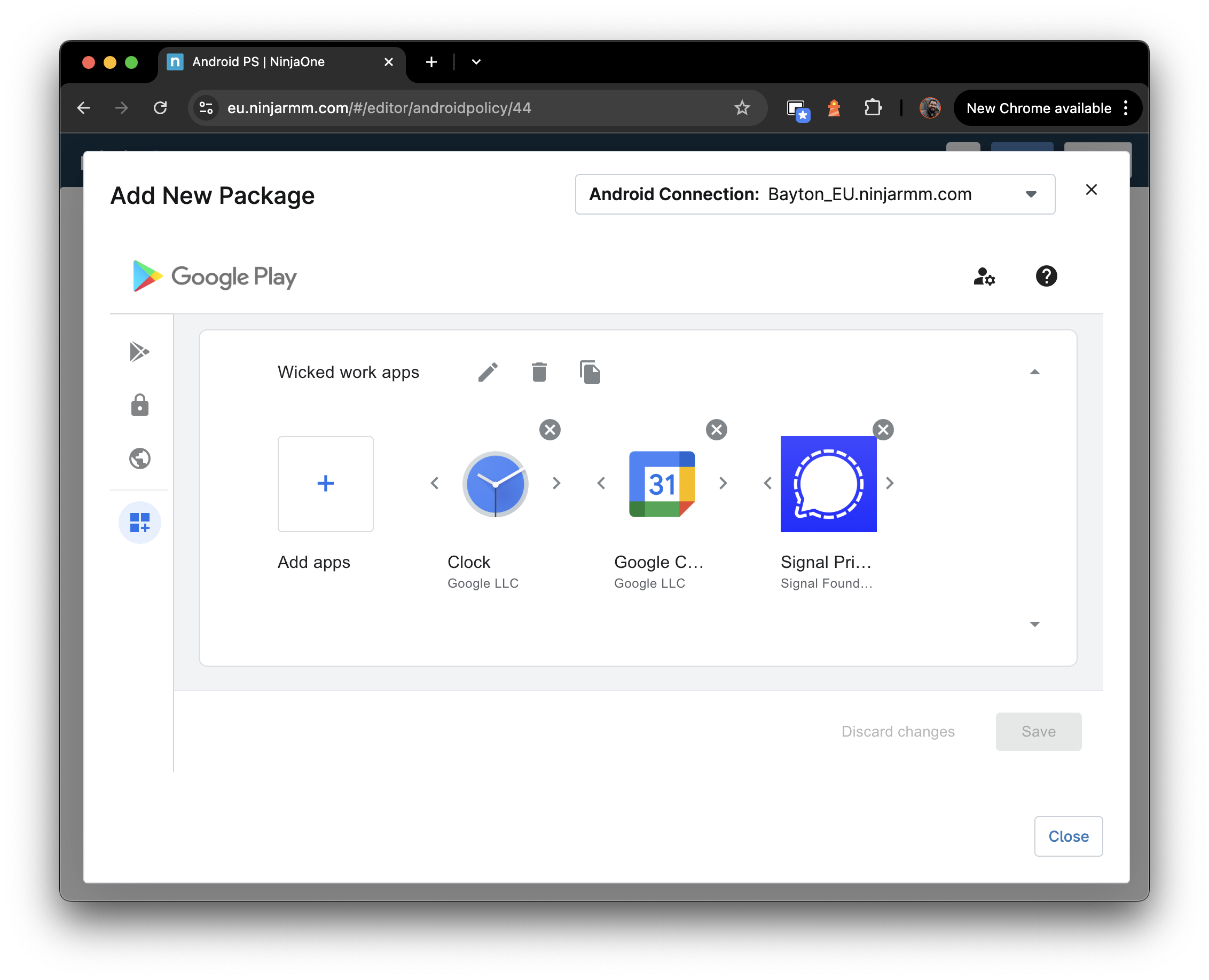
While it's great, it can also become a burden. Applications assigned won't automatically pop up in Google Play after app collections are created, for example, and keeping this up to date is a reason organisations try it out, and subsequently abandon the idea.
Unfortunately the managed Google Play iFrame doesn't support just turning it off. Instead, a support request will likely need to be raised with the EMM vendor.
-
If the EMM vendor uses the older Play EMM API with a custom DPC, they can leverage a simple API command:
setStoreLayout. This can either be supported in-console, or as an action the support team can perform. -
If, however, the EMM vendor uses AMAPI, they will have to reach out to Google to turn the feature off as AMAPI hasn't yet adopted the API to attain feature parity.
Once disabled, the Play Store on devices will return to standard behaviour.
Need help?
If you're struggling with your EMM provider, feel free to reach out, and I may be able to escalate it through the appropriate channels.
Be prepared to provide:
- Organisation (enterprise) ID
- Technical contact details
- Whether you use Play EMM API (with a custom DPC) or AMAPI.
Yes. The Android Management API now supports managing default application settings on managed devices.
Administrators can configure a prioritised list of apps for each default app type (such as browser, phone dialler, SMS, and others). The system evaluates the list in order and sets the first installed and qualified app as the default. If no app from the list is available, the existing default is retained.
Optionally, administrators can also prevent end users from changing the default app selection, ensuring the organisation's preferred apps remain in use.
This is particularly useful for:
- Enforcing a corporate browser as the default across a managed fleet
- Ensuring a specific phone or messaging app is always the default on dedicated devices
- Preventing users from switching to unsanctioned alternatives for key app categories
Prior to this feature, default app management through AMAPI required workarounds such as OEMConfig policies or was not possible at all, leaving it to end-user choice.
Yes. As of 2025, the Android Management API supports direct APK installation to managed devices.
Historically, all application deployment through AMAPI required apps to be distributed via managed Google Play. This meant every app - including internal line-of-business apps - needed to be uploaded to managed Google Play as a private app before it could be deployed.
With direct APK support, EMMs built on AMAPI can now push APK files directly to devices. This is particularly useful for:
- Internal apps that don't need to go through managed Google Play
- Apps that can't be published to Play for compliance or technical reasons
- Testing and development workflows where the overhead of Play publishing is unnecessary
- Situations where managed Google Play is unavailable or restricted
This does not replace managed Google Play as the primary distribution mechanism. Managed Google Play remains the recommended approach for most app deployment, as it handles versioning, updates, and licensing automatically. Direct APK installation is an additional option for scenarios where Play distribution is impractical.
For details on how this works, see AMAPI finally supports direct APK installation.
This is one of the most common managed Google Play issues reported by administrators.
The most likely cause is that your managed Google Play store is configured in Custom layout mode (also known as collections mode). When this mode is active, approved apps will not appear in the Play Store on managed devices until they are explicitly added to a collection.
Custom layout mode is typically enabled when an administrator edits collections within the managed Google Play iFrame in their EMM console. Once enabled, the store switches from showing all approved apps to showing only apps that have been placed in collections.
To resolve:
- Open the managed Google Play iFrame in your EMM console
- Navigate to the store layout or collections section
- Add the missing app to an appropriate collection
- Save and allow time for the change to propagate to devices
If you want all approved apps to be visible without collections:
- Some EMMs allow you to switch the store layout back from Custom to Basic mode, which shows all approved apps without requiring collections. The process for this varies by EMM.
Other possible causes:
- The app approval hasn't fully propagated yet. Allow up to an hour for newly approved apps to appear.
- The app is region-restricted and unavailable in the device's location.
- The app is assigned to a different policy or device group than the affected devices.
- For private apps, the app may still be in review or processing after upload.
No.
I’d recommend taking a look at Hypergate.
There is a project which was initiated (but not wholly supported) by Google to bring Kerberos support to Android through an application. Take a look at the respective GitHub repo to learn more, though note the project has seen no activity since 2019 and should be considered abandoned.
Related: Setup Kerberos Authentication on Ivanti EPMM (formerly MobileIron Core) for Android Enterprise
This is a known limitation of the Android Management API.
When deploying apps via closed testing tracks (also known as app tracks) through managed Google Play, the managed configuration schema (managed properties) is only pulled from the production version of the app. If the app has never been published to production, or if the production version has a different configuration schema than the track version, the EMM will either show no managed config options or show outdated ones.
This affects organisations that:
- Distribute internal apps exclusively through closed tracks without ever publishing to production
- Test new managed config options in a track version before promoting to production
- Use app tracks for staged rollouts where the track version has configuration changes not yet in production
Workaround: Publish the app to production with the correct managed configuration schema, even if the production version is not the one actively deployed to devices. The production listing controls what managed config options are available in the EMM console, regardless of which track version is installed on devices.
For more detail on this limitation, see Managed configurations and app tracks.
Yes. As of September 2024, Google Play Protect no longer sends sideloaded applications for cloud scanning on enterprise-managed devices.
What changed?
#Previously, when an app was installed outside of Google Play or managed Google Play (including apps pushed by an EMM's own installer), Play Protect would prompt the user to send the app to Google for scanning. This was an additional layer of protection beyond on-device detection.
Google removed this behaviour on managed devices in response to enterprise feedback. Organisations raised concerns about private, internally developed applications being uploaded to Google's servers for analysis - a data handling concern for security-conscious environments.
Does this reduce security?
#Partially. On-device Play Protect detection continues to function. Known malicious applications will still be flagged and may be removed regardless of how they were installed. What has changed is that unknown apps (those not in Google's database) are no longer sent for cloud-based analysis on managed devices.
For most enterprise deployments where apps are distributed through managed Google Play or a trusted internal pipeline, this change has minimal practical impact. Organisations that rely heavily on sideloaded apps from less controlled sources should consider additional endpoint security measures.
Does this affect unmanaged devices?
#No. On personal (unmanaged) devices, Play Protect continues to offer the cloud scanning prompt for sideloaded apps as before.
Sources:
The application roles feature allows an IT admin to grant special privileges to a managed application on an Android-powered device. By assigning a specific role, an app can be exempted from power and background restrictions, suspension, hibernation (on Android 14+) and have user controls (i.e. includes user actions like force-stopping and clearing app data) disabled (on Android 11+), allowing it to perform its critical function without interruption. Additionally, the app can be notified of its assigned roles, which allows it to bootstrap itself without user intervention.
The available roles are:
- KIOSK - designates the app for dedicated device (kiosk) experiences
- COMPANION_APP - designates the app as a companion to Android Device Policy, enabling offline command execution and interaction
- DEVICE_POLICY_CONTROLLER - designates the app as a device policy controller (DPC)
- IDENTITY_PROVIDER - designates the app as an identity provider (IDP)
- SECURITY_TOOL - designates the app as a security tool
- MOBILE_THREAT_DEFENSE_ENDPOINT_DETECTION_RESPONSE - designates the app as a mobile threat defence (MTD) / endpoint detection and response (EDR) agent
- SYSTEM_HEALTH_MONITORING - designates the app for system health monitoring
One application can have many roles, but a role can only be assigned to one app.
Application roles are configured within the applications section of an AMAPI policy and are supported on fully managed, dedicated, and work profile deployment scenarios, depending on the role.
For custom DPC implementations, roles are not applicable - they are an AMAPI-only feature.
Google Play Protect now enforces an allowlist of approved Device Policy Controllers (DPCs) during provisioning. If your DPC isn’t on the list, Play Protect can flag it as “Harmful app blocked” even when it’s legitimate.
Before you appeal:
- Align to the Play Protect unwanted software and warning dev guidance: be transparent, avoid silent installs, and justify sensitive permissions (SMS, notifications, accessibility, overlays).
- Make sure your use case fits Google’s permissible usage for enterprise management. If you don’t need a sensitive permission, remove it while you apply.
Then submit an appeal using Google’s DPC allowlist form (linked from the Play Protect warning/help article). Explain the business use case, the permissions you request, and how users are informed.
What to expect after submitting an appeal:
- Appeals are reviewed by a Google team, and responses typically take anywhere from a few days to several weeks. There is no published SLA.
- During the review period, devices encountering the block may still show a “continue” option depending on how the DPC is distributed. This allows provisioning to proceed in some cases, but this behaviour is not guaranteed.
- If the appeal is rejected, review the feedback, address any flagged issues (common: unexplained use of accessibility or overlay permissions), and resubmit.
- Communicate to users and admins that the warning is about allowlisting, not malware detection. This helps reduce support ticket volume while waiting for resolution.
Read more in the full article: The DPC allowlist.
Yes, in certain circumstances.
Google Play Protect runs on all GMS-certified Android devices, including those under enterprise management. If Play Protect identifies an app as potentially harmful, it can:
- Display a warning to the user recommending removal
- Automatically disable or remove the app in severe cases
This applies regardless of how the app was installed - including apps pushed by the EMM or sideloaded as part of an enterprise workflow. On managed devices, this can be particularly disruptive for:
- Kiosk and dedicated devices running a single critical app
- Legacy line-of-business apps that request sensitive permissions
- Sideloaded APKs deployed through the EMM (where the EMM policy permits unknown sources)
- Custom DPCs not on the approved allowlist
What can administrators do?
- Verify app compliance - ensure internally distributed apps follow Google's mobile unwanted software policy. Apps that request unnecessary sensitive permissions or exhibit behaviours Google considers deceptive are more likely to be flagged
- Use managed Google Play - apps distributed through managed Google Play are less likely to trigger Play Protect warnings than sideloaded APKs
- Report false positives - if a legitimate enterprise app is flagged, submit an appeal through the Play Protect warning developer guidance
Best practice: test all deployed applications against Play Protect in a staging environment before fleet-wide deployment. Monitor for Play Protect warnings in device reports and respond promptly to avoid workflow disruption.
Play Protect's cloud scanning of sideloaded apps on managed devices was removed in September 2024, but on-device detection continues. See the related FAQ: Has Play Protect changed how it handles sideloaded apps on managed devices?.
Enhanced fraud protection is a Google Play Protect feature that automatically blocks the installation of sideloaded apps requesting sensitive permissions commonly associated with financial fraud, such as reading SMS messages, accessing notifications, or using accessibility services.
As of early 2026, it is active in 185 markets across approximately 2.8 billion devices.
Can it affect enterprise apps?
#Yes, in specific circumstances. If an organisation distributes line-of-business apps by sideloading (installing APKs outside of managed Google Play or an EMM agent), and those apps request sensitive permissions, enhanced fraud protection may block the installation.
This is most likely to affect:
- Apps distributed via email, file share, or web download rather than through managed Google Play
- Apps that legitimately require accessibility services, SMS reading, or notification access for business purposes
- Apps installed through
adbduring development or staging that are then handed to end users
What is NOT affected?
#- Apps installed via the EMM agent (Device Policy Controller) are not subject to enhanced fraud protection
- Private apps uploaded to managed Google Play are not affected
- Public apps installed from Google Play are not affected
What should administrators do?
#- Distribute apps through managed Google Play or the EMM agent - this is the most reliable way to avoid enhanced fraud protection interference
- Review app permissions - if an app requests SMS, notification, or accessibility permissions, ensure there is a genuine business justification. Removing unnecessary permission requests reduces the risk of being flagged
- Use AMAPI direct APK installation - for apps that cannot be published to managed Google Play, direct APK installation through AMAPI provides a supported distribution path that bypasses enhanced fraud protection
Enhanced fraud protection is distinct from the content protection policy, which focuses on detecting deceptive app UI patterns on Android 15+ fully managed devices.
No. There is no supported way to purchase paid apps through managed Google Play today.
What about the Bulk Purchase Program (BPP)?
#Google previously offered the Bulk Purchase Program - Android's equivalent to Apple's VPP - which allowed organisations to buy paid app licences in bulk and distribute them through managed Google Play. BPP was only available in the United States and Canada, and has since been deprecated. Organisations that already hold purchased licences can continue to manage and assign them, but no new purchases can be made.
Why can't work accounts just buy apps directly?
#For managed Google Play Accounts enterprises - where user accounts are created and managed entirely by the EMM - there is no associated payment method, so purchases aren't possible at all.
For managed Google domain setups with user authentication (Google Workspace, Cloud Identity), users have full Google accounts and can add a personal or company payment method. In this scenario, individual users can purchase paid apps directly and expense them through normal organisational channels, bypassing the need for bulk licensing entirely.
Licenses are non-transferrable across Google accounts though, so this is a one-and-done license purchase if permitted.
What are the alternatives?
#- Volume licensing through the app developer - contact the developer directly to arrange enterprise licensing. A common pattern is for the developer to publish a free version of the app that activates with a licence key pushed via managed configurations
- Private app distribution - if the app is developed in-house or by a contracted vendor, distribute it as a private app through managed Google Play or via direct APK installation through AMAPI or Custom DPC.
- Free alternatives - evaluate whether a free or freemium alternative exists that meets the same business requirement
This limitation applies specifically to managed Google Play. On unmanaged personal profiles - so BYOD, COPE, or indeed no management at all - users can still purchase apps through the standard Google Play Store using their personal Google account.
Yes, but only on company-owned work profile (COPE) devices. Personally-owned work profile devices (BYOD) offer no personal app management whatsoever - the EMM has zero visibility into or control over the personal profile on BYOD.
How it works
#On company-owned devices running Android 11+, personal usage policies allow organisations to control which apps are available in the personal Play Store. There are two modes:
Blocklist mode - the default-like behaviour. Users have full access to Google Play, but specific apps listed by the administrator are blocked. Any blocked app already installed on the personal profile is automatically uninstalled.
Allowlist mode - the restrictive option. The personal Play Store shows only apps explicitly approved by the administrator. Everything else is unavailable, and any app not on the allowlist that is already installed will be automatically removed.
In AMAPI, this is configured through the personalUsagePolicies object within the policy resource:
"personalUsagePolicies": {
  "personalPlayStoreMode": "BLOCKLIST",
  "personalApplications": [
    {
      "packageName": "com.example.unwanted.app",
      "installType": "BLOCKED"
    }
  ]
}
For allowlist mode, set personalPlayStoreMode to ALLOWLIST and list permitted apps with installType: "AVAILABLE".
Custom DPC EMMs implement this differently depending on the vendor. Microsoft Intune exposes it as a "restricted apps list" under COPE device restriction profiles. Omnissa Workspace ONE, SOTI MobiControl, and others surface similar controls through their respective policy consoles, though the underlying enforcement is the same Android platform mechanism.
What else can be controlled on the personal profile?
#Beyond app availability, personalUsagePolicies supports several other controls on company-owned devices:
- Camera - can be disabled on the personal profile
- Screen capture - can be disabled on the personal profile (this also blocks Circle to Search)
- Work profile pause duration -
maxDaysWithWorkOffsets how long a user can keep the work profile paused (minimum 3 days) - Account types - restrict which account types users can add on the personal side
- Private Space - on Android 15+, administrators can prevent the creation of a Private Space
- Unknown sources - sideloading can be blocked on the personal profile as a separate policy
What it does not do
#These policies do not provide any access or visibility to the applications or data within the personal profile. The organisation controls the catalogue of what can be installed, but cannot see which apps are actually installed, what data they contain, or how they are used. Personal privacy is maintained by design.
Personal usage policies also do not affect pre-installed system apps or OEM apps on the personal side. These are part of the device image and remain present regardless of allowlist or blocklist settings. For more on how system apps behave on COPE, see system app management on COPE devices.
Sideloading is a separate concern
The personal app allowlist and blocklist only govern the Play Store. If unknown sources is enabled on the personal profile, users can sideload apps that bypass these restrictions entirely. For most COPE deployments, blocking unknown sources on the personal profile is strongly recommended alongside any app restriction policy.
For more on what changed with COPE in Android 11 and why these policies exist, see Android 11 COPE changes and can organisations deploy apps to the parent profile?.
Not concurrently, no. Android only permits a single active VpnService per user, which means a single work profile, personal profile, or fully managed device can host exactly one system-level VPN connection at a time.
Why only one?
#Android's VPN framework is built around the VpnService class. When a VPN app calls establish(), the system installs its virtual network interface as the default route for that user. Starting a second VpnService does not add a parallel tunnel - it replaces the first. The displaced service receives onRevoke(), its interface is torn down, and the new one takes over.
If both VPN apps are configured to reconnect automatically (or if one is set as always-on VPN), the result is an endless disconnect-reconnect loop as each app tries to reclaim the interface. This is the single biggest source of "my VPN keeps dropping" reports when two clients are installed side by side.
Always-on makes it worse
Enabling always-on VPN on one client while another client is also running inside the same profile is guaranteed to cause flapping. Always-on explicitly re-establishes the connection whenever it is torn down, including when a second VPN revokes it.
What people actually mean by "multiple VPNs"
#Most of the time, the underlying requirement isn't really two concurrent tunnels - it's selective routing, or separation between work and personal traffic. Android provides several mechanisms that cover the real use cases:
Per-app VPN (one tunnel, selective routing)
#A single VPN client can route only specific apps through the tunnel while leaving others on the direct network, using VpnService.Builder.addAllowedApplication() or addDisallowedApplication(). These are mutually exclusive - allowlist or blocklist, never both.
Configuration is done through the VPN app's configurations, not directly through AMAPI or DPC policy. Check with your VPN vendor for managed config keys that accept allow/deny package lists.
This is the closest Android comes to "multiple VPN routing" within a single profile: one tunnel, different behaviour per app.
Split tunnelling (inside the VPN app)
#Some enterprise VPN clients implement split tunnelling at the network layer - certain destinations go through the tunnel, everything else goes direct. This is handled by the VPN app's own routing logic and has no Android-level equivalent; capability varies by vendor.
App-embedded tunnels (not a VpnService)
#An application can open its own TLS, QUIC, or proxy connection to a back-end without using VpnService at all. These connections are opaque to Android's VPN framework, so they do not conflict with a system VPN and can run alongside one. Browsers with built-in proxies, messaging apps with end-to-end transport, and some enterprise SDKs work this way. Only traffic generated by that app is affected.
Separate profiles for separate tunnels
#The one-VPN-per-user rule is scoped to a single Android user. A device with a work profile, COPE personal side, or Private Space can run a different VPN in each scope concurrently because each is a distinct Android user. This is a real way to have "two VPNs running at once" - but it requires the traffic you want routed to originate from the corresponding profile.
See Is it possible to utilise a single VPN connection across the entire device? for how VPN scoping interacts with each deployment model.
What doesn't work
#- Two VPN apps in the same profile, both started - they will repeatedly revoke each other
- Always-on on one client plus an ad-hoc connect on another - always-on wins, the other drops immediately
- Trying to "chain" two VPNs at the OS level - Android has no nested
VpnServiceconcept. Chaining, if required, must be implemented inside a single VPN client
From Android 14, administrators can control which apps are permitted to act as credential providers on managed devices. Credential providers are apps that store and autofill passwords, passkeys, and other credentials - such as Google Password Manager, 1Password, Bitwarden, or Dashlane.
How it works
#AMAPI provides credential management through two complementary policy areas: credential provider policies (Android 14+) and the autofill policy (added April 2026).
Credential provider policies
#AMAPI provides two policy fields for credential provider management:
credentialProviderPolicyDefault - a policy-level setting that controls the default behaviour for all apps on the device. Options include blocking all credential providers or allowing only pre-loaded (system) credential providers.
credentialProviderPolicy - a per-app setting within ApplicationPolicy that overrides the default for specific apps. This allows administrators to approve individual third-party credential managers while keeping the default restrictive.
AutofillPolicy
#From the April 2026 AMAPI release, a separate autofillPolicy field allows administrators to disable the Android system autofill service entirely. This controls the legacy Autofill Framework (Android 8+), which is distinct from the Credential Manager that credential provider policies govern.
AUTOFILL_ALLOWED- the default; the system autofill service operates normallyAUTOFILL_DISABLED- disables the system autofill service on the device or within the work profile
For comprehensive control over credential storage and form-filling, configure both the credential provider policies (for Credential Manager and passkeys) and the autofill policy (for legacy autofill). Disabling one does not disable the other.
What can administrators control?
#Per the Android Enterprise feature requirements (4.30), IT admins can:
- Block all credential managers on the device or within the work profile
- Allow only pre-loaded credential managers (system apps)
- Specify a list of approved credential manager package names
These controls apply across all four management modes: work profile on personally-owned devices, work profile on company-owned devices, fully managed devices, and dedicated devices.
Passkeys in work profiles
#Passkeys are profile-scoped. A passkey created in the work profile is only usable from within the work profile, and a passkey created in the personal profile stays in the personal profile. Users who need passkey access in both profiles must register separately in each.
This is by design - work profile isolation ensures that corporate credentials cannot leak to the personal side, and vice versa.
Common issues
#On Android 15, some EMMs initially did not configure the credentialProviderPolicyDefault field, which caused it to default to a blocked state. This resulted in users seeing their password manager or authenticator app reported as "blocked by work policy" on fully managed devices after upgrading. If you encounter this, check with your EMM vendor that they are explicitly setting the credential provider policy, and ensure the apps you want to use as credential providers are approved in the per-app policy.
When should I configure this?
#If your organisation uses a third-party password manager or passkey provider on managed devices, you should explicitly configure the credential provider policy to approve those apps. Relying on the default behaviour may result in the provider being blocked, particularly after OS upgrades that introduce new policy defaults.
It depends on the deployment scenario. On a fully managed device with no additional profiles, a single VPN policy creates a device-wide connection that routes all traffic. On any device with multiple profiles - work profile, COPE, or Private Space - VPN operates per-profile, and a single connection cannot cover the entire device.
VPN scope by deployment scenario
#Fully managed (no work profile)
A VPN configured by the device owner applies to all apps and traffic on the device. There is only one profile, so a single VPN connection covers everything.
COPE (company-owned, work profile)
On a COPE device, VPN must be configured separately for the device-level (personal side) and the work profile. These are independent VPN connections managed by different admin scopes - the device owner controls device-level VPN, and the profile owner controls the work profile VPN. A VPN set at the device level does not automatically cover work profile traffic, and vice versa.
If full coverage is required on a COPE device, the administrator must deploy VPN policies to both scopes.
BYOD (personally-owned work profile)
A VPN configured by the profile owner applies only to the work profile. The administrator has no control over VPN on the personal side - this is entirely under the user's control. Personal traffic is unaffected by the work VPN, and the user can independently configure their own personal VPN if they choose.
Private Space (Android 15+)
Private Space behaves like a separate profile. VPN configured on the personal/parent profile does not apply to Private Space apps, and vice versa. To route Private Space traffic through a VPN, a VPN app must be installed and configured within Private Space itself.
On COPE devices, administrators can block Private Space creation entirely if VPN coverage gaps are a concern.
Always-on VPN
#Always-on VPN, available since Android 7.0, starts the VPN service automatically on device boot and keeps it running. The connection persists across reboots and app updates without user interaction.
Lockdown mode
#When lockdownEnabled is true, all network traffic is blocked if the VPN is not connected. No traffic can leak to the open internet. When false, traffic flows unprotected between device boot and VPN connection establishment - this is by design but often misunderstood.
Lockdown exemptions (Android 10+)
#Some apps may need network access before the VPN is established (for example, during provisioning). From Android 10, specific apps can be exempted from lockdown so they fall back to normal networking when the VPN is unavailable.
User control
#From Android 11, users can no longer disable always-on VPN when it has been configured by an administrator. On company-owned devices, no user consent dialog is shown when enabling always-on VPN.
To prevent users from changing VPN settings entirely, set vpnConfigDisabled: true (AMAPI) or apply the DISALLOW_CONFIG_VPN user restriction (custom DPC).
Per-app VPN
#Per-app VPN is a platform feature built into the Android VpnService API. It allows routing traffic from specific apps through the VPN while other apps use the normal network connection (or vice versa).
This is configured through the VPN app itself, not directly through EMM policy. The EMM sends managed configurations to the VPN app specifying which apps should be included or excluded, and the VPN app implements the filtering using VpnService.Builder.addAllowedApplication() or VpnService.Builder.addDisallowedApplication(). These two modes are mutually exclusive - you allowlist specific apps or blocklist them, not both.
If the VPN app does not support per-app VPN, the EMM cannot force it. Check with your VPN vendor for managed configuration support.
System VPN app exclusion (Android 17+)
#Android 17 introduces ACTION_VPN_APP_EXCLUSION_SETTINGS, a standardised system intent that VPN apps can invoke to open an OS-managed screen where the user selects apps to bypass the VPN tunnel. Traffic from excluded apps uses the underlying network directly. Changes take effect immediately if the VPN is active, or on the next connection.
This replaces the previous approach where each VPN app implemented its own exclusion UI, giving a consistent experience across vendors. VPN app developers must adopt the new intent for it to appear - it is not automatic. Check with your VPN vendor on their adoption timeline. On managed devices, administrators should evaluate whether users should have access to this exclusion screen, as it could allow bypassing corporate VPN for specific apps.
Common pitfalls
#- Assuming device-wide VPN covers the work profile: On COPE devices, VPN is scoped per profile. A device-level VPN does not protect work profile traffic. Configure VPN in both scopes if needed
- Forgetting about Private Space: On Android 15+, Private Space apps bypass any VPN configured on the personal profile. Block Private Space creation if full VPN coverage is required
- Only one VPN per profile: Android supports only one active VPN service per user/profile. If two VPN apps are configured in the same profile, they will repeatedly disconnect each other. See Is it possible to utilise multiple VPN connections within a profile?
- Lockdown without exemptions: Enabling lockdown mode without exempting essential apps can cause provisioning failures or prevent app updates. Use lockdown exemptions (Android 10+) for apps that need pre-VPN connectivity
- Missing
vpnConfigDisabled: Setting always-on VPN without also disabling user VPN configuration means users may be able to modify or disable the VPN on some devices
Related
#Generative AI on Android reaches the device through several distinct channels, and "block AI" is rarely a single policy toggle. Administrators typically need to decide what to do about each channel separately: AI apps from Google Play, AI websites in browsers, screen-reading and assistant experiences, on-device AI services, and OEM AI features.
Where AI shows up on a managed device
#- AI apps - ChatGPT, Microsoft Copilot, Claude, Perplexity, Gemini and similar are installable from Google Play
- AI websites - the same tools can be reached through a browser at gemini.google.com, chatgpt.com, copilot.microsoft.com and so on
- Screen-driven and assistant experiences - OS integrations such as Circle to Search and Assistant overlays read on-screen content and hand it to an AI backend
- On-device AI services - Gemini Nano runs locally via the AICore system app and powers features like Magic Compose in Messages, audio summarisation in Recorder, and smart replies in Gboard
- OEM AI features - vendor capabilities such as Samsung Galaxy AI, which are likely to be managed through the OEM's OEMConfig app rather than through standard AMAPI policy
Controlling AI apps
#Managed Google Play is the primary interface. On company-owned devices with Play Store mode on allowlist (no unmanaged Play installs), only apps you have approved and assigned will appear, so unwanted AI apps never reach the device. If you use blocklist, you can add the specific AI apps to managed Google Play and assign them to be blocked, which removes them from devices they are already on and blocks future installation.
On personally owned work profile devices, the same approach applies within the work profile. The personal profile remains outside EMM control, so a user can still install ChatGPT personally. Work profile isolation prevents work data from reaching those personal-side AI apps as long as cross-profile data sharing and copy/paste are set to the secure defaults. On COPE, the admin has the ability to block by package name in the parent profile, but this is manual and may end up being cat-and-mouse.
Controlling AI websites
#URL filtering is configured through the browser rather than AMAPI directly. In Chrome and Microsoft Edge, the URLBlocklist managed configuration accepts a list of URLs to block. A typical enterprise list targets gemini.google.com, chatgpt.com, claude.ai, copilot.microsoft.com and perplexity.ai. Each browser is configured separately.
Controlling screen-driven and assistant experiences
#Two AMAPI policies are relevant:
assistContentPolicy(or equivalent EMM setting) blocks assist content sharing with privileged apps, which disables Circle to Search and other features that pass screenshots and app details to an assistant backend without affecting general screenshot functionalityscreenCaptureDisabledblocks screen capture device-wide. It is more aggressive and also prevents users from taking screenshots or allowing some remote control solutions for legitimate reasons. The March 2026 AMAPI documentation update clarified thatscreenCaptureDisablednow also blocks Circle to Search
On work profile devices, the deployment scenario matters. Blocking screen capture only in the work profile lets the personal profile behave normally.
Controlling Gemini in the work profile
#The Gemini mobile app is not available in the Android work profile. Users who launch Gemini from the work profile are redirected to gemini.google.com in their work browser. This behaviour is set by Google at the Gemini app level and is not something an administrator needs to configure. If you want to block web Gemini as well, add gemini.google.com to your browser URL blocklist as described above.
Controlling on-device AI (Gemini Nano)
#Gemini Nano runs inside the AICore system app. It can be disabled on managed devices by deploying AICore as a system app with an uninstall assignment, which turns the local AI processing off. The package name is com.google.android.aicore. Disabling AICore removes AI-powered features from Messages, Recorder, Gboard smart replies and any other app that depends on it, so confirm the user impact before rolling this out broadly.
Controlling OEM AI features
#Samsung Galaxy AI and similar vendor features may be exposed through the OEM's OEMConfig app rather than AMAPI. For Samsung devices that is Knox Service Plugin. Deploy the OEMConfig app, create an OEMConfig profile in your EMM, and look for AI-related settings in the configuration designer. Available settings differ by OEM and by device generation, so confirm with the vendor which controls are exposed.
Platform-level AI controls (Android 17+)
#Android 17 introduces two device policy controls that operate at the platform level, below the app layer:
- Agentic automation policy -
DevicePolicyManager.setNearbyAppStreamingPolicy()disables AI agent automation on fully managed devices and the personal profile of COPE devices. AI automation is blocked inside work profiles by default on Android 17, regardless of this policy setting - Device state for LLMs -
DevicePolicyManager.setAppFunctionsPolicy(APP_FUNCTIONS_DISABLED)prevents authorised assistant apps from consuming device-level data via the App Functions framework. Work profile data is excluded from the App Functions pipeline by default, so this control is most relevant for fully managed devices where all data is corporate
These controls complement the app-level and browser-level approaches above. They do not replace them - an AI app installed from Google Play still runs independently of the App Functions pipeline, so blocking App Functions alone does not prevent a user from pasting corporate data into ChatGPT. A layered approach combining Play Store restrictions, browser URL blocking, cross-profile data policies, and these platform-level controls provides the broadest coverage.
EMM support for these new policies depends on when each vendor surfaces them in their console. Check with your EMM provider for availability.
A note on work profile data boundaries
#Even where AI apps exist on the personal side, the work profile's data boundary does most of the heavy lifting. Keep the defaults: copy and paste between profiles blocked, cross-profile data sharing restricted, and contact sharing off unless there is a business reason. This means a personal-side ChatGPT app cannot read work contacts, calendar, or files, regardless of whether the app itself is blocked.
Every year, Google raises the minimum target API level (targetSdkVersion) required for apps submitted to Google Play. From August 31, 2026, new apps and app updates must target Android 16 (API level 36) or higher. Existing apps that do not target at least Android 15 (API level 35) become invisible to new users on devices running newer Android versions.
This is a recurring annual requirement. Google aligns it with the latest stable Android release to ensure apps adopt current security, privacy, and performance improvements.
Does this affect private enterprise apps?
#Permanently private apps are exempt. If an app is uploaded to managed Google Play and restricted to your organisation only (not publicly listed), it does not need to meet the target API level requirement. Google explicitly excludes private distribution apps from this policy.
This means internal line-of-business apps, custom tooling, and other apps distributed exclusively through managed Google Play to your managed devices are unaffected by the annual deadline.
Does this affect apps pushed via an EMM?
#Apps installed directly by an EMM agent (sideloaded via the DPC) are not subject to Google Play's target API level policy, since they bypass Google Play entirely. The requirement only applies to apps distributed through the Play Store.
However, Android itself enforces a separate minimum install requirement: from Android 14, apps targeting API levels below 23 (Android 6.0) cannot be installed at all. This platform-level restriction applies regardless of how the app is distributed.
What about public apps from third-party vendors?
#Public apps used by your organisation - from established vendors or niche suppliers - must comply with the target API requirement to remain available on Google Play. If a vendor does not update their app in time:
- The app remains installed on devices that already have it
- New installations are blocked on devices running newer Android versions
- The app disappears from Play Store search results for new users on affected devices
Administrators should identify business-critical public apps and confirm with vendors that they are tracking the August 2026 deadline. Vendor apps that fall behind on target API compliance are also likely to be behind on security and compatibility updates, which is a broader risk signal.
What if my app needs more time?
#Google offers a one-time extension (typically around three months) that developers can request through the Play Console. This is a developer action, not an administrator action - if a vendor needs the extension, they must request it themselves.
Summary
#| Distribution method | Subject to target API requirement? |
|---|---|
| Public Google Play app | Yes |
| Private managed Google Play app (org-only) | No |
| EMM-sideloaded (DPC push) | No (Play policy). Platform minimum still applies |
For all EMMs that support it, the Google Play iFrame supports the simple, few-step process of uploading an APK for distribution to your Enterprise.
Note: APK uploads remain supported when using the managed Google Play iFrame. Direct private app uploads through the Google Play Console should use Android App Bundle (.aab) format.
Unlike adding an APK directly into the UEM console, uploading to Google Play is safer, easier to manage and less likely to lead to issues compared with pushing APKs directly. Benefits include:
- Google's extensive Play infrastructure allows faster, lower-bandwidth installations
- Basic validation for feature support avoids repetitive installation failures for unsupported devices
- Smaller installation files (AAB)
- Delta updates, where supported (AAB)
- Native installation vs that of the DPC or a companion app
More information: Create and manage private apps for Android Enterprise
Where the Play iFrame isn’t supported, it’s possible to upload and distribute through the Google Play Console using AAB format, but keep in mind there’s a $25 fee to set up a developer account.
As of 2025, managed Google Play supports Android App Bundles (AAB) for private apps, offering smaller downloads and optimised delivery compared to APKs.
For organisations using AMAPI, direct APK installation is also now supported natively through the AMAPI SDK, providing an alternative for scenarios where Play distribution is not suitable - such as air-gapped environments or rapid iteration during development.
Externally hosted private apps are no longer a supported path. Google has announced the externally hosted apps feature is deprecated, and customers previously using private app hosting in Google Play should work with their EMM on an alternative deployment method.
Developer verification
From September 2026, Google requires apps on certified Android devices in select regions to come from verified developers. This applies to privately distributed apps as well. Organisations should ensure their Google Play developer accounts are verified ahead of this deadline. See Google Play developer verification for details.
Note: Google Play will only permit one package name (com.app.name) for an application across the whole Google Play estate, meaning if you wish to upload an app privately today, and make it available publicly later, you must use unique package names for each upload.
App updates on managed Android devices follow the same fundamental mechanism as unmanaged devices, but administrators have additional controls over timing and behaviour.
How updates are detected
Google Play checks for available app updates approximately once per day. When an update is found, it is added to a queue. The update then installs the next time all of the default constraints are met simultaneously:
- The device is connected to Wi-Fi
- The device is charging
- The device is idle (not actively in use)
- The app being updated is not running in the foreground
Because of the daily check interval, it can take up to 24 hours for a newly published update to be detected, and then additional time for the constraints to align. In practice, most updates install within a few hours to a day under normal conditions.
The system may relax the idle, charging, and battery constraints if they are not met within a reasonable time frame. Network constraints are also relaxed for certain system packages such as Google Play Services and Mainline modules.
Update modes
Administrators can override the default update behaviour on a per-app basis using the auto-update mode policy. This applies identically regardless of whether the app is force-installed or set to available.
Default - updates follow the standard daily check and constraint logic described above. This is the behaviour when no mode is explicitly set.
High priority - the app updates as soon as a new version is published and reviewed by Google Play, rather than waiting for the normal daily queue and constraints. If the device is offline, the update installs upon reconnection. For apps with very large install bases, even high priority updates may still take up to 24 hours to propagate. If the app is in use when the update is ready, the system force-closes it to complete the install, which may disrupt users. The exception is kiosk (lock task) mode: a pinned app cannot be force-closed, so a high priority update to the kiosk app itself only installs once the app is allowed to close, which in practice means within an update window or on reboot.
Postpone - automatic updates are paused for 90 days from the point the app first becomes out of date, meaning the first time a newer version exists that the device has not installed. The 90-day clock is not reset by any further versions the developer publishes during that window; those simply queue up behind the postponement. After 90 days, the latest available version installs automatically using default mode behaviour, and only then does a new 90-day window begin the next time the app becomes out of date again. Users can still manually update the app through the Play Store during the postponement period.
Systen update windows
Separately from per-app update modes, administrators can define a daily system update window (best practice around 4 hours) during which the charging, idle, and foreground constraints are ignored for app updates. This allows updates to install during a predictable time slot even if the device is in active use, not charging, or has the app open.
In AMAPI, the maintenance window is configured through the system update policy - setting a windowed system update policy automatically applies that same window to Play app updates. Network constraints remain in effect even during a maintenance window.
It can take up to up to a day for a newly configured maintenance window to take effect on devices.
The maintenance window does not apply to apps in high priority or postpone mode. A high priority app updates immediately and force-closes itself if it is in the foreground, so it does not wait for the window. Postpone apps are not updating at all during the postponement period, so the window has no effect on them. The practical exception is a kiosk (lock task) app updating itself: because it cannot be force-closed, the update only lands when the app is allowed to close, which in a kiosk deployment typically means within an update window or on reboot.
Install types
All install types follow the same update rules. The install type controls whether the app is automatically installed on the device and whether the user can remove it - it does not change how updates are delivered or timed.
Common observations
- Updates seem slow - the daily check interval and constraint requirements mean updates rarely install instantly. If timing is critical, use high priority mode
- Updates on dedicated devices - kiosk devices that are always in use and rarely connected to Wi-Fi or charging may experience significant delays with default mode. The kiosk app itself is pinned in the foreground and cannot be force-closed, so high priority mode will not update it on its own; an update window, which relaxes the foreground constraint, is the reliable way to keep it current. High priority mode still helps for other apps on the device that are not pinned in the foreground
- Work profile apps share APKs with the personal profile - if the same app is installed in both the personal and work profiles, only one copy of the APK exists on the device. When the app updates, it updates for both profiles simultaneously. This cannot be controlled independently
- Google Play Store and Google Play Services are exempt - these system components update outside of the standard app update flow and cannot be postponed by administrators
For controls around delaying or holding app versions, see Can I pin a specific OS or app version?. For troubleshooting apps that are stuck downloading, see Why are managed Google Play apps stuck on pending?.
Apps showing as "pending" indefinitely after enrollment or policy assignment is one of the most commonly reported managed Google Play issues.
Common causes
#-
Network connectivity - the device needs a stable internet connection to download apps from Google Play. Verify the device can reach
play.google.comand related Google services. See network requirements for Android Enterprise for the full list of endpoints. -
Incorrect date and time - if the device clock is significantly out of sync, Play Store authentication may fail silently. Ensure the device is set to automatic date and time, or configure this via policy.
-
Insufficient storage - the device may not have enough free space to download and install the app. This is particularly common on dedicated devices with limited internal storage.
-
Sequential installation - managed Google Play processes app installs in small batches. If many apps are assigned at once, some will remain pending while others download and install. This is expected behaviour and will resolve over time.
-
Play Store cache - corrupted cache data can cause download failures. Clearing the Play Store app's cache and data (Settings > Apps > Google Play Store > Clear cache/Clear storage) often resolves the issue.
-
Google account sync - on work profile devices, the managed Google Play account may not have synced correctly. Opening the managed Play Store app and allowing it to complete initial setup can resolve the issue.
-
Stuck or pending system app - Many OEMs now have system applications hosted in Google Play for updates. These can start updating at the same time managed applications are expected to come down, slowing things down in ways that might not look immediately visible.
Steps to resolve
#- Verify network connectivity and that Google endpoints are not blocked
- Check the device date and time are correct
- Confirm sufficient storage space is available
- Restart the device - this forces a re-sync with Google Play services and unsticks stuck updates.
- If the issue persists, clear the Google Play Store cache and data
- For work profile devices, open the managed Play Store app in the work profile to trigger a sync
- Check the EMM console for app deployment errors that may provide more specific information
When to escalate
#If apps remain stuck after the above steps, the issue may be related to the EMM's app deployment configuration, a Google Play services outage, or a device-specific bug. Raise a support case with your EMM vendor if the problem persists.
For an overview of how app updates are detected, queued, and installed under normal conditions, see How do app updates work in managed Google Play?
From 30 September 2026, Google requires that apps installed on certified Android devices in Brazil, Indonesia, Singapore, and Thailand come from verified developers. This initial enforcement applies not only to Google Play but also to apps distributed through participating OEM stores (Samsung Galaxy Store, Xiaomi, OPPO, vivo, Honor, and Transsion). Additional regions are expected from 2027 onward, with global coverage planned over subsequent years.
For most enterprise deployments, the impact is minimal:
- Apps installed via an EMM DPC are exempt indefinitely. This covers the standard enterprise app distribution method where APKs are pushed through the EMM agent.
- Private apps uploaded through managed Google Play are exempt indefinitely. These apps already go through Google's ecosystem and do not require separate developer verification.
- Public apps installed via Google Play on fully managed and work profile devices have an extension to September 2027, after which the developers behind those apps will need to be verified.
Where developer verification does matter for enterprise:
-
User-initiated sideloading - if users install apps outside of EMM-managed channels on certified devices (for example, downloading APKs from a website), those apps will require a verified developer in affected regions. From August 2026, sideloading apps from unverified developers requires an "Advanced Flow" that includes enabling developer mode, a mandatory 24-hour waiting period, a device restart, and biometric or PIN authentication before the install is permitted. Users can then choose a 7-day or indefinite sideloading window. ADB-based installation remains unaffected.
-
Third-party dependencies - if the organisation relies on public apps from smaller developers or niche vendors, those developers need to complete verification. Developers distributing through Google Play verify via the Play Console as before. Developers distributing exclusively through other stores or direct download must register through the separate Android Developer Console (distinct from the Play Console). Apps that lose the ability to be installed due to an unverified developer could disrupt workflows after the extension period ends.
Google also offers free limited distribution accounts for students and hobbyists, allowing app sharing with up to 20 devices without requiring government ID verification or the $25 registration fee.
More detail on this change and what organisations should do to prepare can be found in Google Play developer verification: what this means for consumers and enterprise.
Submit a question
#Need something else answered? Submit an issue, tweet @jasonbayton or tag me in a LinkedIn post. Questions may be republished on this document, or form the basis of a new document under /android.
Discuss this topic on the Android Enterprise Customer Community, tag @jasonbayton to summon me.
Discuss this topic on the #android channel of the Mobile Pros Discord community.
Docs
General
- Introduction
- Android Enterprise build tracker
- Android versions matrix
- What is Android Enterprise?
- Android Enterprise feature requests
- Considerations when migrating from device administrator to Android Enterprise
- Upgrading your Android Enterprise binding to a managed Google domain
- What is Android Enterprise Recommended?
- Android Enterprise FAQ
- How to migrate Android devices from one EMM to another
- Android Enterprise device testing
- New in Android 16 for enterprise
- New in Android 17 for enterprise
- What is Private Space in Android 15, and how can organisations manage it?
- Why don't all Android devices come with GMS?
- What is Android One?
- What are managed configurations?
- Android Enterprise vs Device Admin: Why DA is no longer suitable
- Considerations for choosing Android in the Enterprise
- Feature spotlight: Android Smartlock
- Android glossary
- Android version evolution graphics
- Infobyte: Device Admin deprecation
- How to submit a device for Android Enterprise Recommended validation
- How to view software version information
- How to capture a bug report and device logs
- Gartner comparison of security controls for mobile devices 2019
Provisioning
- How to become a zero-touch enrolment reseller
- Android Enterprise provisioning methods
- What is Android zero-touch enrolment?
- Android Enterprise zero-touch console administration guide
- Android Enterprise DPC identifier collection
- Android Enterprise provisioning guides
- Android Enterprise zero-touch DPC extras collection
- Infobyte: Android Enterprise deployment scenarios
- Infobyte: Android Enterprise fully managed provisioning methods
- Manual Android Enterprise work-managed QR code generation for MobileIron
Work profile
Fully managed
App management
- Set up Hypergate's Kerberos Authentication on MobileIron Core for Android Enterprise
- Managed Google Play, allowlist or blocklist?
- Considerations when deploying MTD with Android Enterprise
- Why you shouldn't install apps from unknown sources
- What is OEMConfig?
- Create and manage private apps for Android Enterprise
- Create and manage web apps for Android Enterprise
- Using Google Play application tracks with EMM
- How to locate a private Android app assigned to an organisation ID
- How to host enterprise apps outside of Google Play
- The Google Play iFrame app approval flow is deprecated
- Android 13 adds notifications access as a runtime permission
- Android 13 & up restricts permissions when apps are sideloaded
- Android 14 blocks apps targeting old Android versions
- Android minimum target SDK matrix
- Android system app database
- How to resolve common Android app install failures, by error message
FAQ
- Is Android Enterprise supported on uncertified (non-GMS) devices?
- Can apps be sideloaded into the Private Space?
- Is Private Space supported on fully managed devices?
- Why don't Private Space apps go through VPN?
- How can apps be managed in the Private Space?
- Are Private Space apps visible to enterprise admins?
- Are Private Space applications truly hidden?
- Does Samsung support Android Enterprise?
- Is it possible to manage personal applications on a work profile device?
- Why has USB data access been disabled suddenly?
- What versions of Android support Android Enterprise?
- How to check if an Android device is GMS/Play Protect certified?
- Is it possible to manage eSIM?
- Can I manage APNs through AMAPI?
- Why is my organisation name showing on managed devices?
- Can I route specific apps through 5G network slicing?
- To use Android Enterprise do I need to buy Google Workspace (G Suite) and register my domain?
- What is a managed Google domain, and should I upgrade?
- Is Android Enterprise supported on XR headsets?
- What devices should I buy for my organisation?
- What is the difference between GMS and EDLA certification for enterprise?
- How do Samsung Knox and Android Enterprise policies interact?
- If Android Enterprise is supported from Lollipop, why is Marshmallow often mentioned instead?
- What’s the difference between Device Admin and Android Enterprise?
- What is the Android Enterprise bind?
- Can I change the account I used to bind Android Enterprise?
- Is it possible to bind Android Enterprise with multiple EMMs using one account?
- How do I remove the Android Enterprise bind from my current EMM?
- How do I choose an EMM for Android Enterprise?
- What network requirements does Android Enterprise have?
- What is Android Enterprise Recommended?
- My AER device doesn’t work properly with Android Enterprise, what should I do?
- What is Advanced Protection, and can it be managed?
- Is Android One better than AER? (Or the other way around?)
- How do I configure Google Workspace domains for provisioning?
- What’s the best provisioning method?
- What’s the difference between allow adding accounts vs allow configure credentials?
- Is it possible to utilise multiple VPN connections within a profile?
- Is it possible to utilise a single VPN connection across the entire device?
- Does Android support Kerberos natively?
- What’s the difference between device based accounts and user based accounts?
- How do I manage the new notifications runtime permission in Android 13?
- Can organisations see applications outside of the work profile?
- What can my employer see on my personal device with a work profile?
- What happens to my data when the work profile is removed?
- What is the difference between MAM and work profiles for BYOD?
- Can organisations deploy applications to the parent profile in a work profile deployment?
- Why does the work profile drain my battery?
- Why are my work profile notifications delayed or missing?
- Is it possible to migrate from DA to AE work profile without a re-enrol?
- Can I turn off my work profile?
- What is a work challenge?
- Enrolment failed but the work profile was created. How do I remove it?
- Why can’t I install or uninstall apps on my managed device?
- How can I provision a fully managed device?
- Is it possible to “retire” (or enterprise wipe) a fully managed device?
- What is RCS archival, and which devices support it?
- Devices factory reset as soon as they’re enrolled, why?
- Is Factory Reset Protection enabled on fully managed devices?
- What is the difference between FRP and Enterprise FRP?
- Is it possible to migrate fully managed devices between EMM solutions?
- How has COPE changed in Android 11?
- Does Intune support COPE?
- Can organisations see applications outside of the work profile on a COPE device?
- Does Android Enterprise support Wear OS?
- Can organisations deploy applications to the parent profile in a COPE deployment?
- Is it possible to migrate from fully managed to COPE without a factory reset?
- How should system applications be handled on a COPE device?
- What OEMs currently support zero-touch?
- Where are zero-touch resellers located?
- Does zero-touch cost anything?
- Does Android Auto work on fully managed devices?
- Is an EMM still required with zero-touch?
- What is the content protection policy in AMAPI?
- What happens if a fully set up device is added to the zero-touch console?
- What happens if a user starts setting up a device before the zero-touch config is applied?
- What happens if a zero-touch config is removed from an enrolled device?
- My AMAPI project returns a usage limit error, why?
- Can I add/remove users on a fully managed device?
- What happens if a new config for a different EMM or server is applied to an enrolled device?
- How can I access a Wi-Fi captive portal when devices are in Kiosk?
- What happens if a zero-touch assigned device is reset?
- What is Device Trust from Android Enterprise?
- Why does zero-touch or KME not trigger after a factory reset on Android 15+?
- What happens if a device is unregistered from the zero-touch console?
- What enterprise features are new in Android 16?
- What is Identity Check on Android?
- Can a device be OTA managed from the zero-touch console?
- What happens when a managed device receives a major Android update?
- Can I migrate devices from a custom DPC to AMAPI?
- What enterprise features are new in Android 17?
- Avoiding configuration issues in Google Workspace with GEM & 3rd party EMM
- What is the difference between AMAPI and a custom DPC?
- Can I pin a specific OS or app version on managed devices?
- Does enrolling via zero-touch slow down or cause any delay to the setup process while it’s retrieving the zero-touch config?
- What happens if my Android Enterprise bind account is disabled or deleted?
- What is the AMAPI MCP server?
- How do I manage runtime permissions on managed Android devices?
- How do I restrict screenshots and screen recording on managed Android devices?
- Can I manage Private DNS settings through AMAPI?
- What deployment scenario will a zero-touch device enrol under?
- Why does zero-touch require so much touching?
- Can I set Device Owner without a factory reset?
- Can anyone add a device to the zero-touch console?
- Is it possible for an organisation to add previously-purchased devices to zero-touch?
- Can a MADA device be converted to EDLA?
- Can anyone remove a device from the zero-touch console?
- Does Samsung support zero-touch?
- Is it possible to set a zero-touch default configuration?
- Is it possible to bulk update zero-touch devices?
- Is it possible to change zero-touch resellers?
- Are all zero-touch devices Android Enterprise Recommended?
- What are DPC extras?
- What should I put in DPC extras?
- How do I set up zero-touch enrollment when my device reseller is not a zero-touch partner?
- What happens if a device is uploaded to zero-touch with the wrong manufacturer?
- The device registered with zero-touch, but doesn’t launch during setup, why?
- Does Android Go support zero-touch?
- Why are my zero-touch devices randomly factory resetting?
- Are employee-owned devices eligible for zero-touch?
- How do I turn off Google Play app collections?
- What’s the recommended way of managing private (in-house) applications?
- Is it possible to deploy app shortcuts to the homescreen of an Android Enterprise device?
- What are AMAPI application roles?
- Is it possible to backup & restore device data on a fully managed device?
- What is Lost Mode on Android Enterprise?
- The Google Play iFrame is missing a feature in my UEM. How do I enable it?
- How do I configure allowlist/blocklist domains for Google Chrome?
- Does Picture-in-Picture work in kiosk (lock task) mode?
- How to configure Chrome managed bookmarks
- Why does Samsung Smart Switch not work on fully managed devices?
- Play Protect blocked my DPC, why?
- Can Google Play Protect remove apps from managed devices without admin approval?
- What is enhanced fraud protection, and can it block enterprise apps?
- Has Play Protect changed how it handles sideloaded apps on managed devices?
- What is Google Play developer verification, and how does it affect enterprise?
- What do Google Play's target API level requirements mean for enterprise?
- Does AMAPI support direct APK installation?
- Why can't I find apps in managed Google Play after approving them?
- Are Google Play System Updates managed by Android Enterprise system update policies?
- What enterprise features are new in Android 15?
- Can I purchase paid apps through managed Google Play?
- Can I control default applications through AMAPI?
- Why is my kiosk app UI broken after updating to Android 15?
- Why are managed Google Play apps stuck on pending?
- Why is work profile enrolment failing?
- How do app updates work in managed Google Play?
- Why don't managed configurations work with app tracks?
- How do I prevent users from escaping kiosk (lock task) mode?
- How do I manage credential providers and passkeys on managed devices?
- How does conditional access work with Android Enterprise?
- How does cross-profile data sharing work in a work profile?
- What are the AMAPI device quota limits?
- What is the key attestation root certificate change in 2026?
- Can I rename my managed Google Play organisation?
- How do I manage generative AI apps and features on managed devices?
MIKA
Mobile Intelligence & Knowledge Assistant